



.svg)
.svg)



Content Templates
Outreach Workflow Content Template
Customize this training to give your sales team the help they need directly in Outreach.io to maximize sales rep productivity and pipeline.
Workflows are orchestrated and repeatable patterns of activity that represent the work your team does every day to execute your sales and customer goals.
Below is a basic example of the Outbound Prospecting Workflow. There are, of course, things that will be unique to your organizations process.
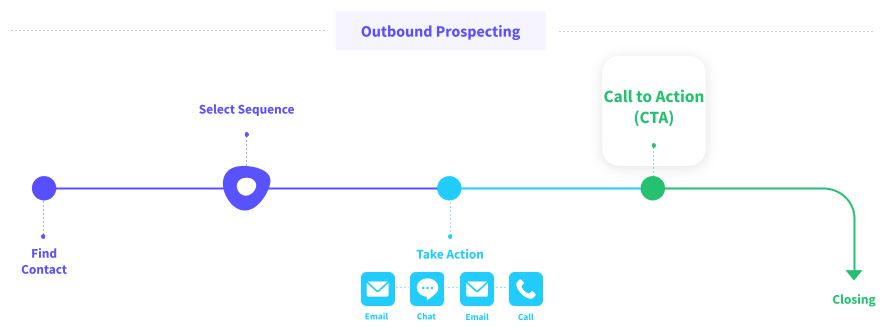
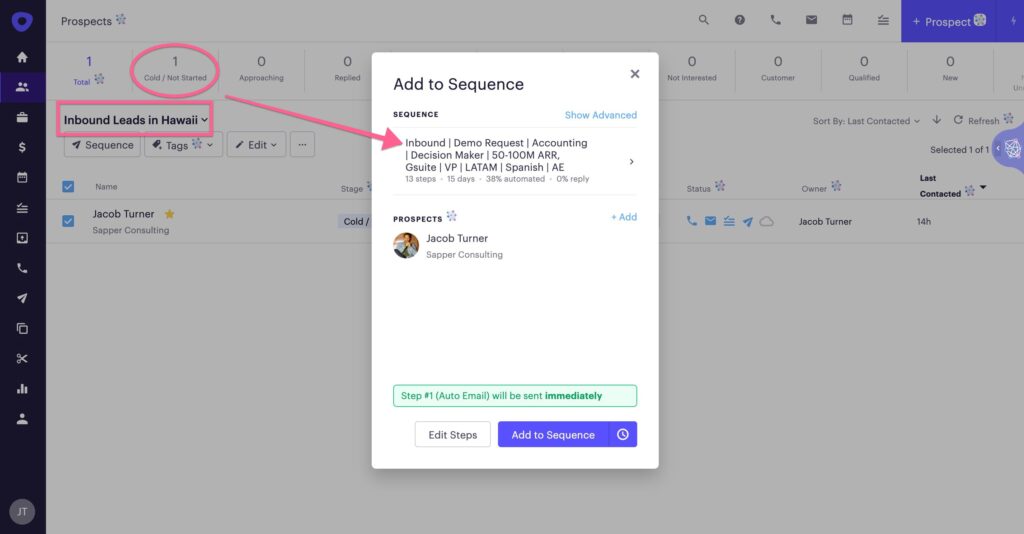
1. Find the prospects you want to engage on the prospect page in Outreach. Use Smartviews and filters to pin point who you want to contact.
TIME SAVING TIP: Use the Outreach Chrome extension to create net new leads or pull in records from your CRM!
2. Select the prospects from the list by checking the box next to their name.
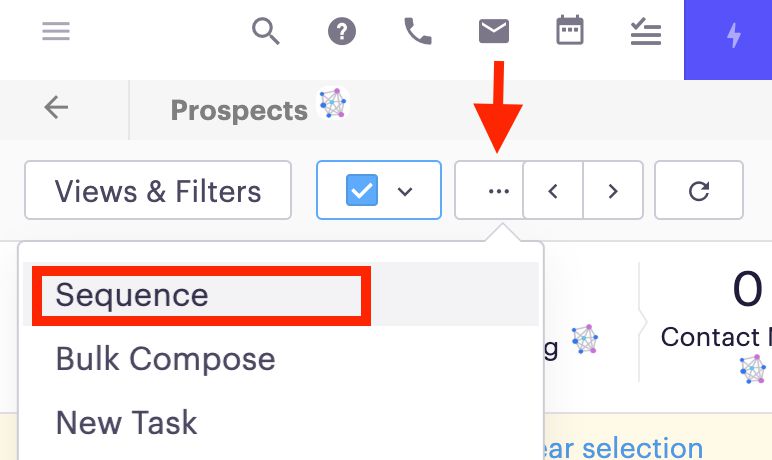
3. Click Add to Sequence and locate the sequence you want to use to engage.
4. Click "Add to Sequence"!
NOTE: Alternatively, click the clock icon to send at a later date and time.
NOTE: Click Edit Steps to modify the email steps before sending (This feature may not be available to you. Speak to your admin to get it enabled.)
02. Outbound Prospecting Workflow
Shared with Zight
Video Player is loading.
Play Video
Play
Loaded: 0%
Seek to live, currently behind liveLIVE
Remaining Time -
1x
Playback Rate
-2x
-1.7x
-1.5x
-1.2x
-1x, selected
-0.5x
Picture-in-Picture Fullscreen
Beginning of dialog window. Escape will
cancel and close the window.
Text
Color White Transparency
Opaque
Background
Color Black Transparency
1. Find the Accounts you want to engage on the Account page in Outreach
2. Use Smartviews and filters to pin point which Accounts you want
3. Select all or some of the Accounts from the list
4. Click the person icon at the top of the screen to show a list of prospects in all accounts selected
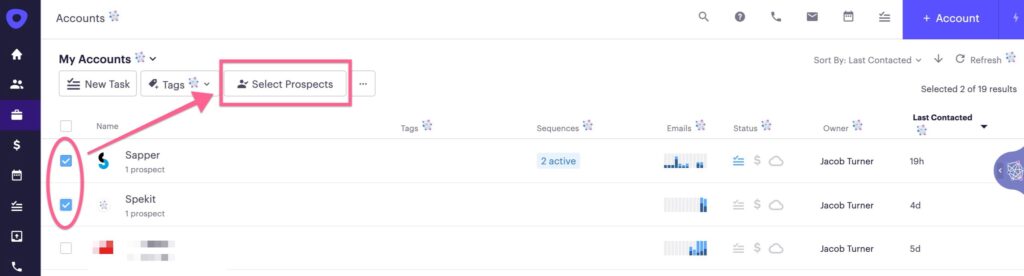
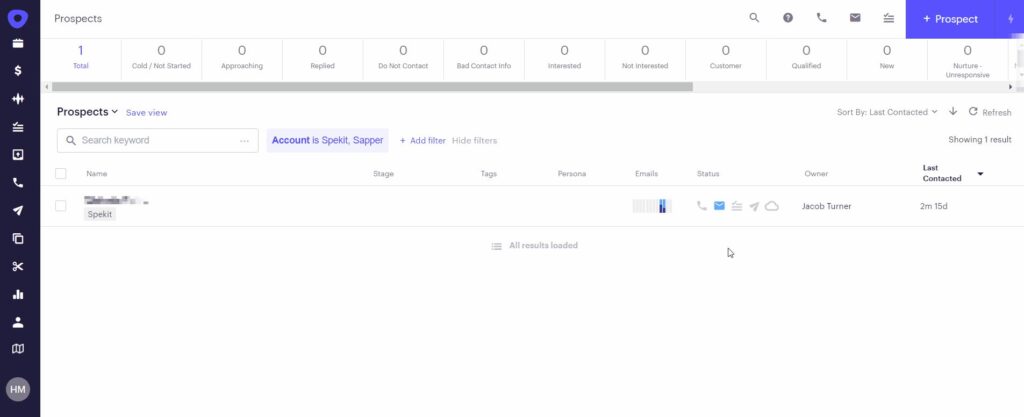
5. Select the prospects from the list by checking the box next to their name
6. Click Add to Sequence and locate the sequence you want to use to engage
7. Click "Add to Sequence"
NOTE: This process is the same for the Opportunity tab in Outreach.
NOTE: The following process is a manual inbound flow. Your company potentially utilizes Automated processes using triggers, which will change this workflow.
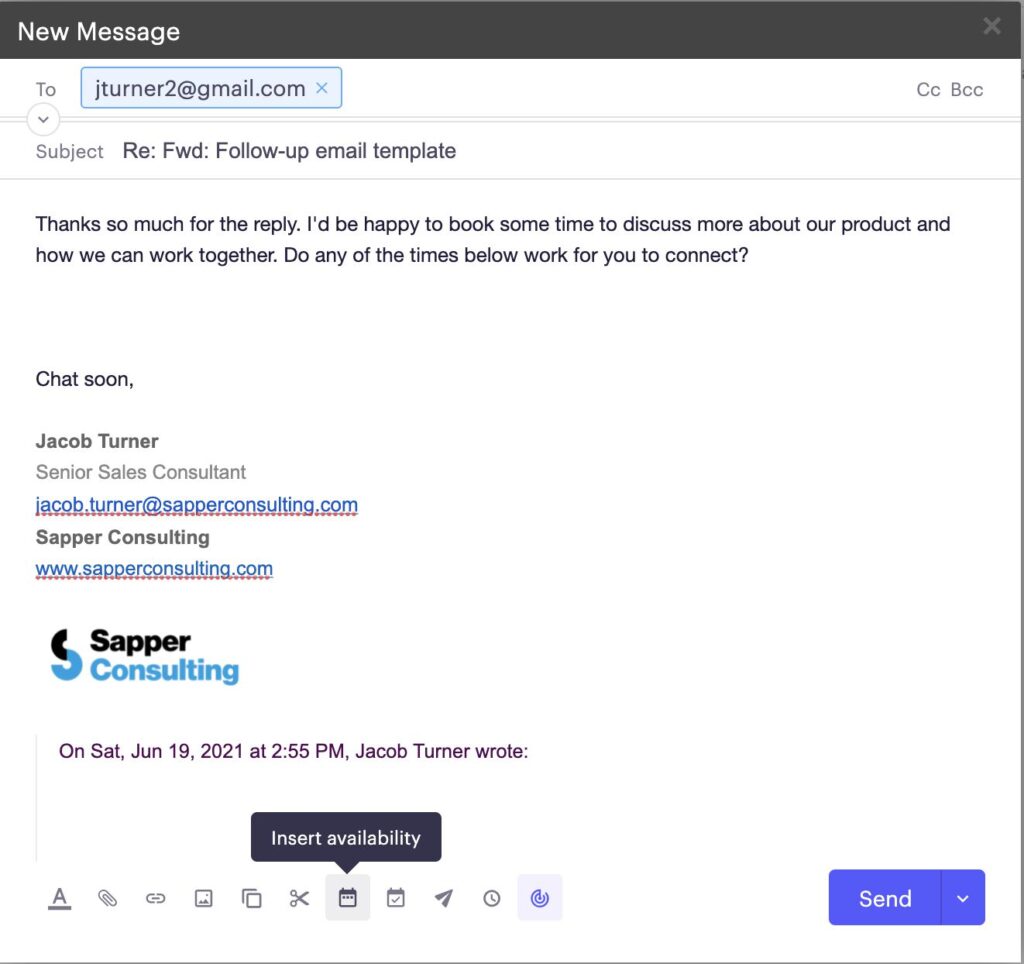
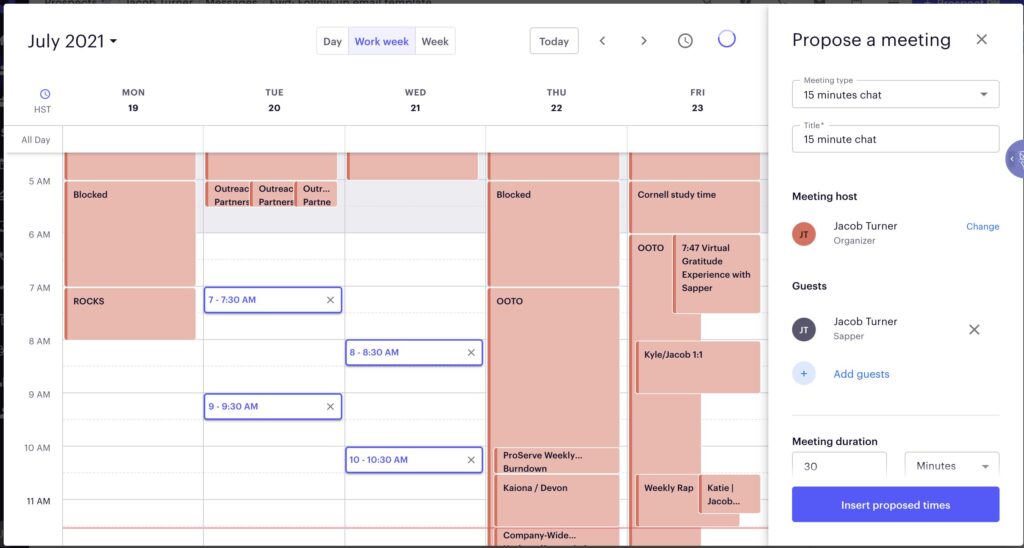
5. Insert proposed times and look over the email draft.
NOTE: Be sure to only select times that you are available otherwise the customer will not be able to complete the booking process.
6. Click send!
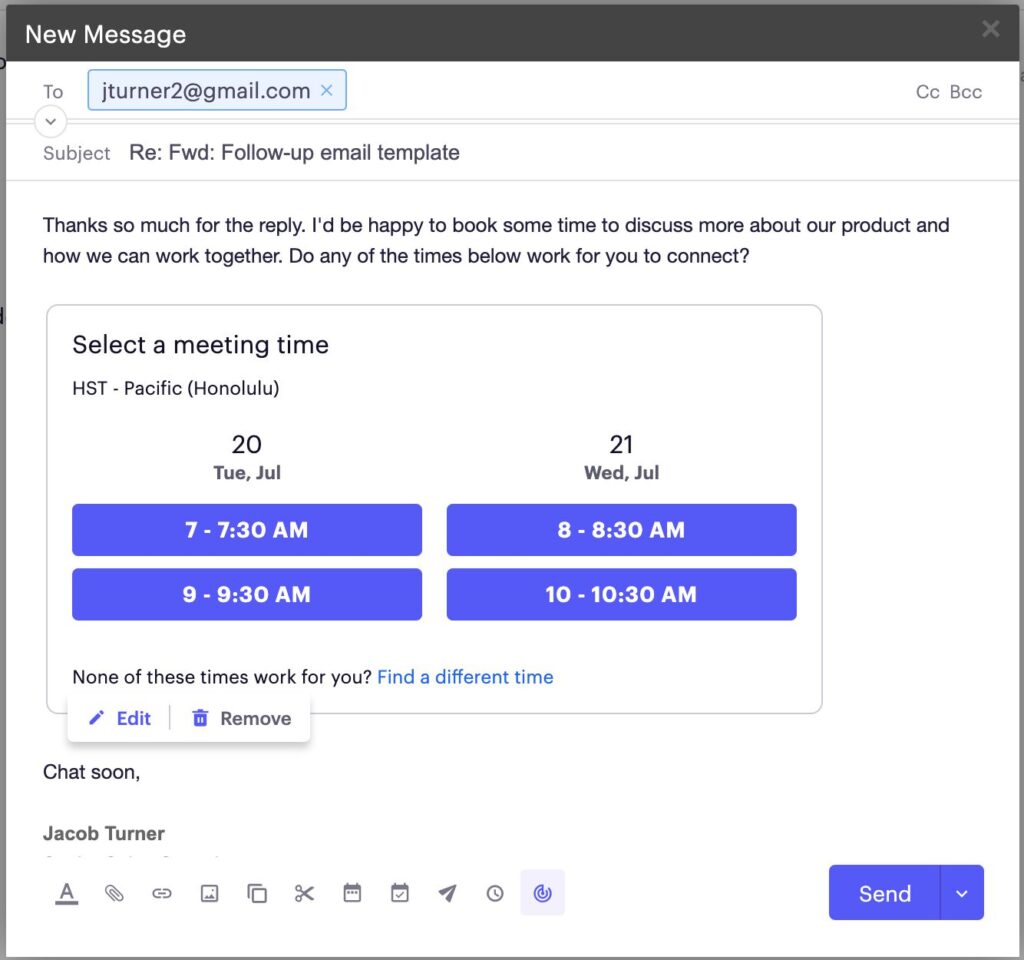
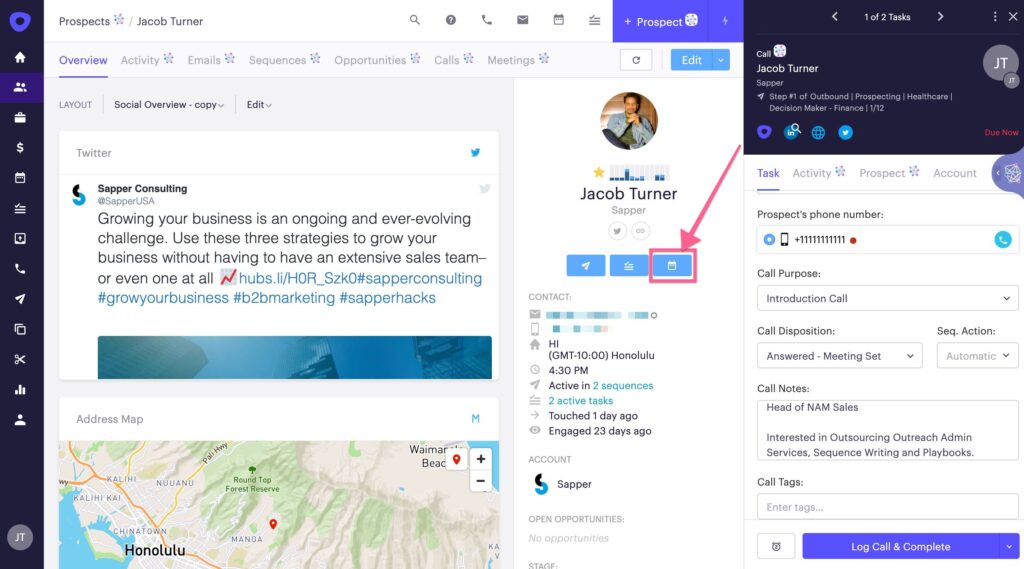
4. Insert proposed times and look over the email draft. NOTE: Be sure to only select times that you are available otherwise the customer will not be able to complete the booking process.
5. Click send!
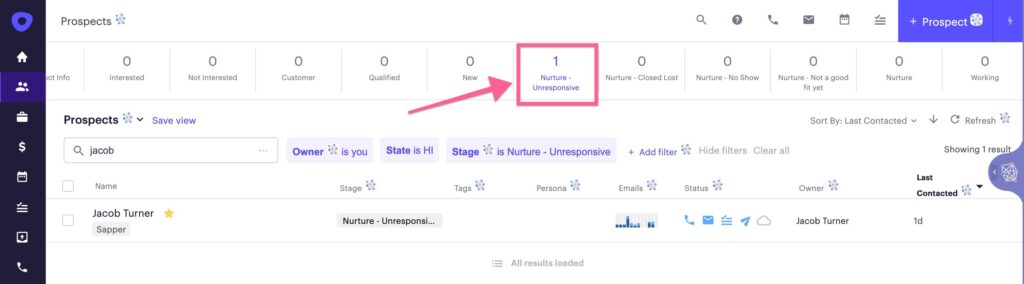
1. Select the stage that represents your Unresponsive prospects.
Note: You can also go to the sequence and click on the list of prospects to see who has "No Reply" set to their name.
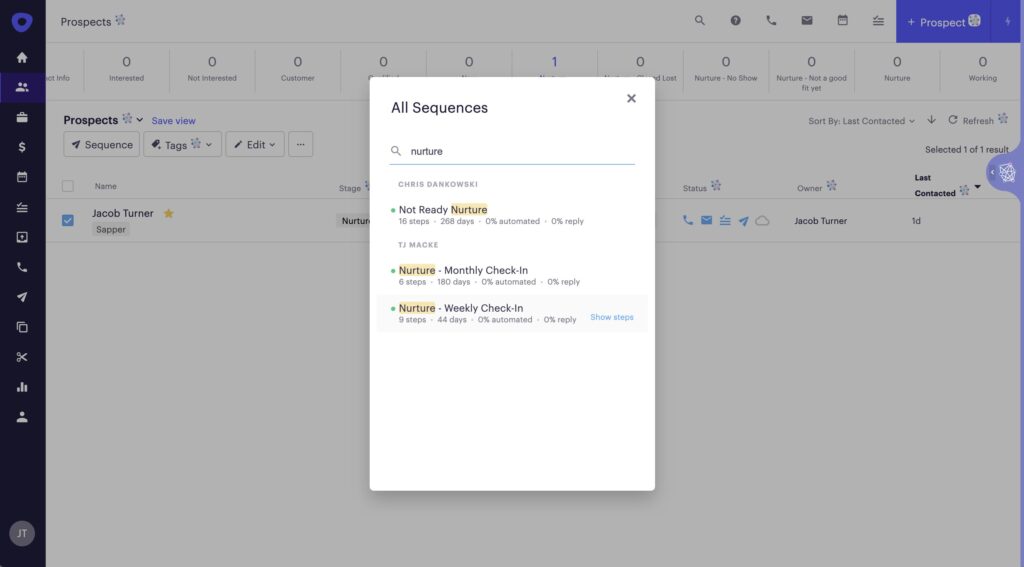
4. Choose the sequence and add the prospects.
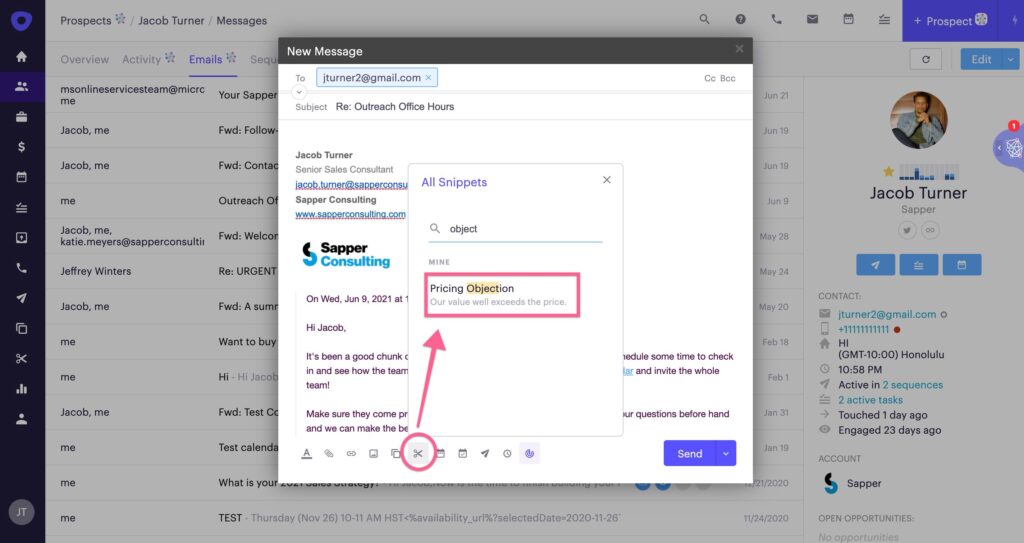
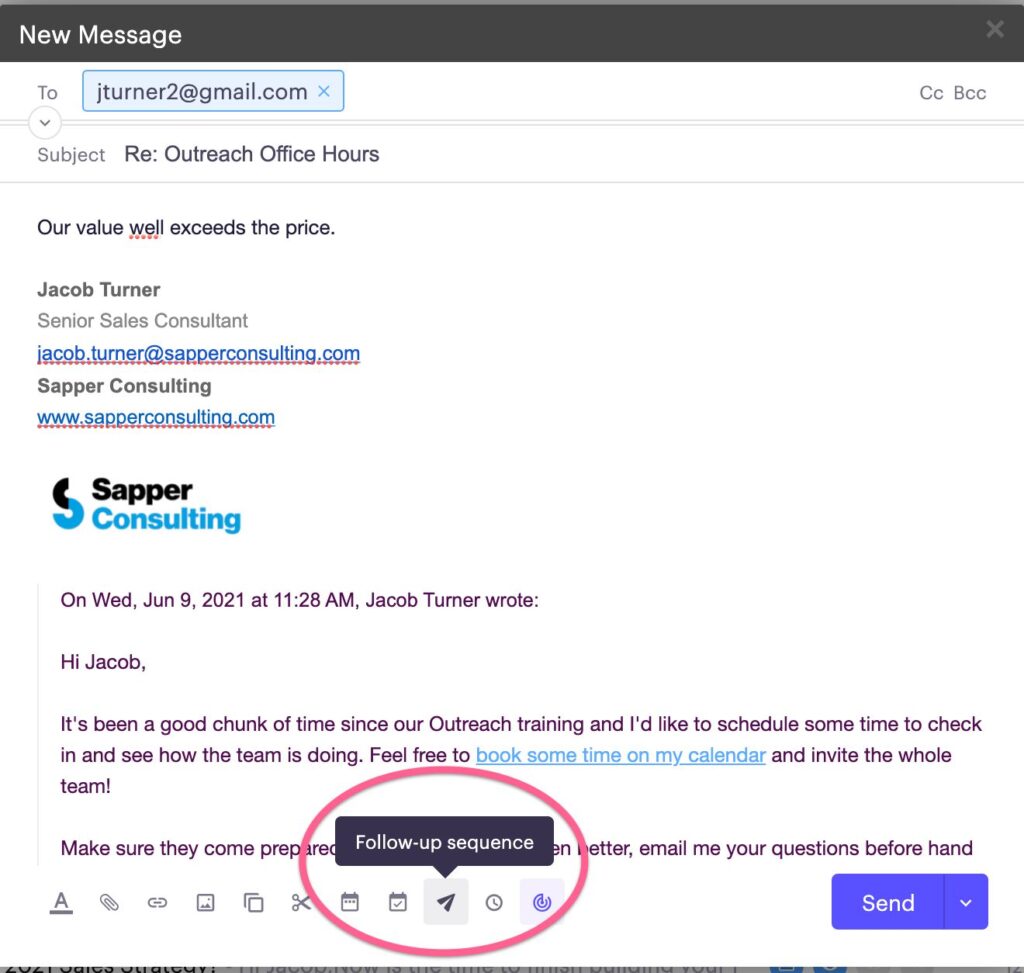
Steps to Import Salesforce Leads into Outreach for Sequencing
1) Locate the desired Lead in a List View in Salesforce

2) Apply filters to the List View so only the Leads you want to sequence appear in the list.
3) Click to Select the Lead you want to Sequence
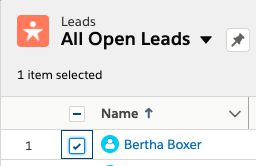
4) Select "Import to Outreach"

- Your Outreach will popup
5) Select the Prospect in the list and then select "Select All Items"
6) Finally, click the three-dot symbol shown below, choose Sequence and decide which Sequence you want to place your prospects in