







.svg)
.svg)





Content Templates
Seismic Introduction Training Content Template
Introduce your sales reps to the basics of Seismic with this Seismic Introduction Training. Reinforce when and where needed to maximize rep productivity.
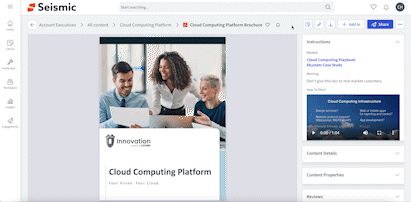
To prepare for a client meeting, access Workspace content from:
To set up easy access to your content, start from the Content Profile page:
1) Select the content title

2) Click the “… icon” (ellipsis) and select the “Add to Cart” option to queue up the content you want to share in the meeting

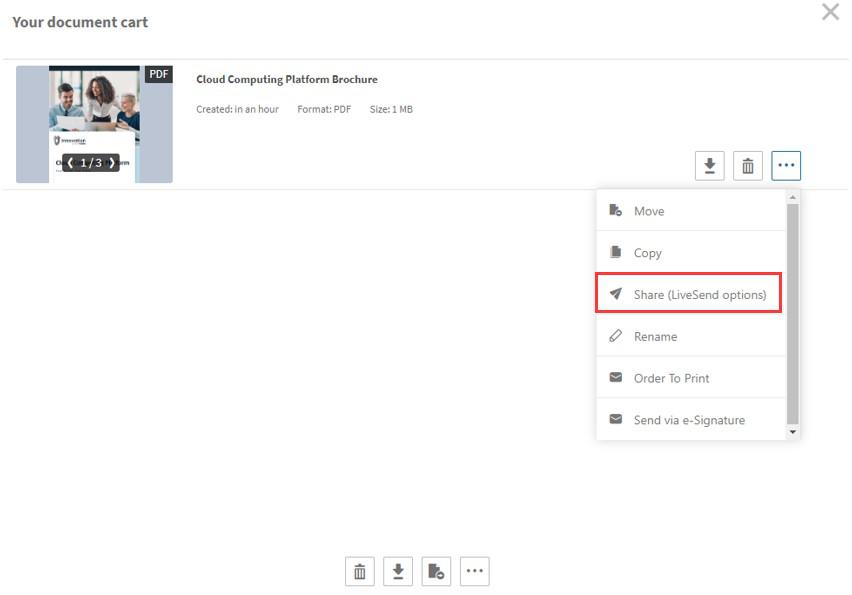
3) In the Document Cart, choose to share the content before or after the meeting
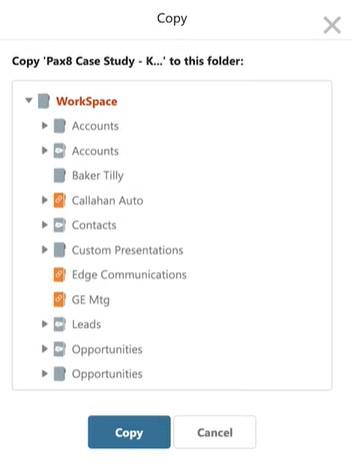
4) Move or copy content to your Workspace
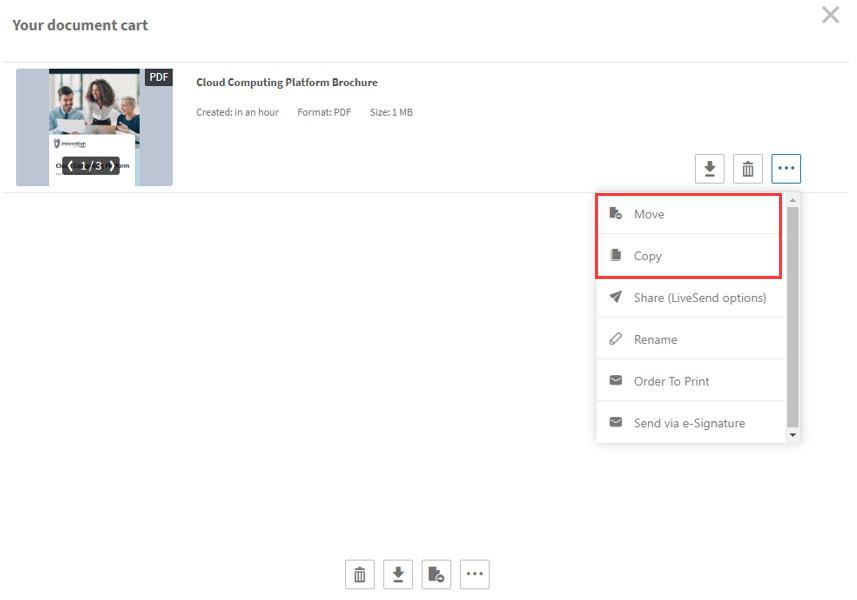
5) Pick a location to place the item
6) You can also move all docs at once by selecting the “move all icon”
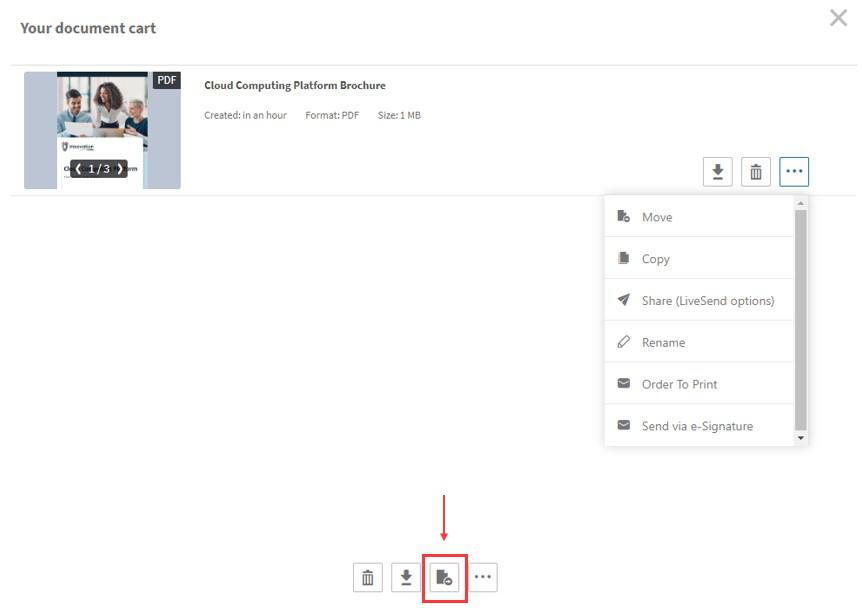
☆ Note: Moving docs removes them from your document cart
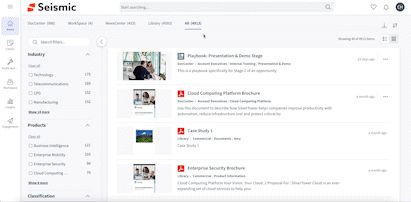
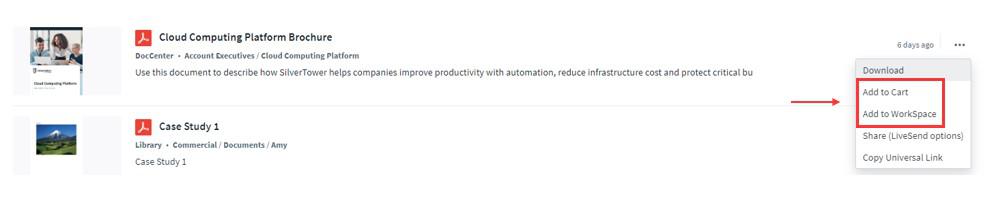
From the Search Results page, add content by clicking the “…” icon (ellipses) and select “Add to Cart” or “Add to WorkSpace”
🔍 To learn more, search for “How to Access WorkSpace Content” in the Wiki
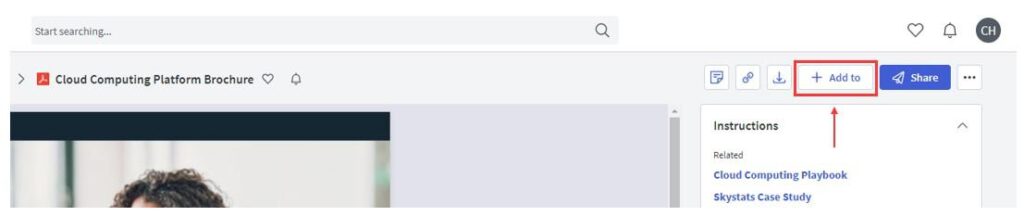
From the Content Profile page, add content by clicking “+ Add to”
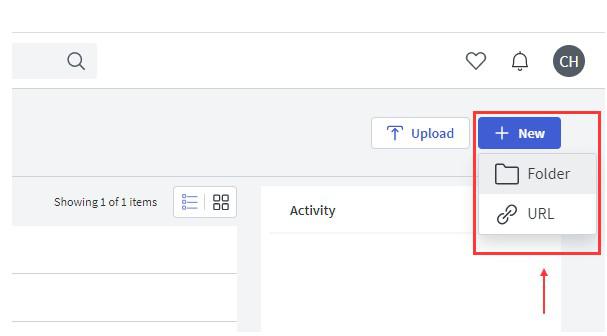
To add content from outside Seismic, click “+ New” and choose to add content from a URL or from a file or folder from your local drive
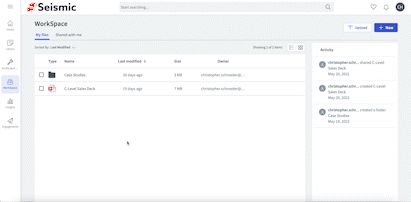
✅ Best Practice: Use the “My Files” personal drive as a staging area before moving the prepared content into folders for meetings
☆ Note: Content will then be stored in the My Files tab in your Workspace where it will be visible to only you
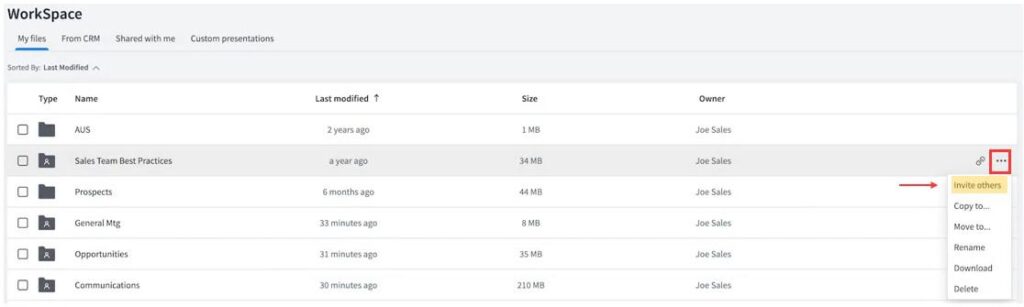
To invite peers to collaborate on content, click the “… icon” (ellipsis) and select “Invite others”
✅ Best Practice: Collaborate on content when you need to align on sales strategy or messaging
To view details of account opportunities and see which team members are collaborating with you, click the “From CRM” tab

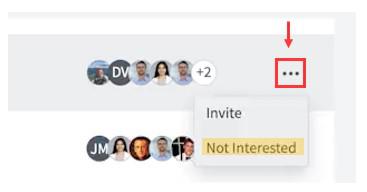
To no longer see an opportunity, click the “… icon” (ellipses) and select “Not interested”
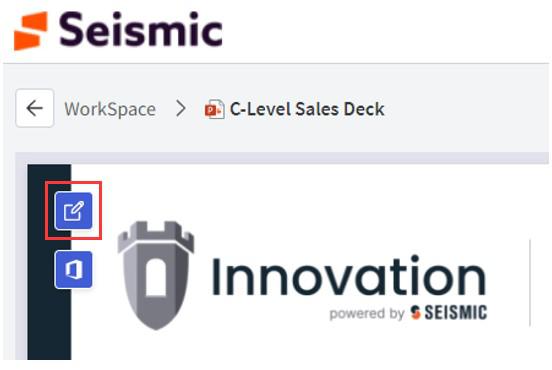
Select the “edit” icon when viewing a specific content profile to customize the content using PowerPoint Online
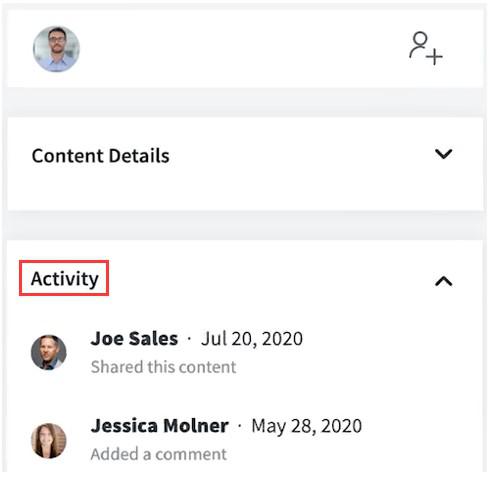
After the content has been updated, Seismic automatically creates a new revision in WorkSpace for version control underneath “Activity”
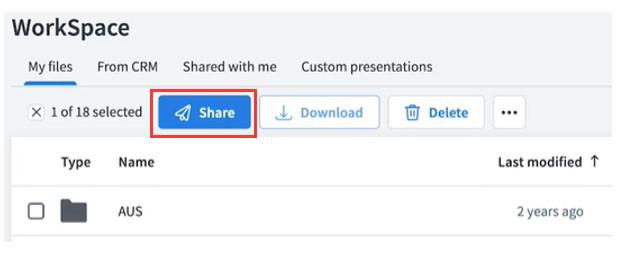
Deliver content directly from Workspace by selecting the “Share” icon
Use LiveSend to share content with buyers by sending links that capture buyer engagement activity and report on it
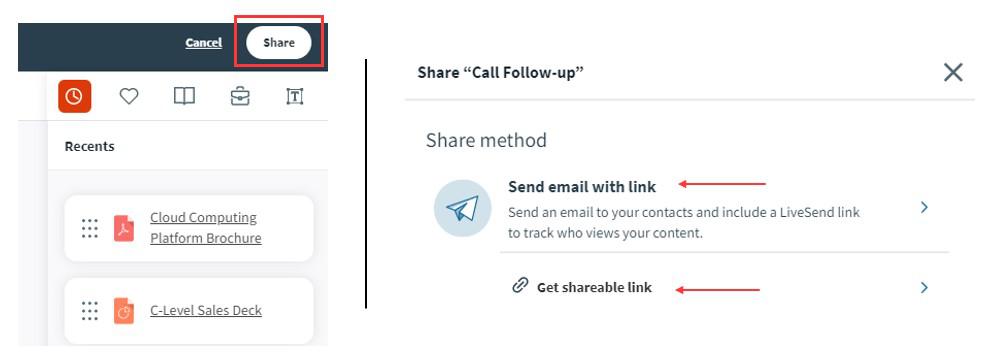
Choose to send a LiveSend link through either an Email or a shareable link
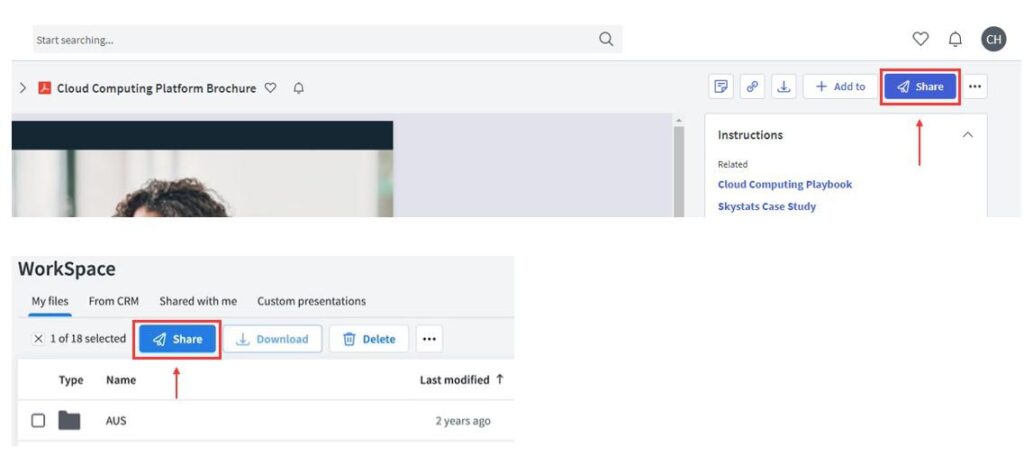
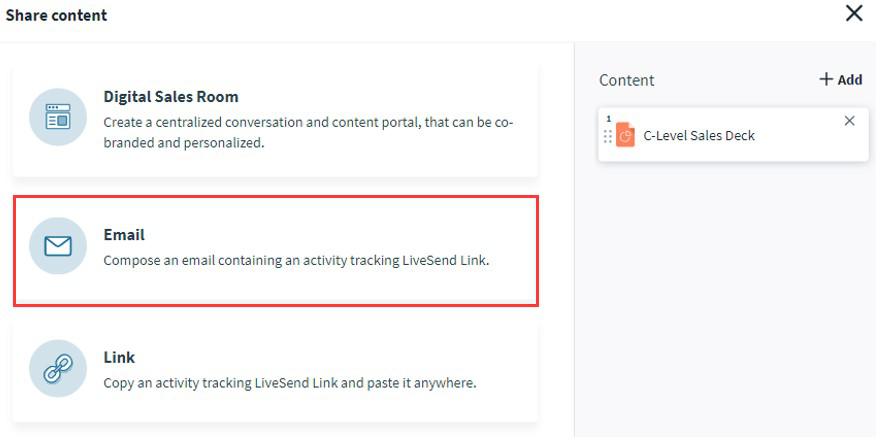
2) When the prompt box pops up, select the option to send an email with a LiveSend link directly from Seismic
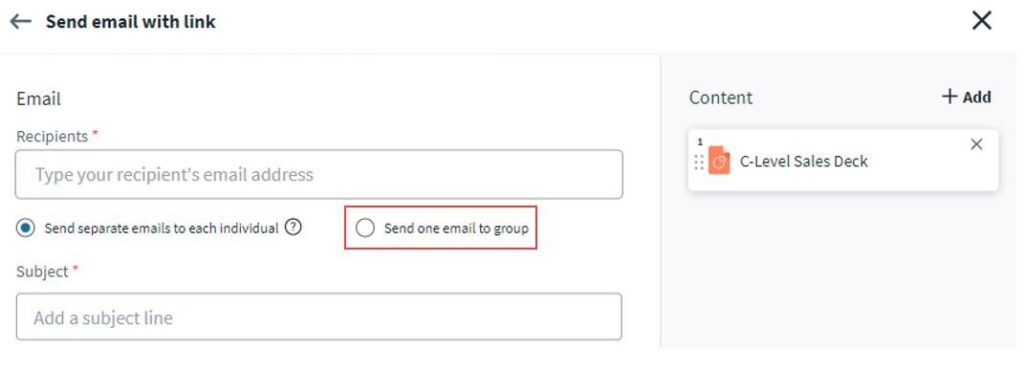
3) Add recipients using their email or name and choose to send either separately or to a group
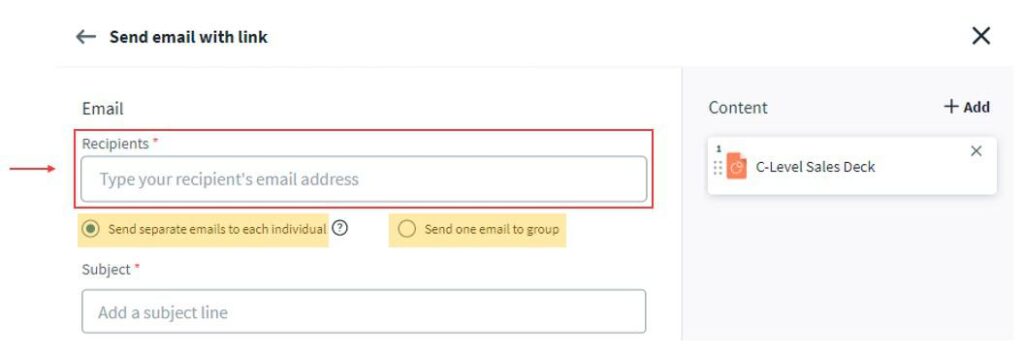
Best Practice: Using the “Send email with link” option maximizes analytics data, allowing you to see what content was viewed and for how long
🔍 To learn more, search for “Separate Emails vs. Group Emails” in the Wiki
4) Click “+Add” to include additional content
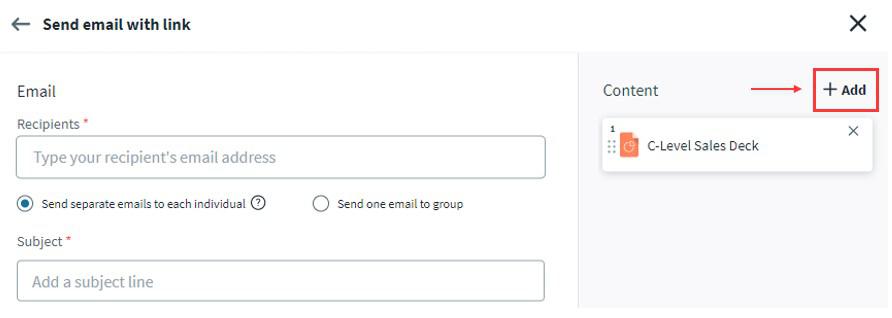
5) Choose to add content from Recents, Favorites, DocCenter, or WorkSpace and click “Add”
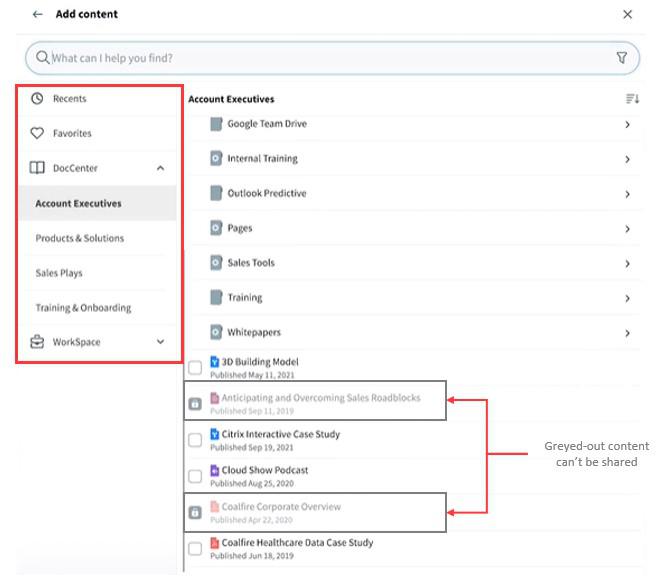
☆ Note: Greyed-out content can’t be shared via LiveSend
6) When email is ready to be sent out, choose to edit the Link Settings and Link Text, and click “Send” to share
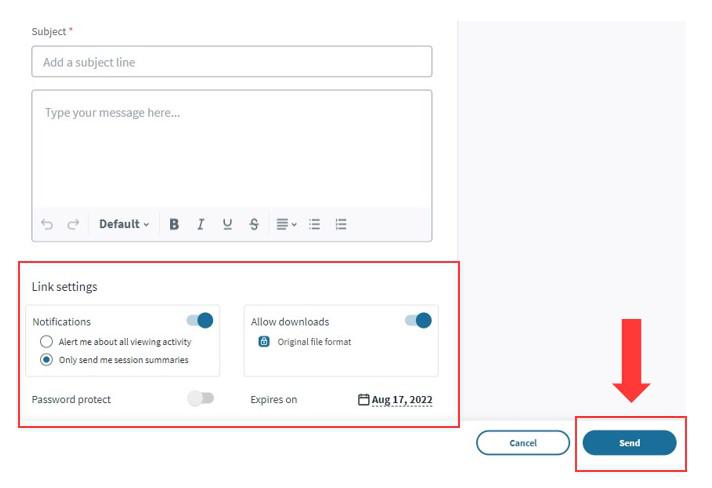
🔍 To learn more about LiveSend, search for “LiveSend Link Settings” or “How to Send Content via a Shareable Link” in the Wiki
Use LiveSend to share content with buyers by sending links that capture buyer engagement activity and report on it
Choose to send a LiveSend link through either an Email or a shareable link
1) After the prompt box pops up, select the option to copy a shareable link to share content from your own email application or social media platform
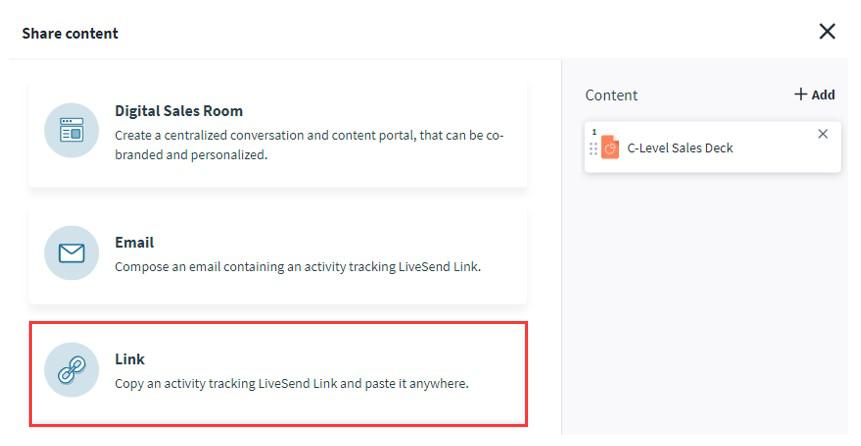
2) Add recipients using their email, choose to edit the link Link Settings and Link Text, and click “Create Link” to share
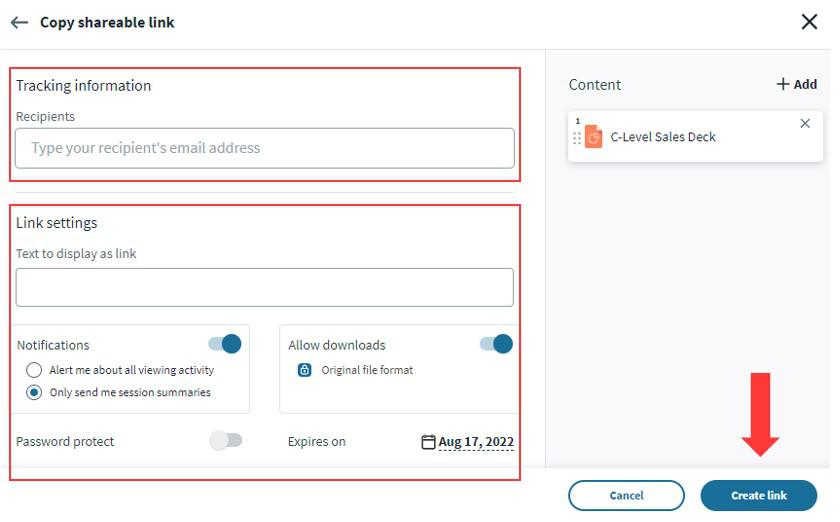
To learn more about LiveSend, search for “LiveSend Link Settings” or “How to Send Content via a LiveSend Email” in the Wiki
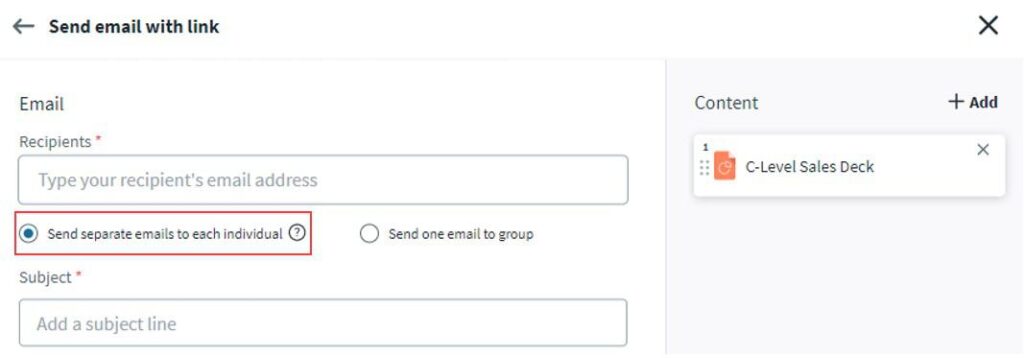
Best Practice: Sending separate emails gives you better content engagement metrics
🔍 To learn more about Usage Summary reports, search for “Engagement Center” in the Wiki
When downloading content, remember…
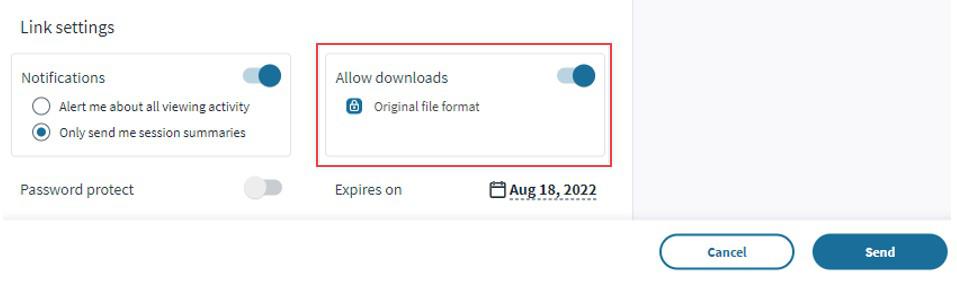
Best Practice: The default option is to not allow downloads
When using a password, remember…
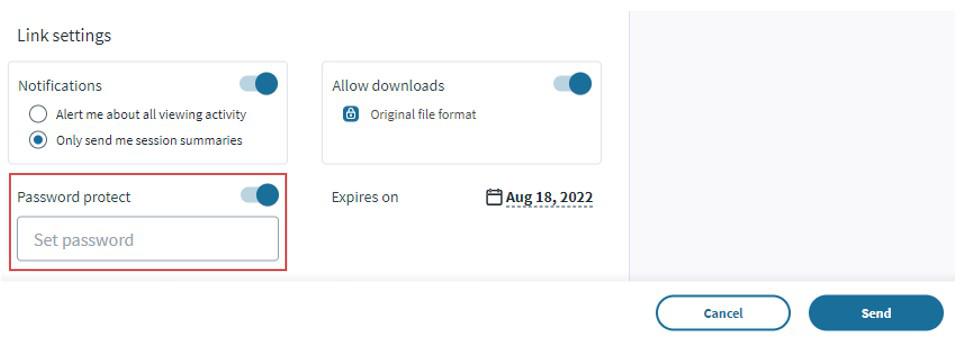
When setting an expiration date, remember…
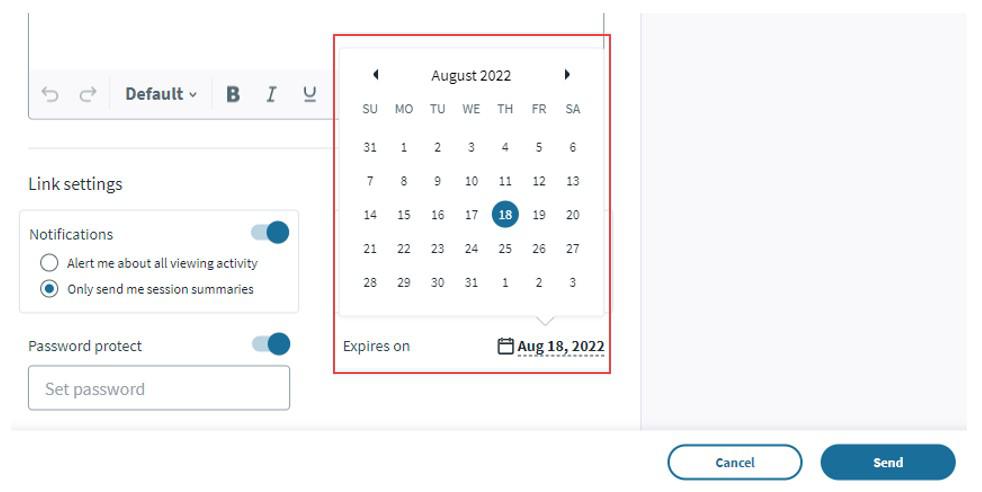
Best Practice: When sending a proposal, make sure to set an expiration date for which it is valid
When setting notification preferences, remember…
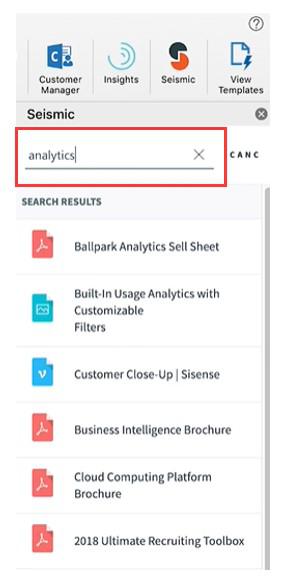
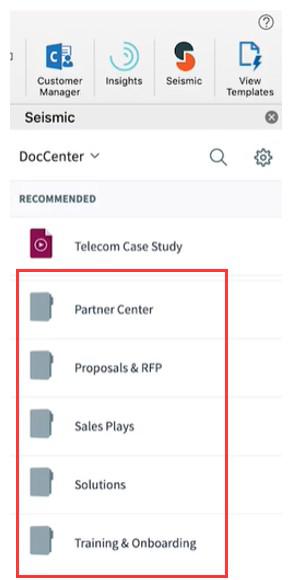
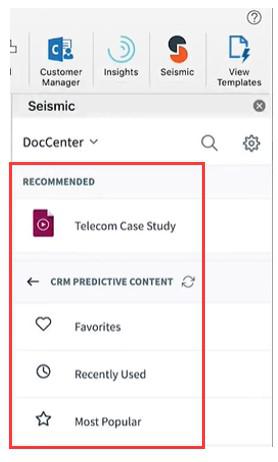
Seismic’s email integrations enable you to find, search, and share content by providing:
Keyword searches for content by using the search bar
Folder navigation
Recommended content based on Seismic’s Predictive Content engine
☆ Note: Seismic’s main email integrations are with Microsoft Outlook and Google’s Gmail
1) Locate and select the “Seismic Icon” to open up the panel for Seismic content on the side of the window
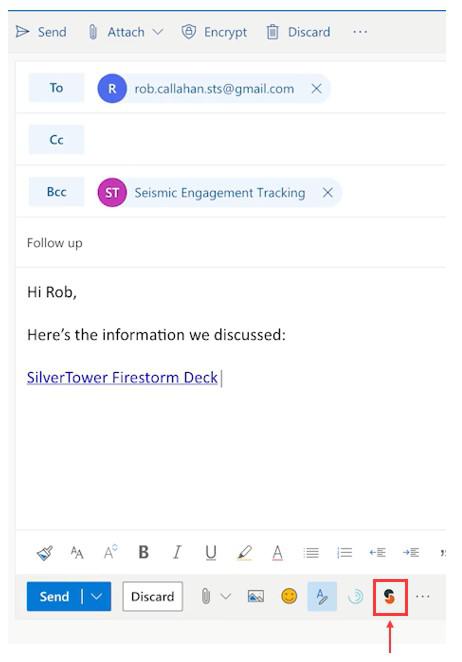
2) Find Seismic content by selecting:
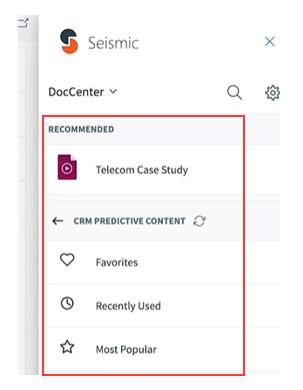
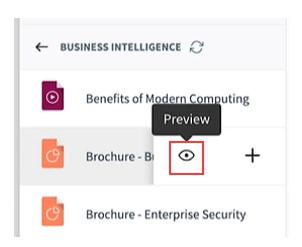
3) Click the “eye icon” next to the content title to see a content preview
4) Select “Open” to view the content or “Insert” to add the Seismic content
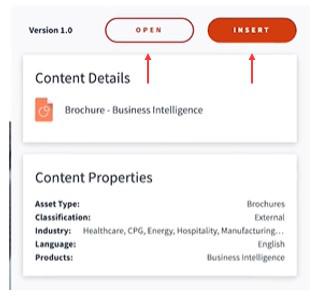
5) Insert Seismic content directly into the email using LiveSend links by clicking “+” icon
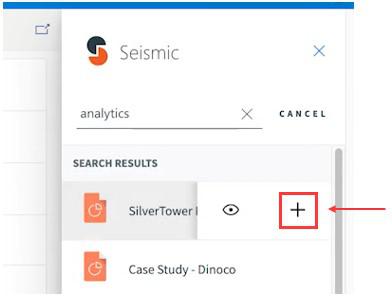
🔍 To learn more, search for “How to use LiveSend using Seismic’s Email Integrations”
Share Seismic content using LiveSend links to track engagement metrics by:
1) Select the “+” icon to insert a LiveSend link into the email
2) The content link and a “Seismic Engagement Tracking” recipient will be added in the Bcc field to ensure proper tracking
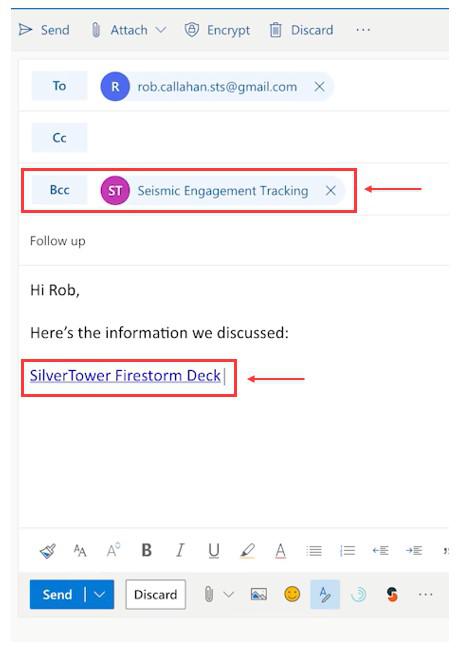
3) Customize the LiveSend link text by highlighting the text before you hit the “+” button
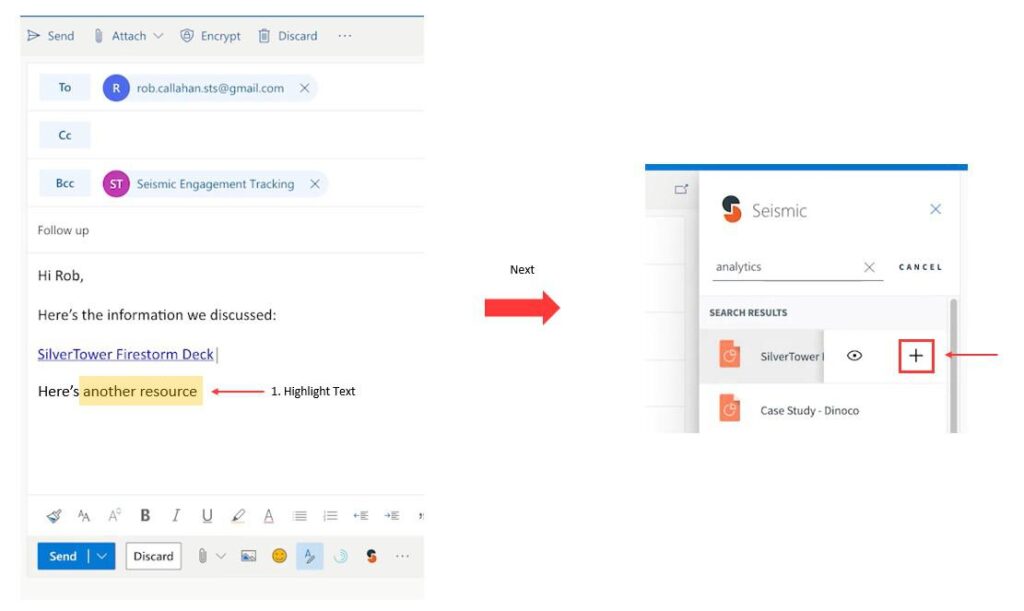
4) Configure LiveSend options by clicking the “gear” icon to:
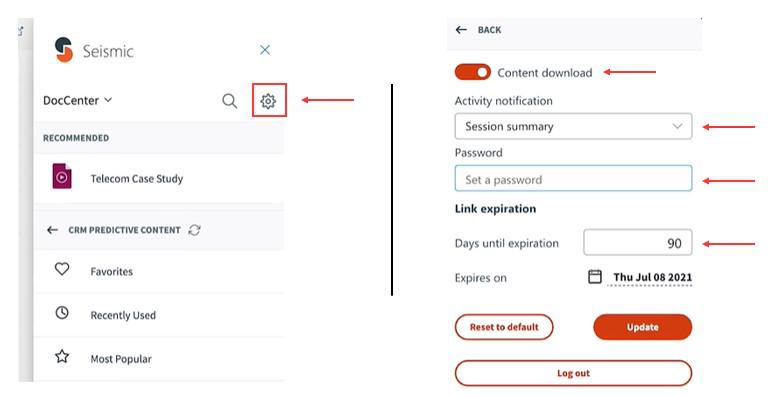
☆ Note: Seismic cannot track engagement metrics for content downloaded by the recipient
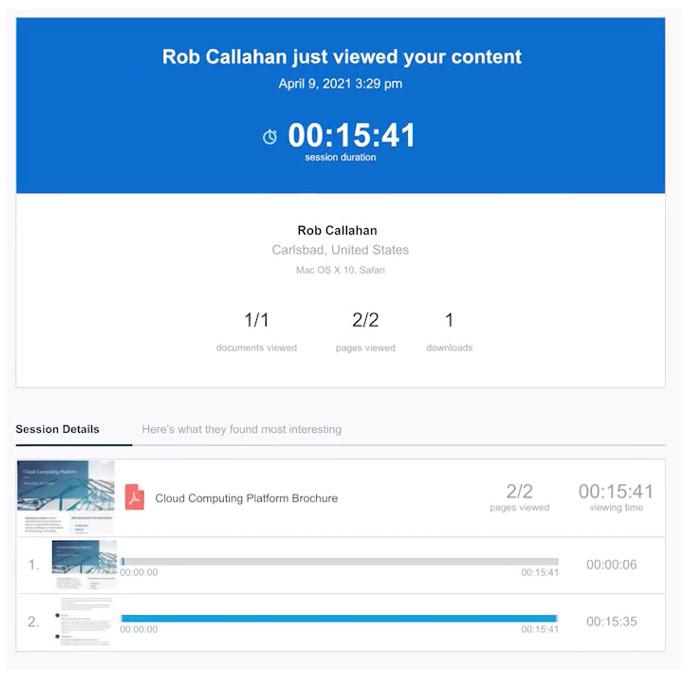
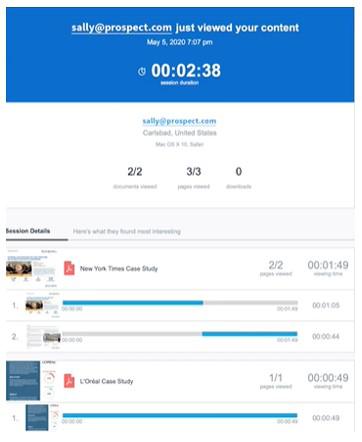
5) Receive a Content Usage Report after a recipient views the content to see a breakdown of how the recipient interacted with the content
🔍 To learn more, search for “Engagement Center” in the Wiki
The Engagement Center provides you a centralized hub to manage and track recipient engagement with the Seismic content you’ve shared via LiveSend
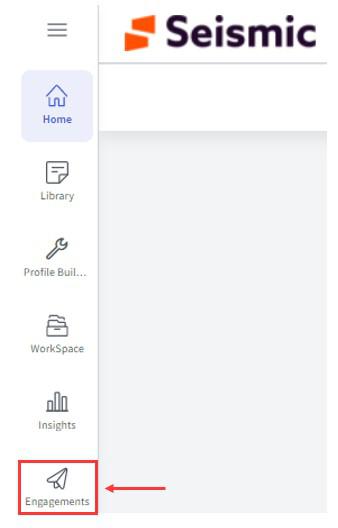
1) Select “Engagement Center” from the main navigation menu
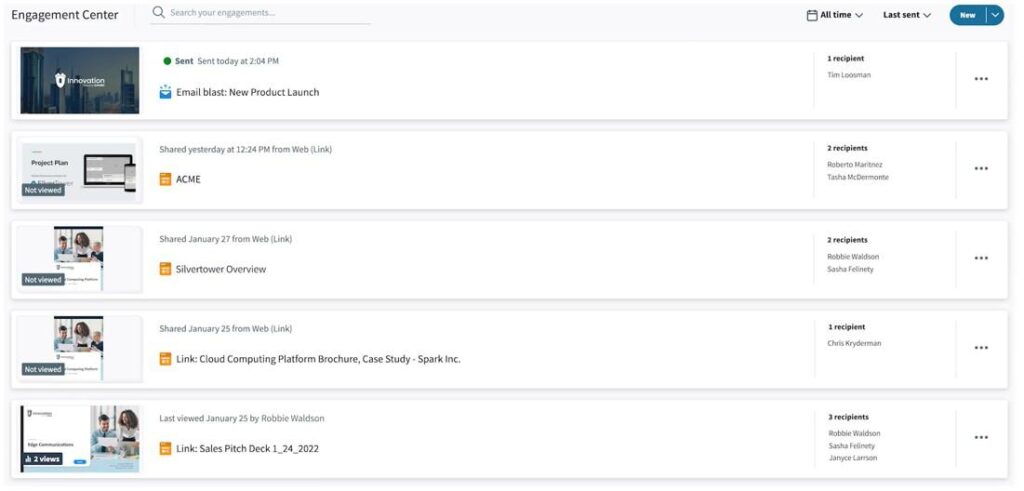
2) See the full activity feed of all the LiveSend links you’ve shared in the Engagement Center dashboard
3) Each “card” represents a shared LiveSend link and includes:
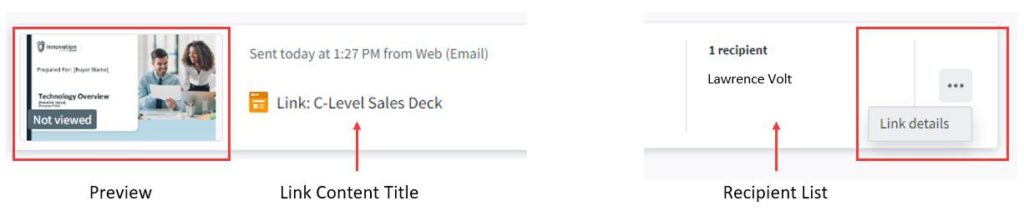
4) Click the “arrow icon” to view:
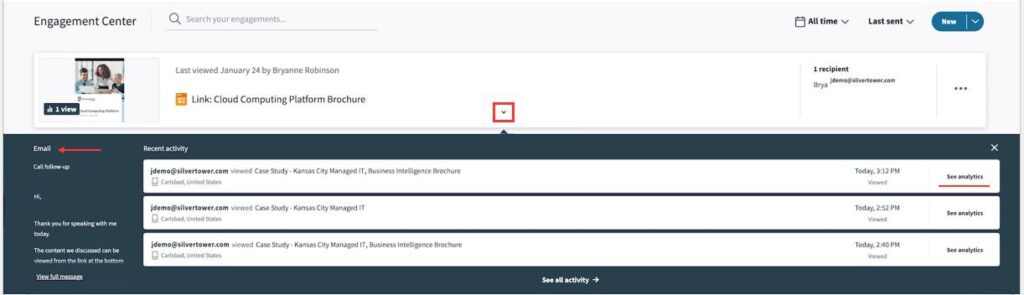
5) Click the “See analytics” link to pull up the page level analytics
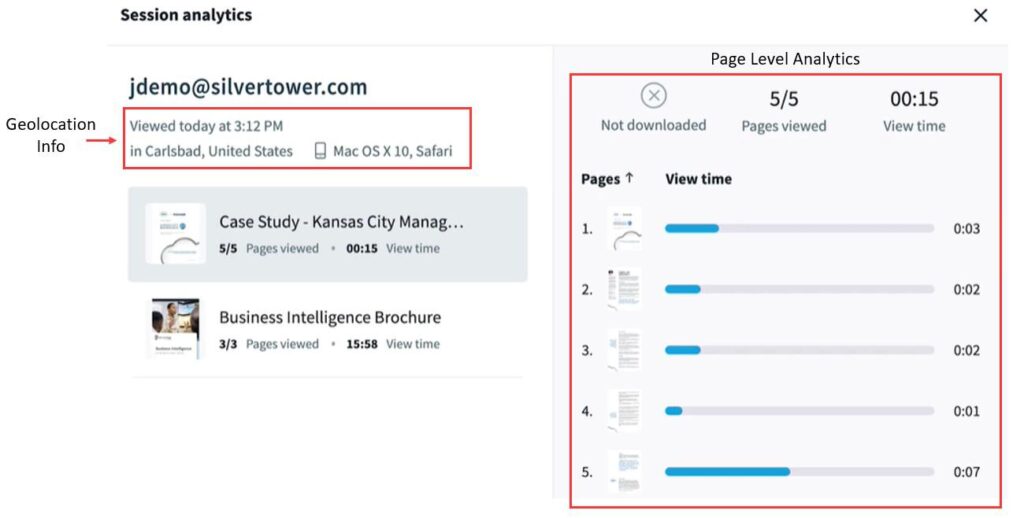
🔍 To learn more, search for “Managing LiveSends” in the Wiki
☆ Note: If “geotag” is turned on, you’ll be able to see the location of where the content was viewed and the device that was used to view it
6) Click the “Link Title” to:
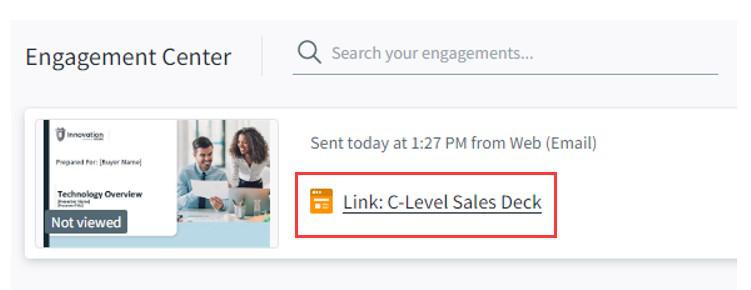
🔍 To learn more about controlling the link, search for “Managing LiveSends” in the Wiki
Click the “Link Title” or the “Link Details” icon to begin

Change the title of the link by clicking the “pencil” icon
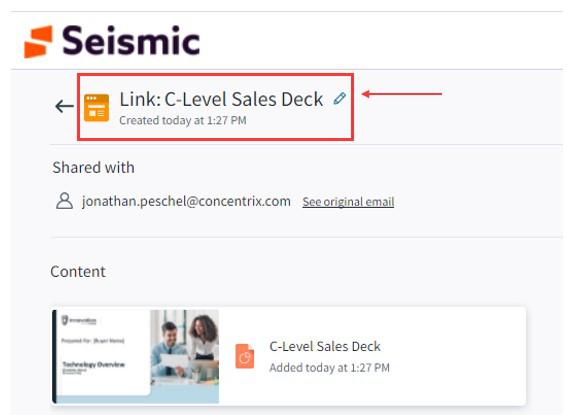
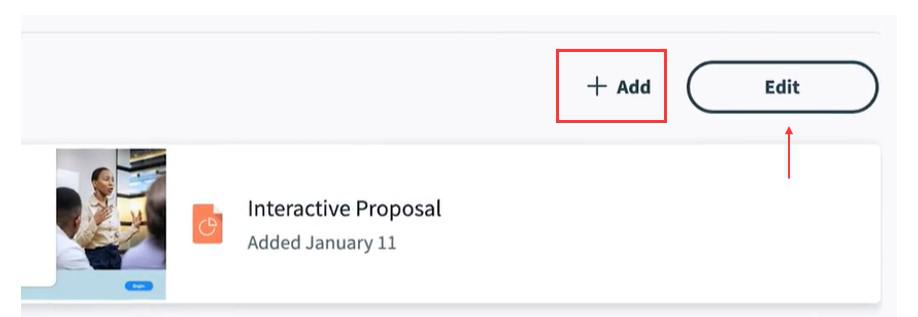
Click “+ Add” to add or remove content or click “Edit” to drag and reorder content
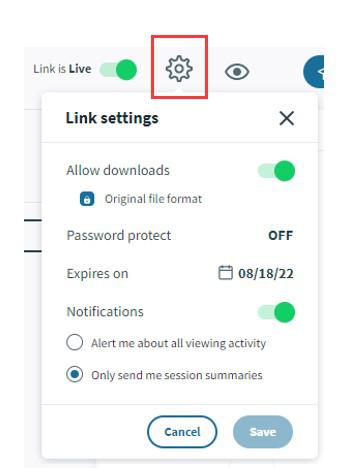
Click the “gear” icon to change the LiveSend link settings
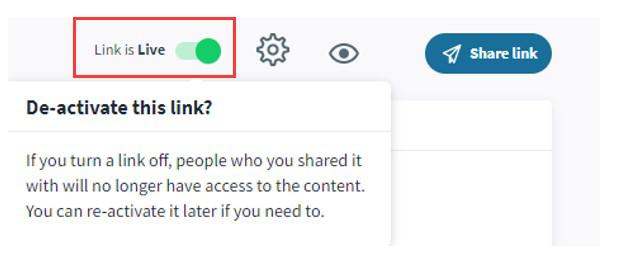
Toggle the switch to keep the link live or deactivate it
Freestyle enables you to build and personalize custom decks, pitches, and presentations for upcoming customer engagements
Start from the content profile page to begin customizing content by:
1) Click the “Customize” icon
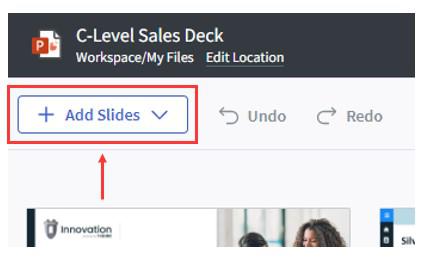
2) Click the “+ Add Slides” button in the top left corner to add slides from the library or desktop
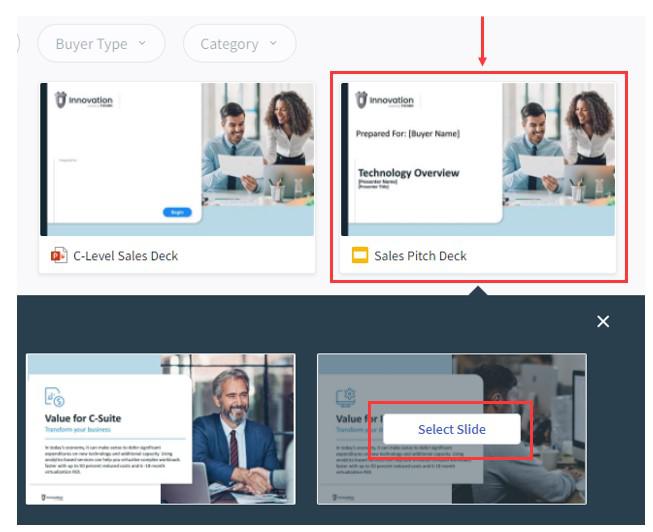
3) Use the filters to narrow down the results

4) Click the presentation that you want to pull slides from and click “Select Slide” on each slide you want to add to your deck
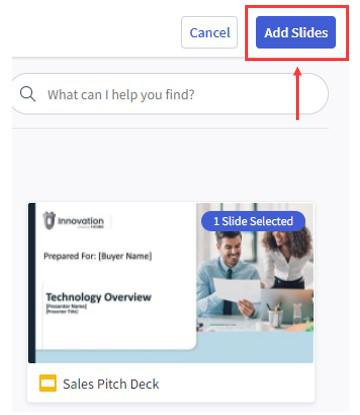
5) Click “Add Slides” in the top right corner
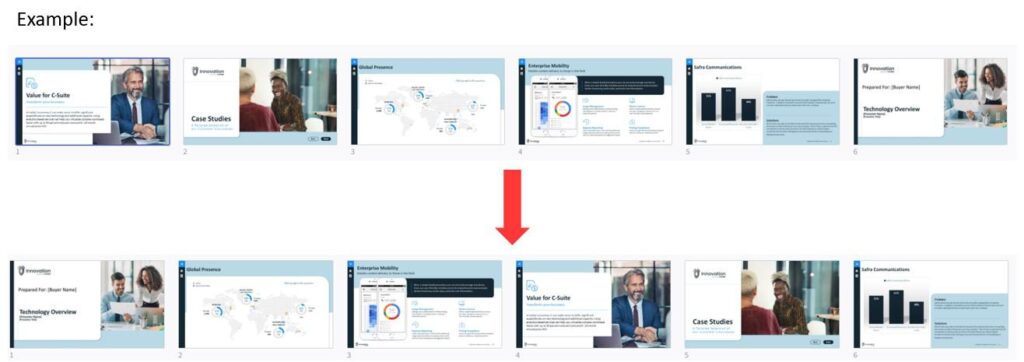
6) Drag slides to rearrange them into the order you want
7) Click “Close” in the top right corner to exit out of the Freestyle editor
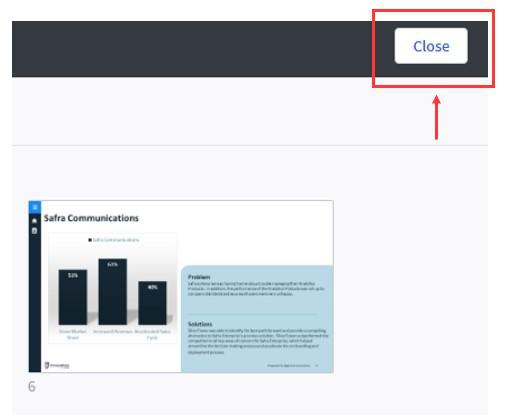
☆ Note: the updated deck will be saved to your Workspace for your upcoming meeting
8) Choose to share your custom deck via LiveSend by clicking the icon

Create a Digital Sales room to share content and collaborate with buyers from a central location and capture engagement insights throughout the sales cycle
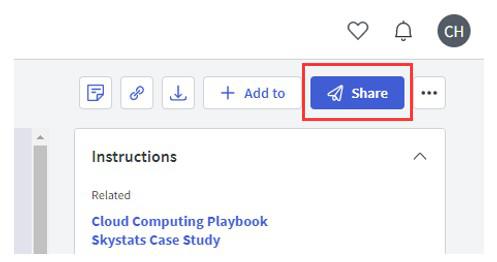
1) Select a content item and click the “Share” button
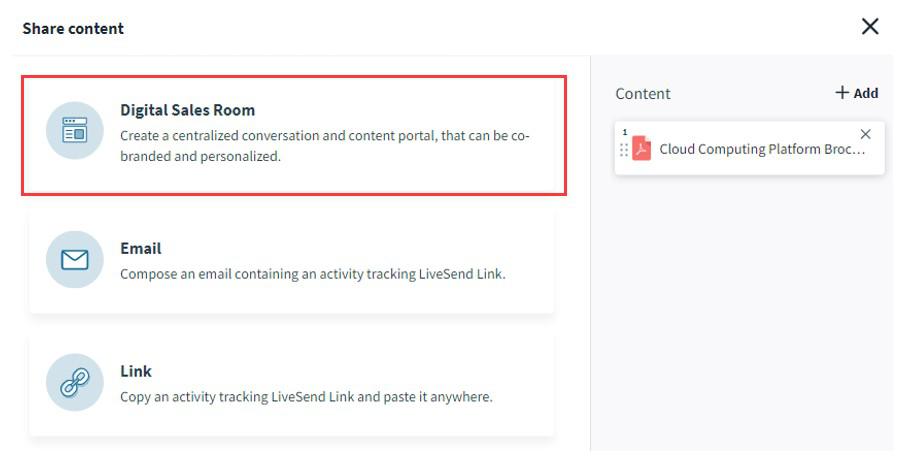
2) Select “Digital Sales Room”
3) Setup the Digital Sales Room to:
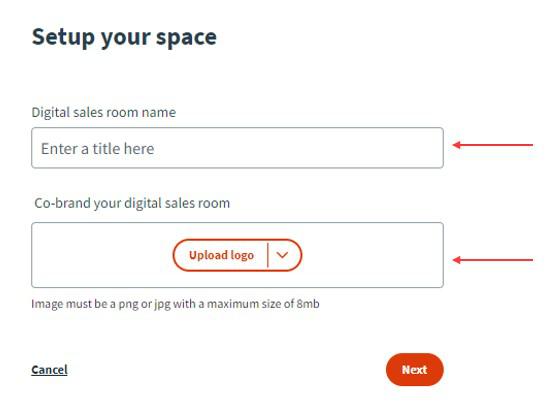
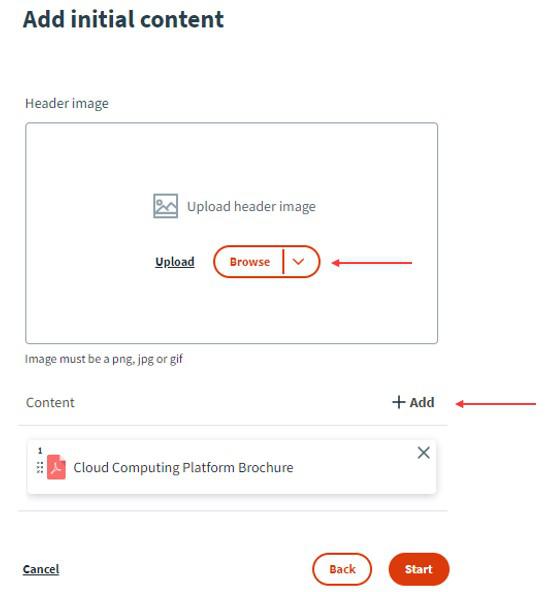
☆ Note: Select the “Skip to editor” link on the left-hand side if desired
4) When in the Digital Sales Room editor, customize the page:
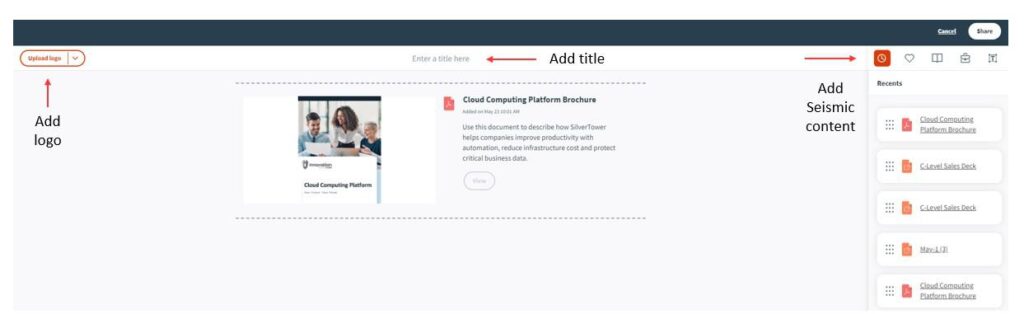
5) Select the “Text icon” in the top right corner to add a Title and/or Description by dragging the widget to the content list
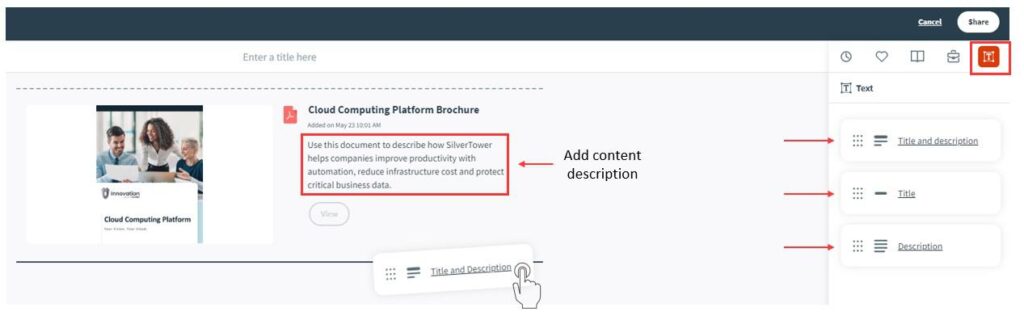
✅ Best Practice: Adding a Title and Description to introduce the content enables your buyer to clearly understand what is being presented
6) Use the “Widget Menu” to customize the page and add:
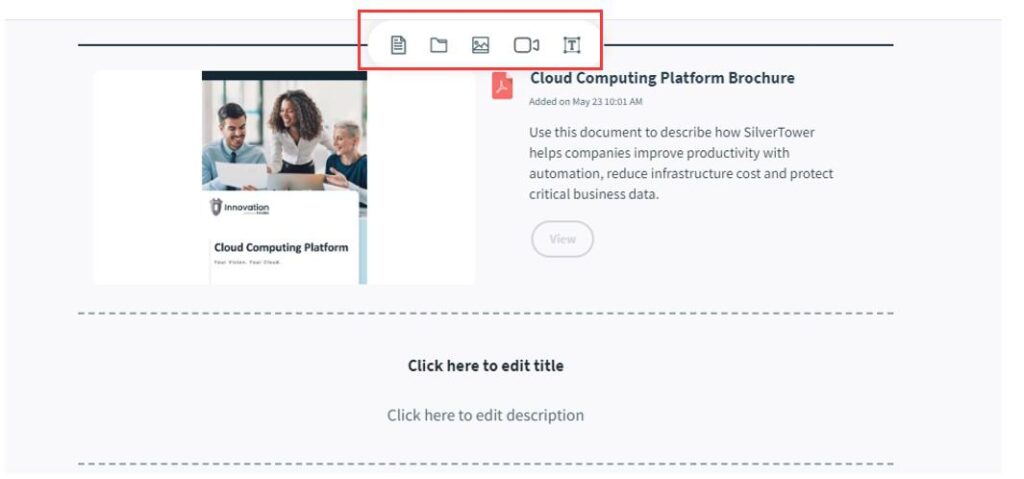
7) When finished, click “Share” and choose to send an email with the Digital Sales Room link or get a shareable link
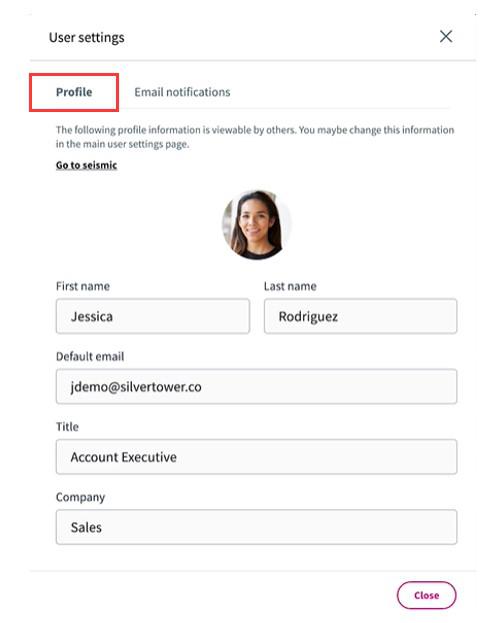
User Settings: Configure how your profile is seen by the recipient by clicking your profile picture in the top right corner
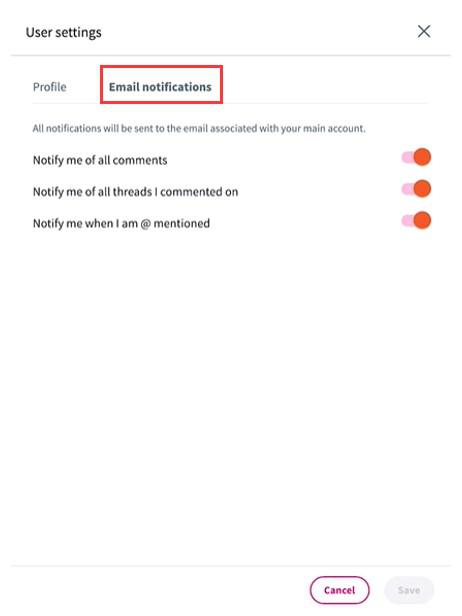
Email Notifications: Keep up-to-date on the conversations at the level you prefer
Email Reports: Receive engagement metrics on how viewers interacted with the content
Access Digital Sales Room Engagement Analytics: Manage and track recipient engagement with the Seismic content you’ve shared via LiveSend

🔍 To learn more, search for “Engagement Center” or “LiveSend” in the Wiki
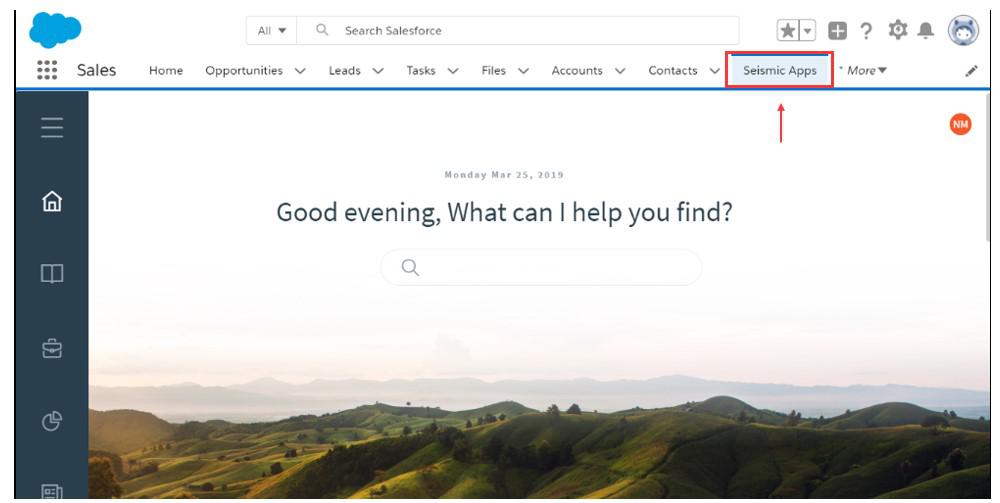
Seismic enables you to choose, personalize, and prepare content within Salesforce. The Predictive Content engine gives you recommendations to help you decide which content to use and when to use it during the sales cycle
Access Seismic by clicking the “Seismic Apps” tab while in Salesforce
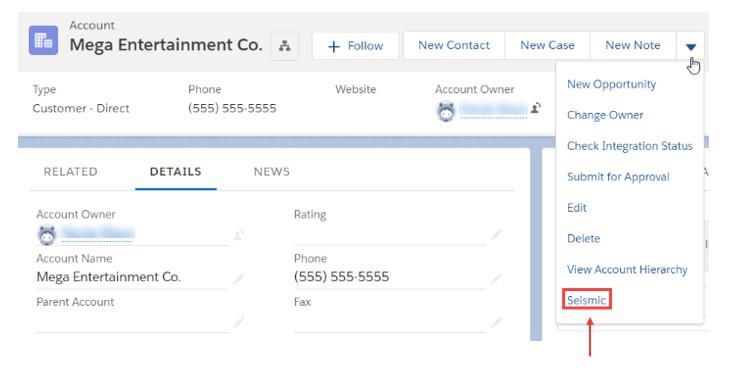
Access Seismic by using the quick-action shortcut in Salesforce
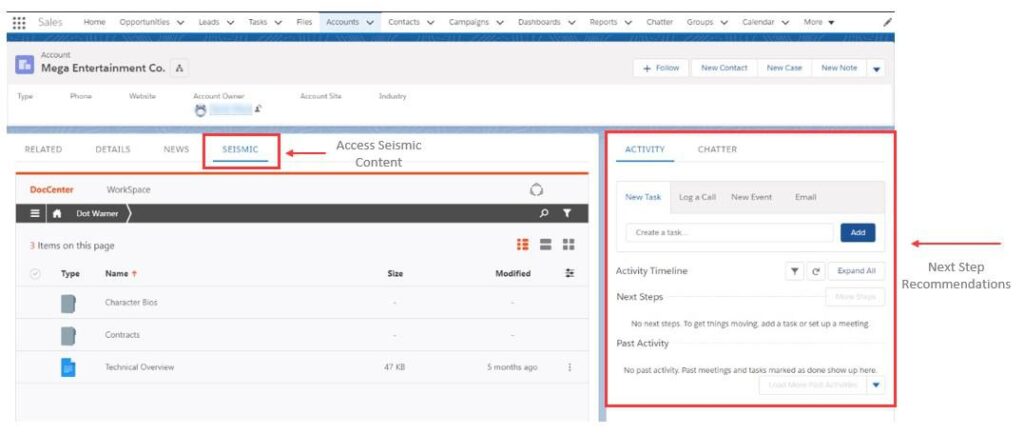
Search for content by clicking the “Seismic” tab
See recommended next steps in the “Activity” tab in the panel on the right
🔍 To learn more, search for “Predictive Content” in the Wiki
Seismic uses data to surface the most relevant content and gives recommendations on next steps for your customers at the right altitude and for the right situation to enable you to make informed decisions and find assets fast.
Predictive Content and Salesforce Use CaseSeismic’s predictive content is embedded on the Opportunity in Salesforce to surface content that targets the specific sales stage the opportunity is currently in. The content will dynamically change as your opportunity progresses through each sales stage.
Search for content by clicking the “Seismic” tab
See recommended next steps in the “Activity” tab in the panel on the right

To learn more, visit https://catalyst.concentrix.com/digital selling
Spekit / Seismic Content Pack created by Concentrix Catalyst