





.svg)
.svg)






Content Templates
Clari Getting Started Training Template
Customize this Clari training template and surface it directly within your own Clari instance to drive adoption and maximize ROI.
Clari offers a platform to help sales teams, and management improve their performance and decision-making using data-driven insights. Clari’s software employs artificial intelligence and machine learning to analyze sales data, provide predictive analytics, and enhance sales forecasting and pipeline management.
Clari’s software is designed to integrate with various customer relationship management (CRM) systems, such as Salesforce, and other sales-related tools to provide a comprehensive view of sales activities and opportunities. It aims to help sales teams prioritize leads, identify potential risks, and optimize their sales strategies.
Views are saved queries or reports that help you find the right opportunities. You probably run more than one report or have more than one way of looking at deals.
A standard group of Views will be shared with all (or most) users, and every user can also create their own private Views.
As an Admin with advanced operations permissions, you can share Views that you and other users create.
Every user cannot access all of the Views in your Clari environment. The Views you have access to are going to depend on your Role. There are 5 out-of-the-box Roles in Clari. Each role maps to a user type, which determines a user’s level of access to the platform. Your Role determines which Views, Modules, and Dashboards you have access to.
Out-of-the-Box Clair Roles & User Types
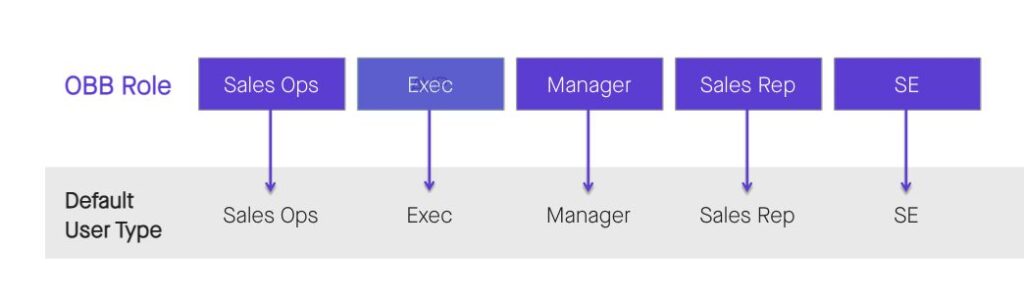
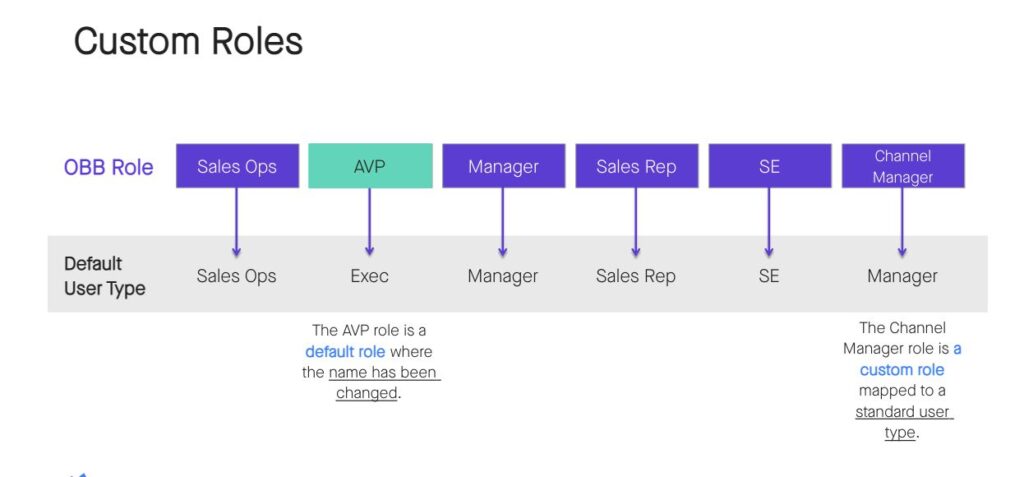
You can change the names of the default Roles and add customer Roles if any teams don’t fall under one of these categories. Each Role must map back to a standard Clari user type.
Let’s break down what the standard Roles have access to. A user’s Role is key in determining what they can access in Clari. Each role will have access to the Views admins choose to share with that role, and their lens will adjust according to the deals relevant to them.
Sales Rep: A sales rep user’s lens is limited to the deals that they own since those are the deals that are relevant to a sales rep.
Manager: A manager’s lens allows them to see the opportunities owned by their reports since those are the deals a manager needs to track.
Sales Ops: A sales ops user’s lens allows them to see all opportunities they have permission to view in CRM.
Each role will be able to access the specific Dashboards admins choose to share with them. Sales ops users and managers usually have access to all Clari modules, including Account Engagement. Individual contributors, like Sales Reps and SE roles, typically have access to Opportunities, Forecasting, Dashboards, and Flow.
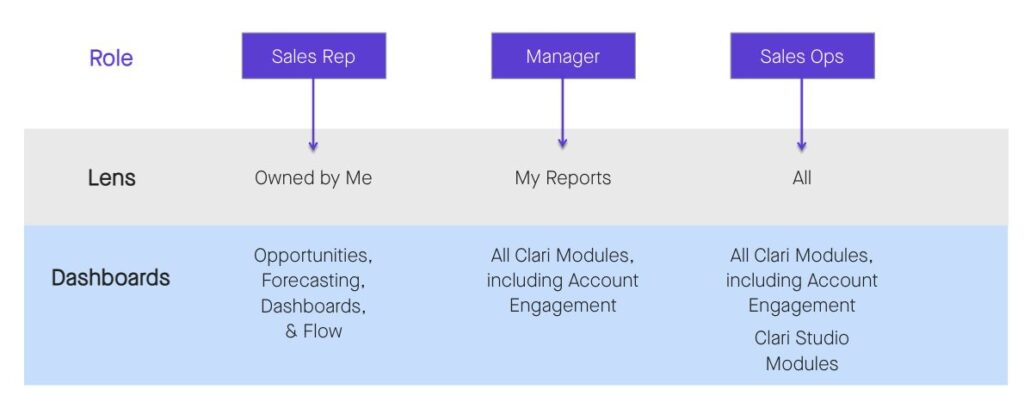
NOTE: The lens is a filter that automatically adjusts the opportunities that appear in a View based on the relevant deals to each user.
The Lens allows users in different Roles to use the same View and still see the correct data. When the Lens is enabled, the Scope filter for the Saved View automatically adjusts according to a user’s Role. Your Role determines your Lens because your role informs which deals are relevant to you.
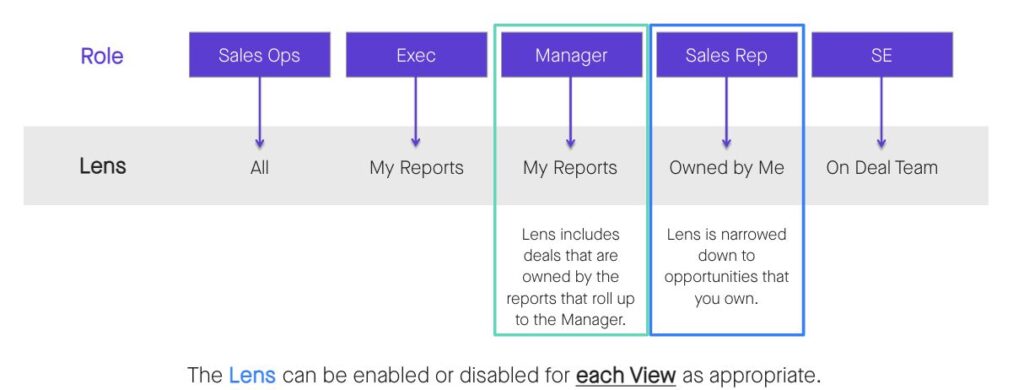
If you create a View with the Lens enabled and shit it with users in other Roles, then the Lens will adjust the Scope filter based on the Role of the user looking at the View.
Lens empowers you to build standardized Views and enables the Lens so everyone in your organization with who you share that View, only sees the opportunities that matter to them.
Opportunities is the main hub where reps can update their deals and sales leaders can inspect not only CRM data, but insights as well.
Views in Clari are like reports. A few things about Views you should know are:
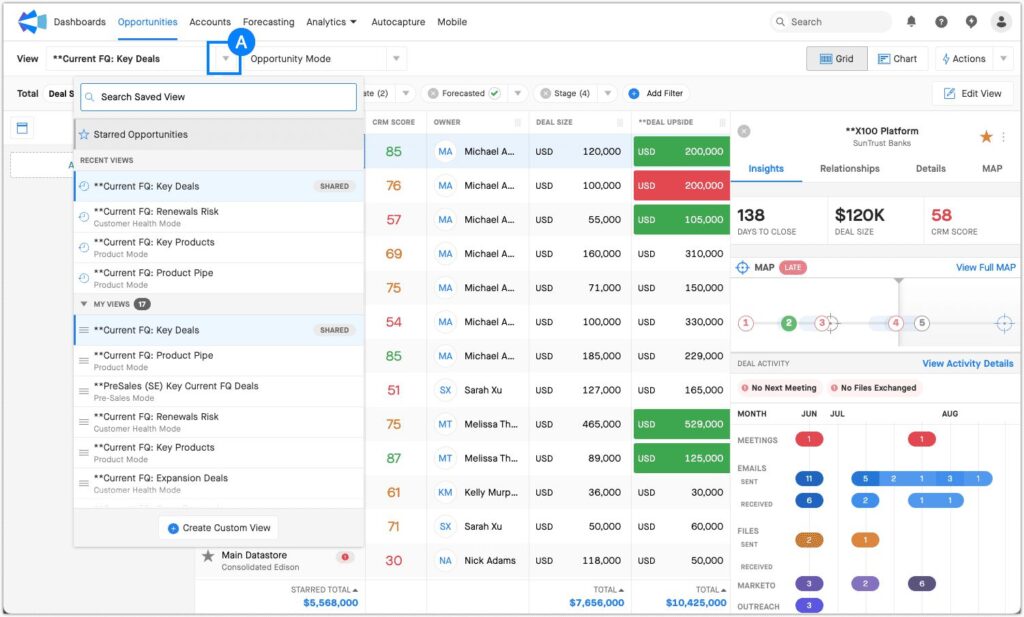
NOTE: Opportunities will update immediately with real-time data from the bi-directional sync between Clari and Salesforce.
Filters determine which opportunities appear in your View. Remember, a View in Clari is like a report, so filters determine which opportunities appear in your report results.
Accessing Filters
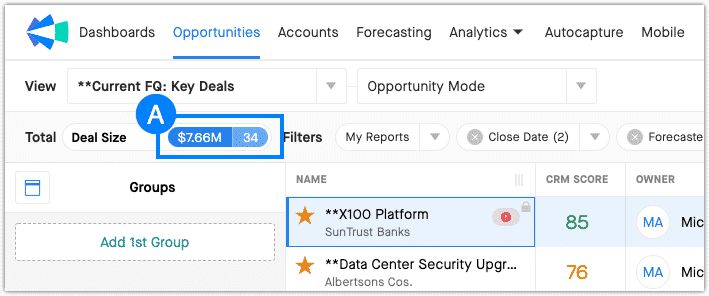
You can access filters by hovering over the blue pill (A).
In addition to the filter row, you can select Edit View (A) to adjust the filters applied to your View, along with additional settings.
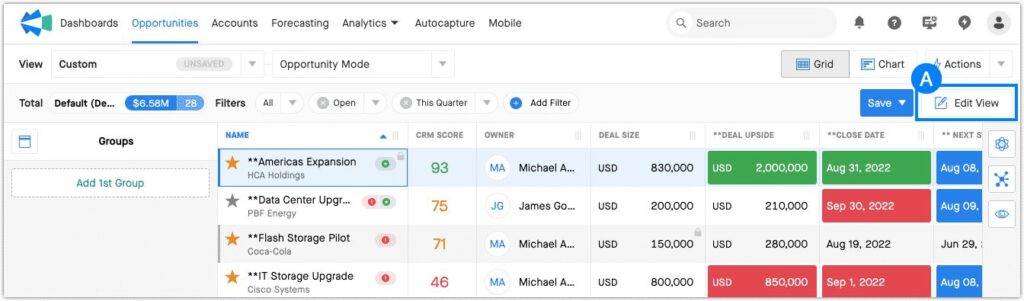
If you make changes to your filters, you have the option to save your new View.
Filters determine which opportunities appear in your View. Remember, a View in Clari is like a report, so filters determine which opportunities appear in your report results.
You can access filters by hovering over the blue pill (A).
You can review the filters applied to a View and a few other valuable details. Review the annotations below to learn what details you’ll find when you hover over the blue pill.
Now that you understand filters let’s walk through Groups. If Filters determine which opportunities appear in your View (a.k.a. your report results), then Groups organize those results by whatever criteria you set.
If you need to open a different View for any reason and then return to your CQ: Open Deals View, you’ll see that whatever groupings you left there remain. Your Groups only persist within your user state. The groupings you apply to a shared View do not affect another user’s experience of that View.
Toggling to Hierarchy Mode in the Owner group allows you to group based on your role hierarchy. A second-line manager or a VP, for example, case use Hierarchy Mode to group by APAC, North America, etc.
Chart Mode allows you to visualize the deals you see in your saved views. Now that you understand Groups from the previous lesson let’s walk through Charts.
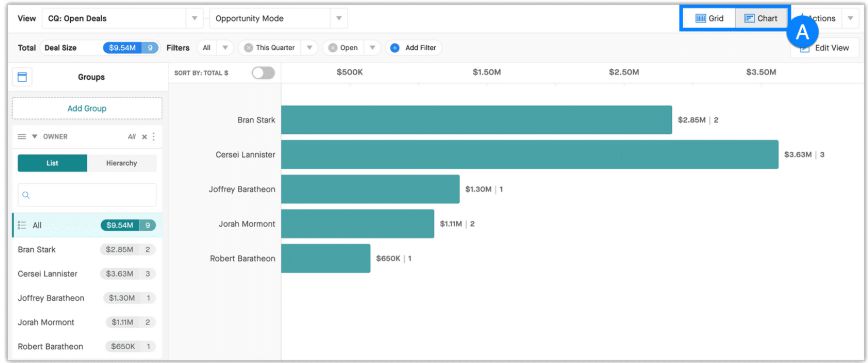
The default grid view of Opportunities is similar to a spreadsheet, and you can see important details about your deals. However, if you want to visualize this data, you can toggle to Chart Mode (A). Chart Mode takes your primary group and turns it into your y-axis. If you’ve applied a grouping by the owner, you can visualize what each of your reports has open for the quarter.
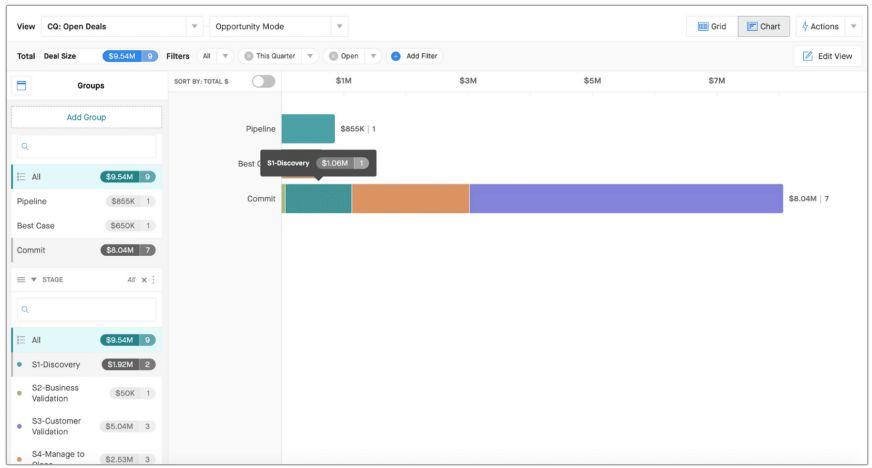
When you add a 2nd grouping (i.e., forecast category), that group will segment each bar based on the 2nd grouping. In the example below, you can see the distribution of which forecast categories your deals are in for all the deals your reports are working on.
One beneficial combination in Chart Mode is grouping by forecast and stage. This is an easy way to spot if there are any deals with a discrepancy between their forecast category and their stage.
For example, you can glance at all of your committed deals and identify if there are any committed deals in stage 0 or 1, a Best Case Deal in Stage 4 or 5, or anything else that doesn’t make sense and is likely a data hygiene issue.
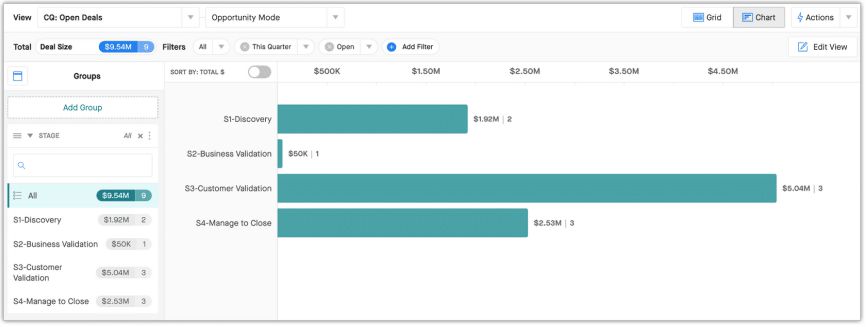
Grouping by stage alone can also be helpful. How you expect your deals to be distributed across the sales cycle stages will differ depending on where you are in the quarter.
It’s probably normal to see most of your deals in stage 1 at the beginning of the quarter, for example, but it may be a red flag if you see a lot of deals in stage 1 or stage 2 closer to the end of the quarter.
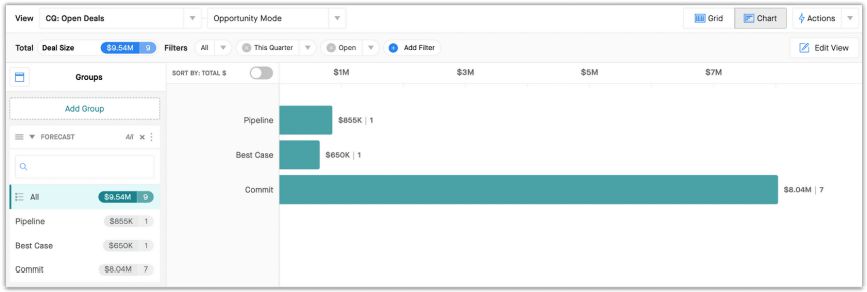
Grouping by forecast alone can also be very informative. For example, if there are 5 weeks left in the quarter and the majority of your deals are still in ‘best case,’ then you likely want to dive in and evaluate all of these deals.
Confirm if the deals are the best case or if sales reps are hesitant to put them in commit, and validate you have the proper distribution of deals across stages or forecast categories depending on where you are in the quarter.
Charts enable you to segment and visualize your Saved Views to help your teams focus on specific pieces of your business.
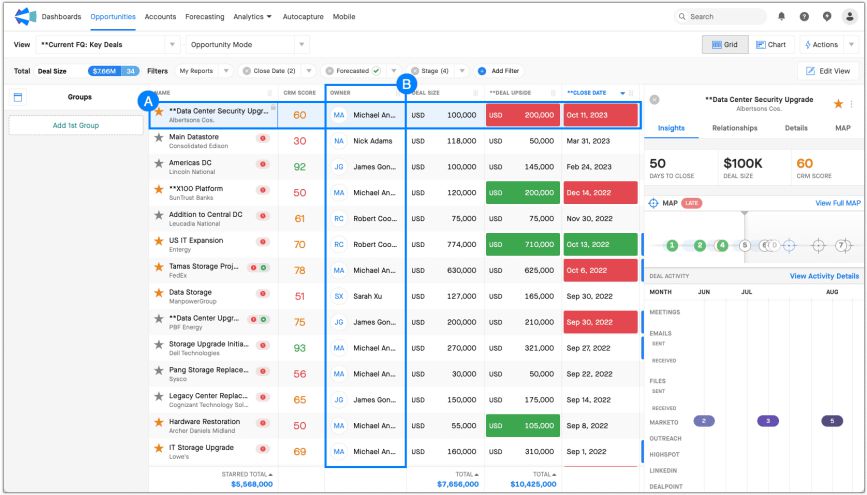
Each row in the grid is an opportunity (A), and each column in the grid (B) is either a field from the opportunity record, the account associated with the opportunity, or the user associated with the deal owner. Any data point or field you can navigate directly from the opportunity in Salesforce can be pulled into the grid.
Access Actions > Configure Columns to change the order of the columns in the grid or disable specific columns.
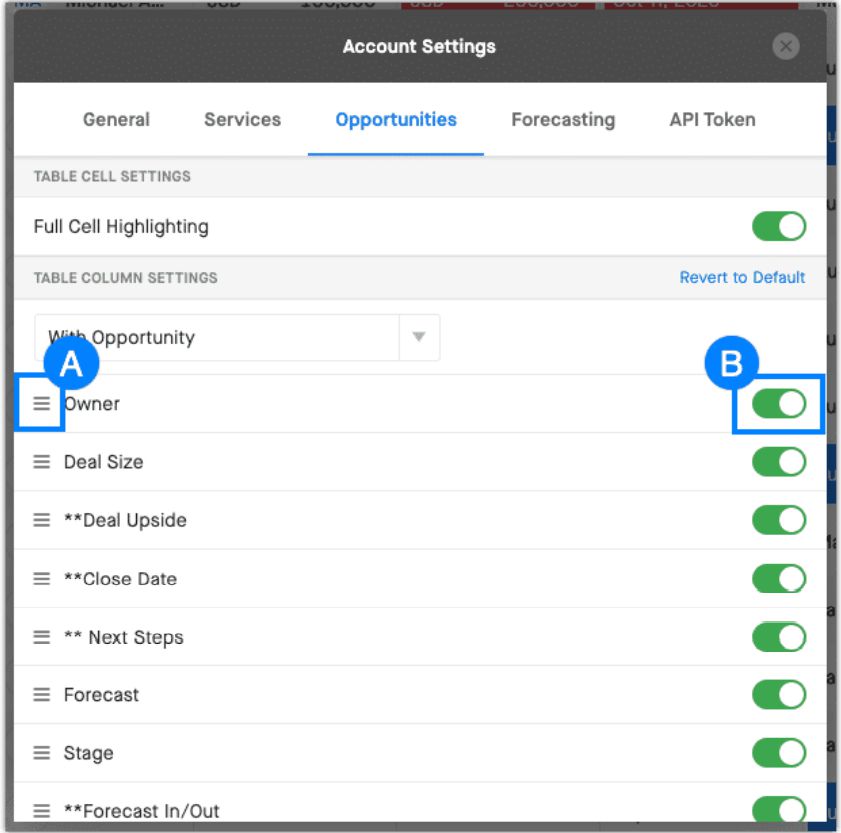
NOTE: These settings only affect the user who made the change, so any user can configure their columns without affecting any other person’s View.
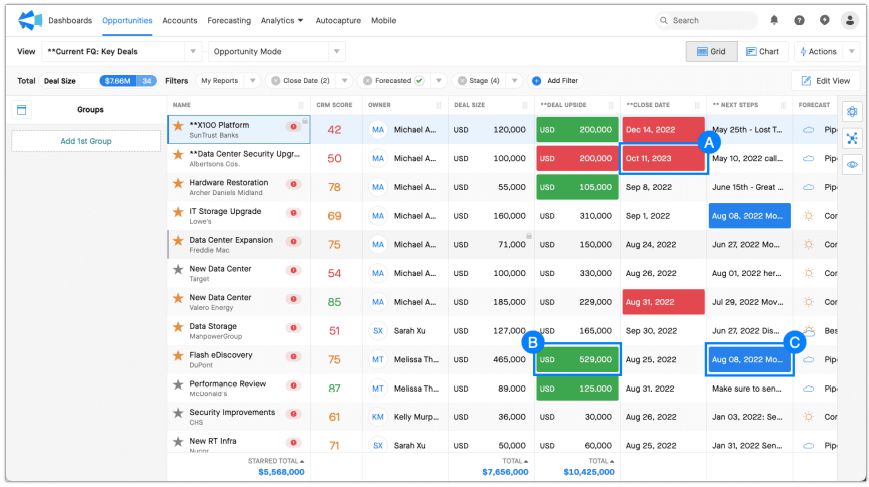
Double-click on any of the updatable fields in your grid to make changes. Remember, our integration with Salesforce is bi-directional, so any changes made in Salesforce will be reflected in Clari and vice versa. If you make an update to a history-tracked field, you’ll notice that we highlight recent changes.
The Clari Insights Panel provides an overview of how a deal is progressing through the sales cycle.
The CRM Score is Clari’s confidence score for how likely a deal will be closed as won or lost. Clari looks at your deal and compares it to other deals that you and your team have closed in the past; then it looks to see how similarly this deal is performing to previously closed won and closed lost deals. Deals with CRM patterns similar to previously closed-won deals will have scores closer to 100 while deals with CRM patterns similar to previously closed-lost deals will have scores closer to 0.
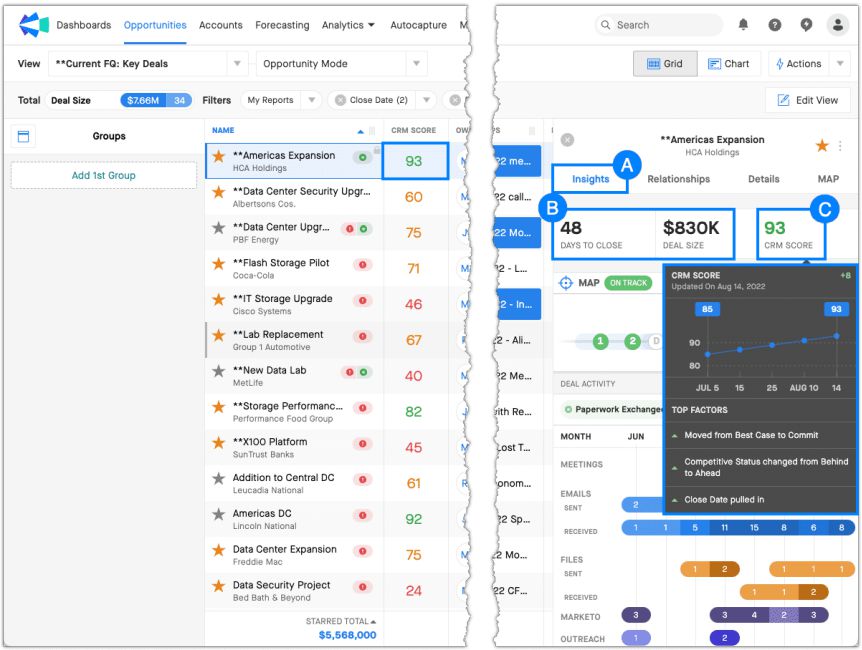
Some common examples of these factors include:
Below the CRM Score, you can dive more deeply into the activity surrounding a deal using MAPs. MAPs, or Mutual Action Plans, help ensure that you are aligned with your prospect’s interests, organized, and on the same page throughout the selling process.
The Deal Activity section of the insights panel summarizes key activity that has happened in this deal recently. Find a summary of your deal risk and momentum indicators toward the top of the Deal Activity window and a breakdown of recent activity in the Deal Activity grid.
The Activity Grid shows recent activity in the deal, including emails, meetings, and files exchanged between the owner of the deal and the contacts on the account. Hovering over the activity will give you a summary of the activity. For example, we can see that the last email sent was the Order Agreement.
See the next scheduled meeting with this deal, when it is scheduled, and who is invited.
Hover over the blue information icon to see whether these individuals have responded that they will attend, will not attend, or haven’t replied.
Deal Status will give you key stats on the deal, including information such as:
At the top of the panel, you see who you are talking to at this account by default.
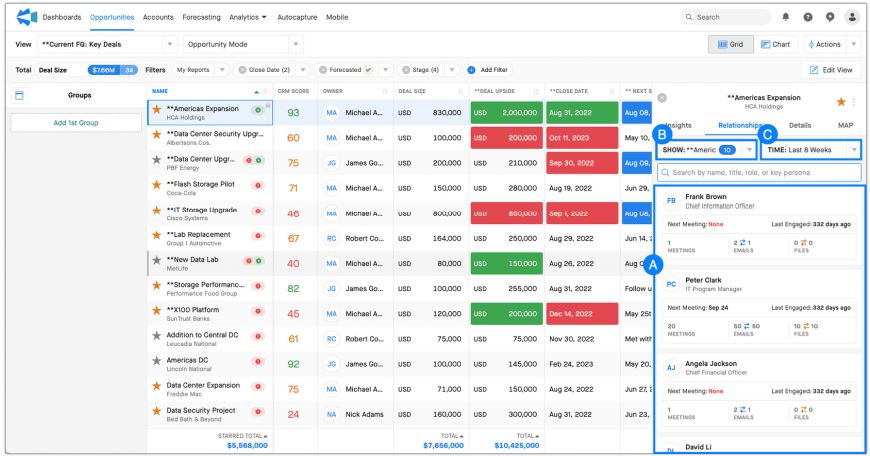
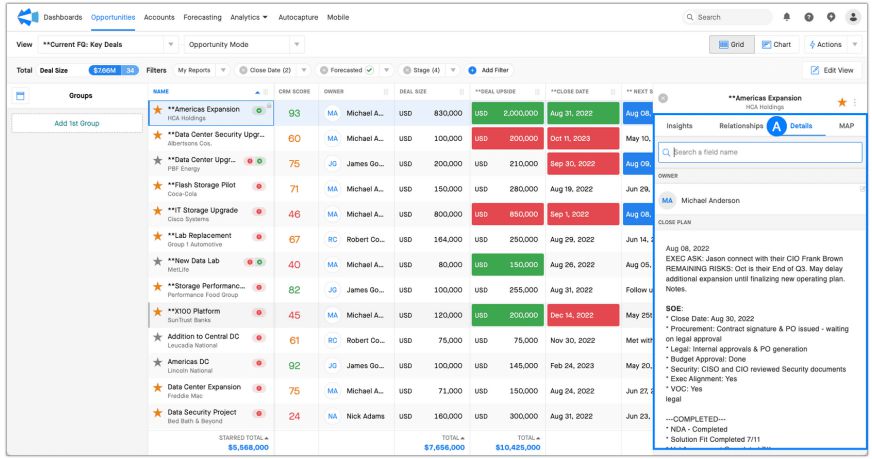
The Details panel captures essential information like your sales methodology fields.
This is the most customizable module on the platform. Our goal during your implementation of Clari is to configure your Forecasting module to drive a connected, efficient, and predictable forecasting process for your unique team.
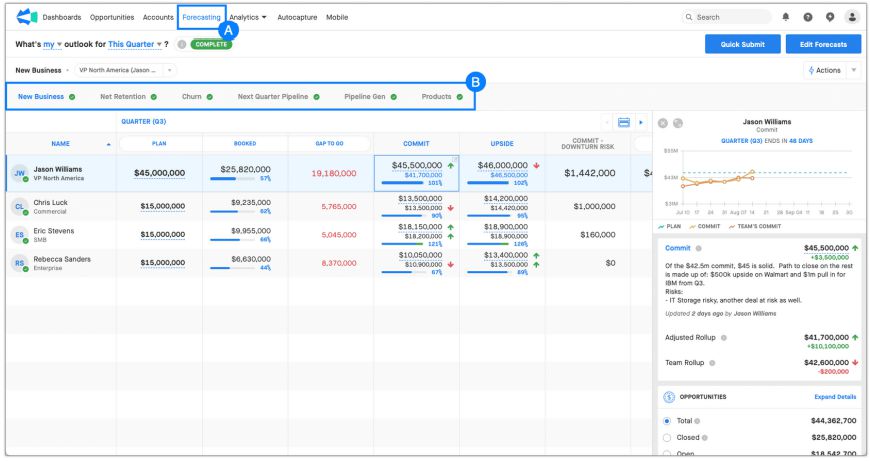
Navigate to Forecasting by clicking the Forecasting module in the navigation bar (A). Find the different areas of your business that you are forecasting in the Forecast Tabs (B) toward the top of the module (i.e., New Business, Renewals, or even Product Lines).
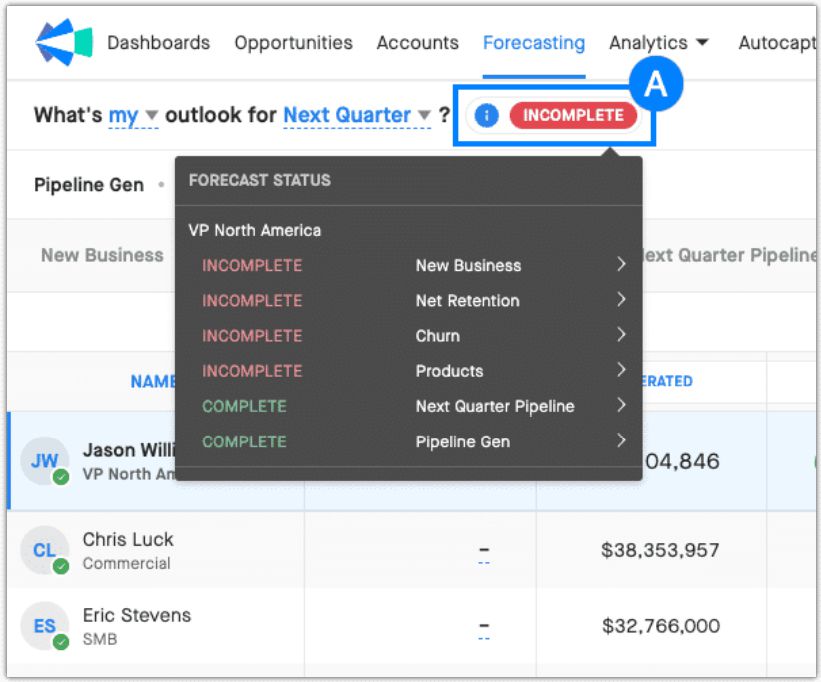
You can check to see if Forecasts are complete, incomplete, or overdue across all tabs by clicking the forecast status indicator
Let’s take a look at the New Business tab within Forecasting. In this example, we are logged in as Jason Williams, VP of North America. In the roll-up structure on the left, Chris, Eric, and Rebecca roll up to Jason.
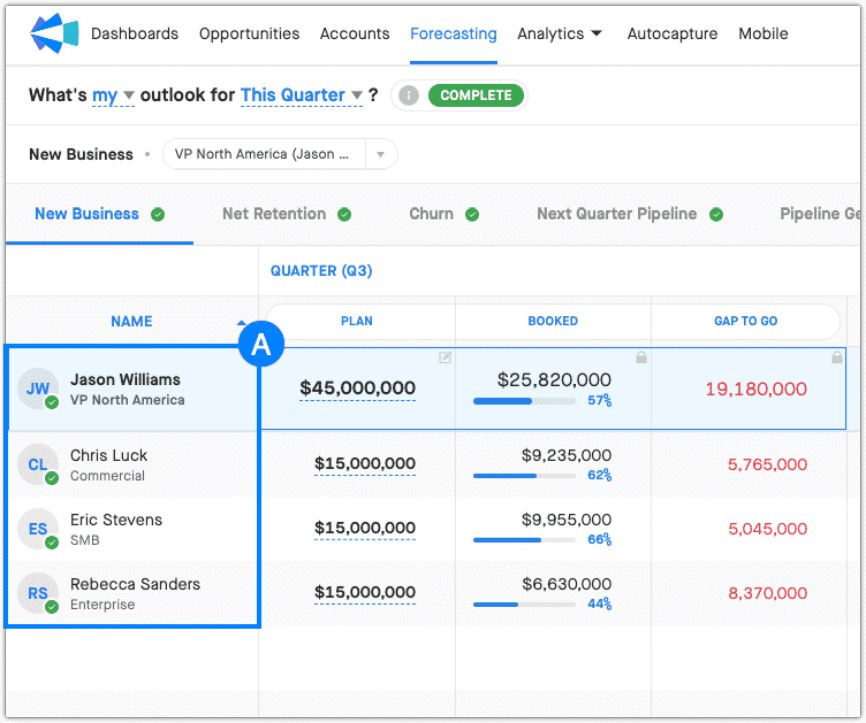
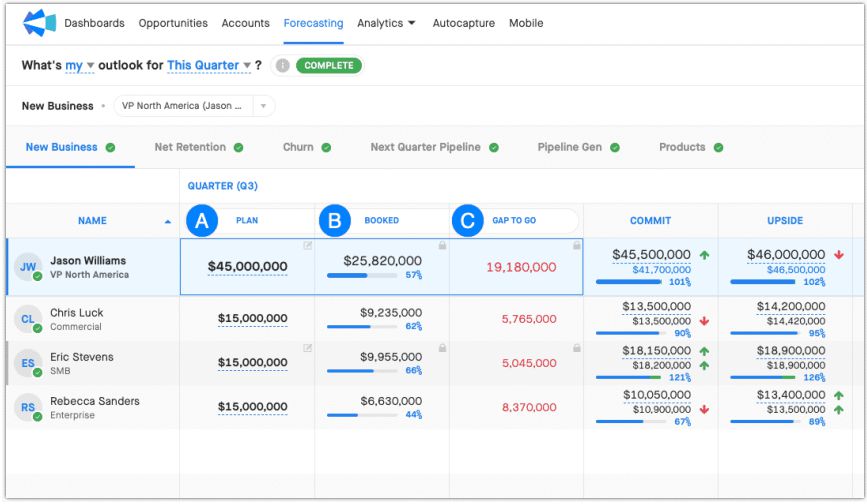
The first three columns in our example are:
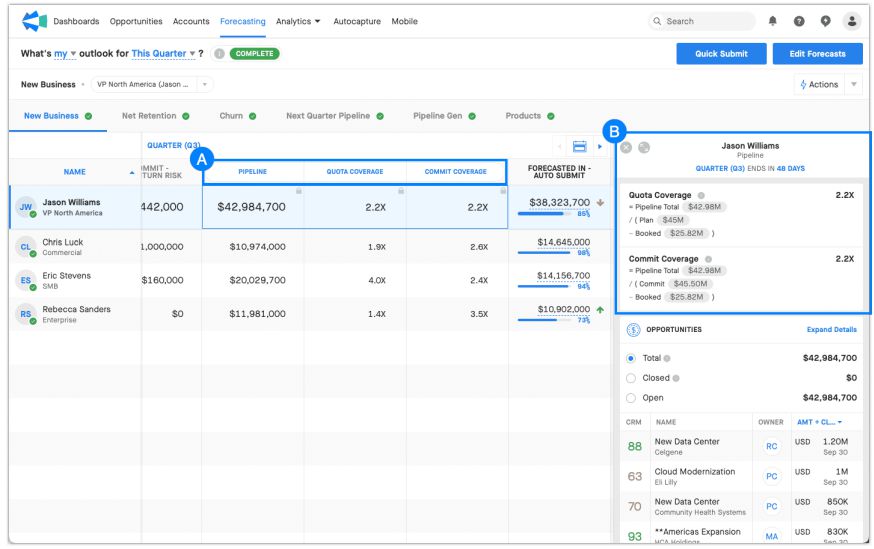
You can also configure forecasting to calculate metrics with real-time data. These are called Adaptive Revenue Metrics.
In this example, you can see the total open pipeline, the coverage that gives you against your Quota, and the coverage that gives you against your Commit forecast call (A). Click on any Adaptive Revenue Metric to see how it’s calculated in the right-hand panel (B).
You’ll make your call in the columns with an edit icon in the top right corner of the cell (A).
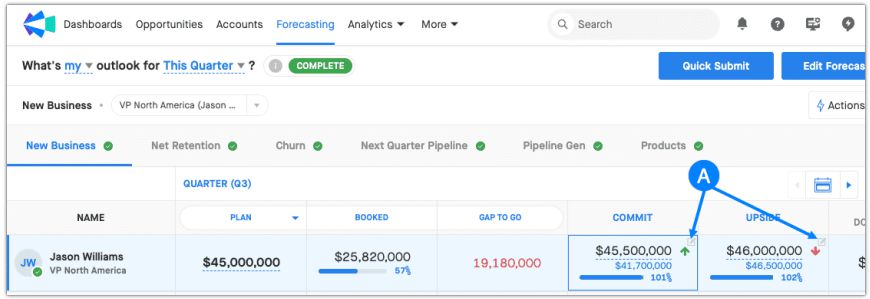
Clari calls these Commit and Upside (A), but you can label them according to your preferred terminology.
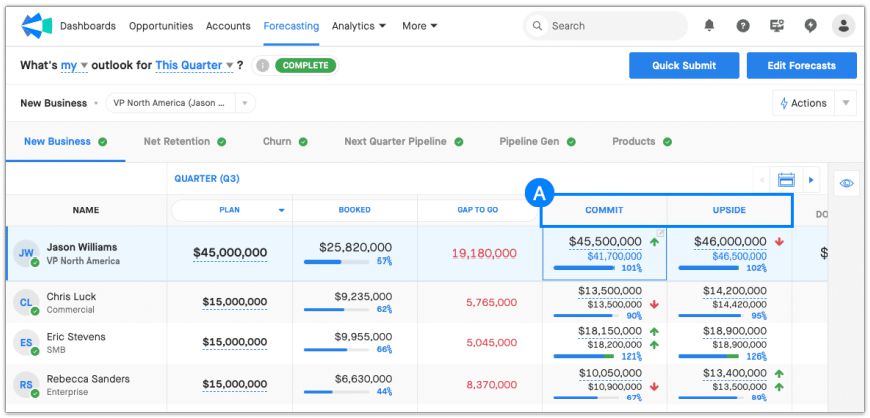
Once in edit mode, enter your forecast (A) and add any notes (B) to give context to your call then Save.
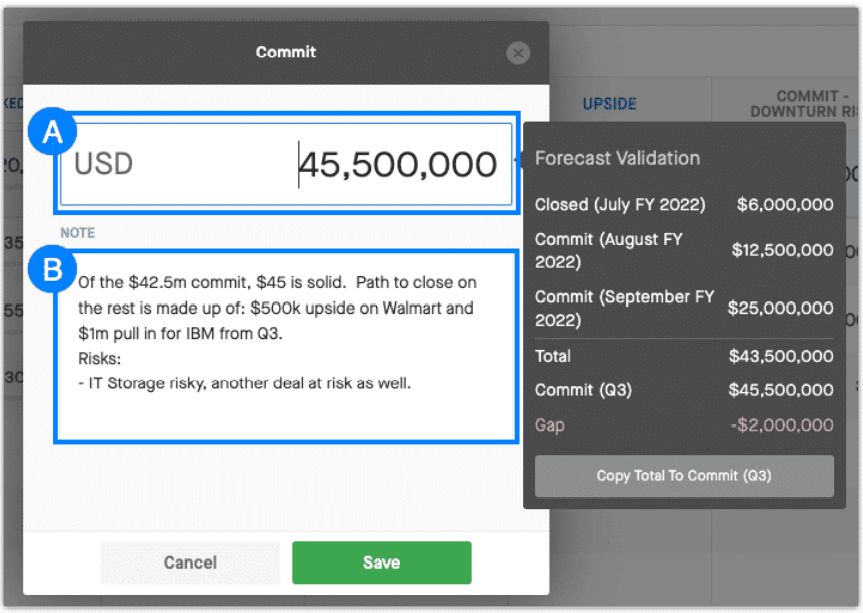
Select your call field (A) to view the weekly forecast call history (B) for that call against quota and understand your call vs. your team call. Find specific details on your call field below the forecasting history (C).
If you have permission to adjust your reports’ calls and have made adjustments to their calls, you will see your adjusted roll-up for your team beneath your call (D). The adjusted roll up is just the total of the adjusted numbers for each team member.
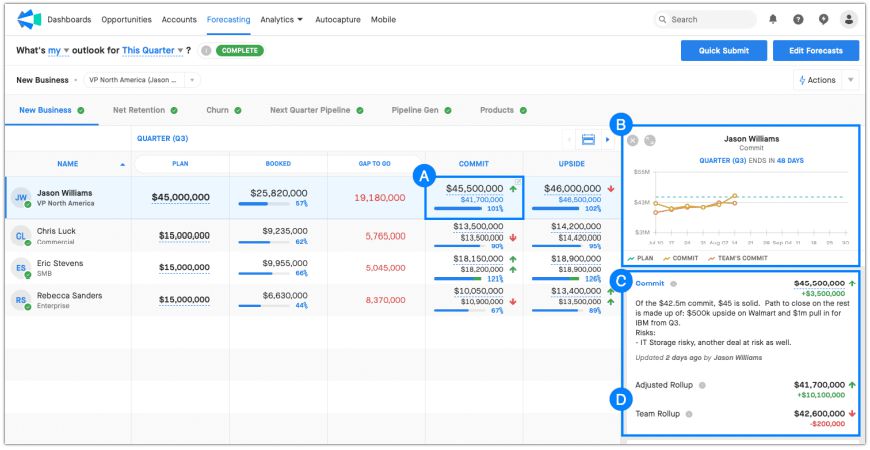
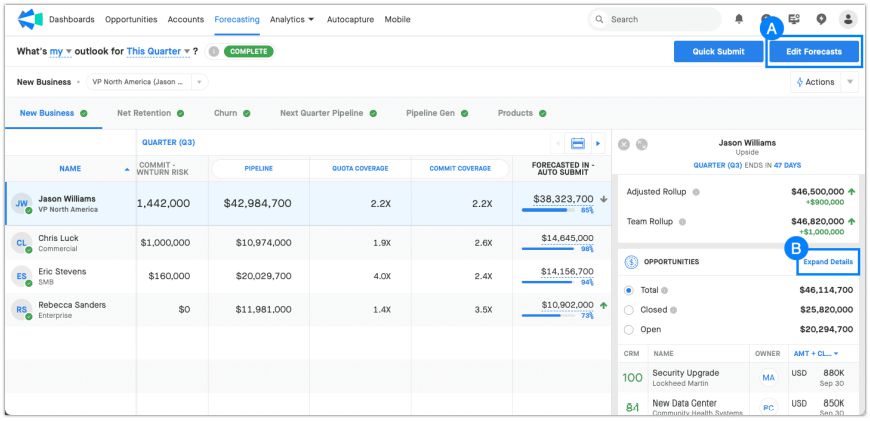
The Opportunities that back up your call appear toward the bottom of the panel (A).
To dig deeper into the deals backing up your call, click Expand Details (B) or the Edit Forecasts (C) button in the upper right-hand.
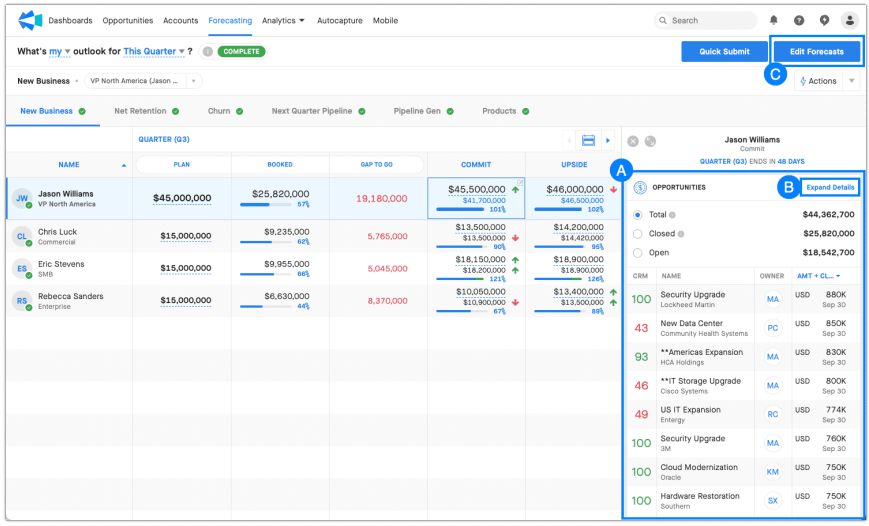
Expanded View gives you space to make informed forecast calls by providing you the details you need to determine whether each deal should be included in your forecast, within the same view where you can submit your forecast call. Access Forecasting Expanded View by clicking on Edit Forecasts (A) or Expand Details from the Insights Panel (B).
Once in Expanded View, you can:
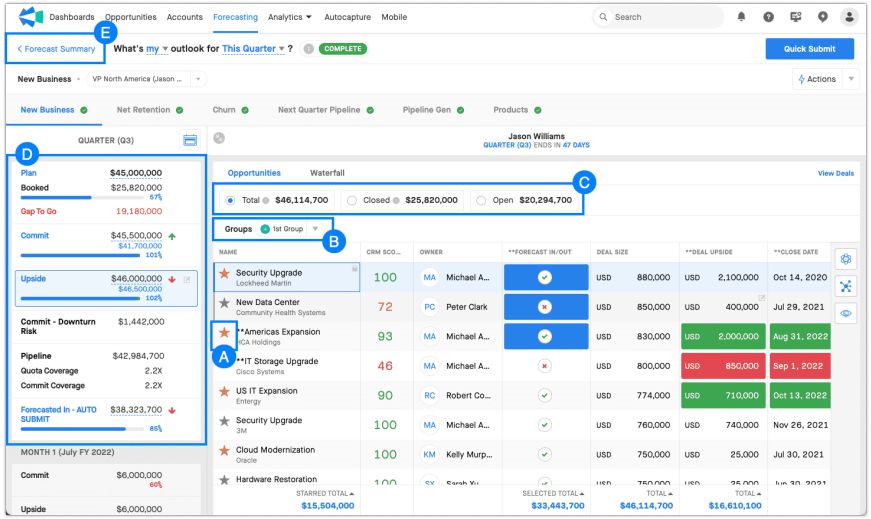
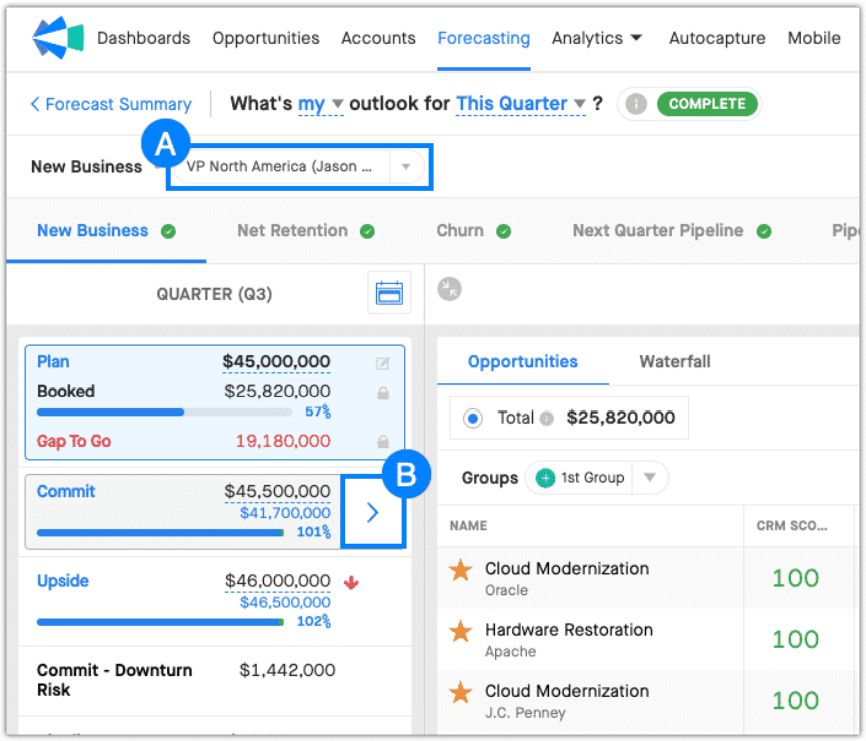
Understand the call of one of your direct reports within Expanded View. We’re in Expanded View as Jason Williams, a manager (A) in this example. You want to see what your team has called for their Commit forecast. Hover over Commit and click the arrow (B).
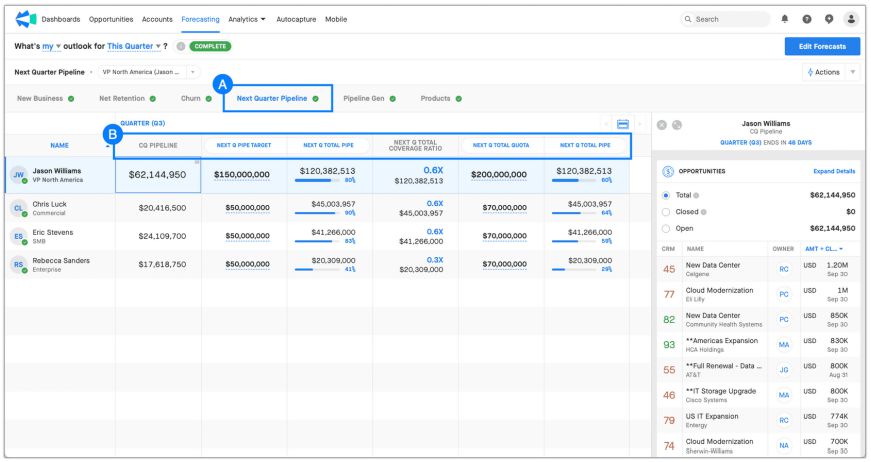
Imagine that you’ve been using Clari for a few months. Your revenue teams are connected, forecast calls are efficient, and the forecast itself is accurate and predictable. Still, you notice that you aren’t starting the quarter with enough pipeline to hit your goals. You can adapt the Forecasting Module to help you with pipeline generation.
Think about the Next Quarter Pipeline tab when you have 5 minutes left in your forecast call, and you want to ensure that the team is set up for success before the next quarter becomes this quarter.
In Clari’s Next Quarter Pipeline tab (A), you can see the current quarter pipeline, the total pipeline target for next quarter, and the total amount you currently have in our pipeline for next quarter (B). The Adaptive Revenue Metrics are calculated when a quota is entered.
Dashboards allow you to aggregate all of the insights and analytics from the modules in Clari into a single page and curate the information to align with key moments in your revenue operating cadence.
The Key Moments in your Revenue Operating Cadence include weekly 1:1s, forecast calls, QBRs, and board meetings. With Dashboards, you’re not updating a spreadsheet or building a slide deck based on information pulled a week ago. You’re always working with up-to-date information without pulling a single manual report.
The best part is that these dashboards are all leveraging real-time information. Several types of Widgets can be added to a Dashboard, each displaying different metrics and insights. You’ll learn how to create Dashboards in the Clari Studio Fundamentals course.
In this section, let’s review some of the widgets you can add to Dashboards. Well-designed Dashboards can be pulled up at all of your key moments (your day, your week, or your quarter) and aggregate all the key information you need for your 1-on-1s, forecasts, or QBRs.
The below example is a Current Quarter Dashboard. Several types of Widgets can be added to a Dashboard, each displaying different metrics and insights. In this example, the first widgets are a few KPI Widgets, which help create a marquee of the big numbers you commonly review at a glance.
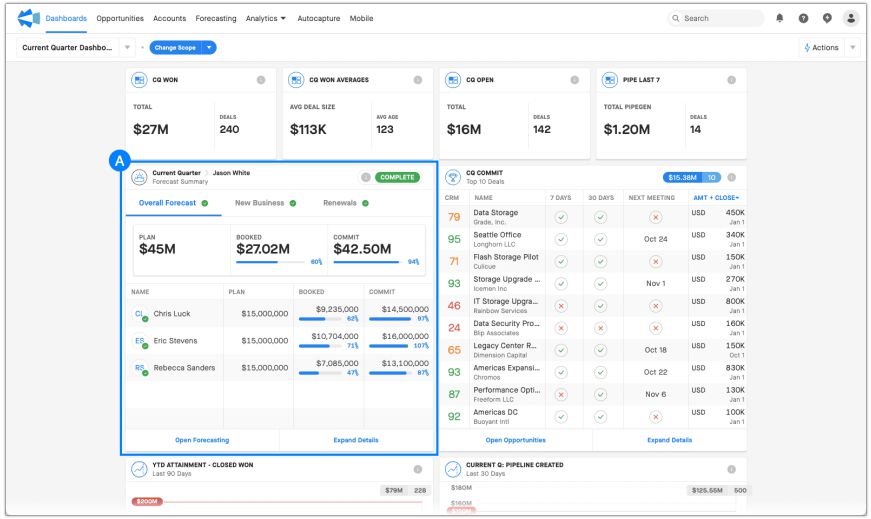
You can also pull in the main numbers from your Forecasting tabs (A) so that you don’t have to navigate to Forecasting to review your Quota, Closed Won, Commit, etc. Pull in multiple tabs if you have multiple Forecasting tabs you want to review in your dashboard.
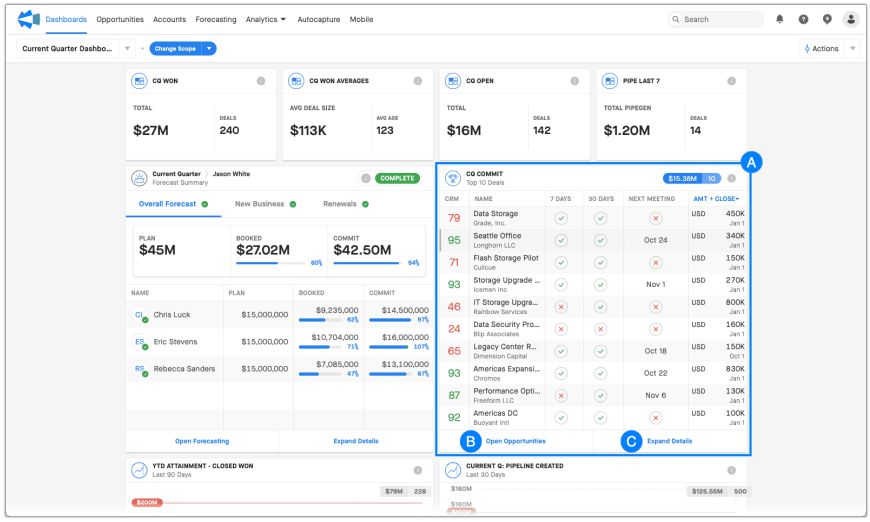
The Top Deals Widget (A) allows you to review key information about your top 10, 25, or 50 deals without navigating to the Opportunities Module. Below you can see:
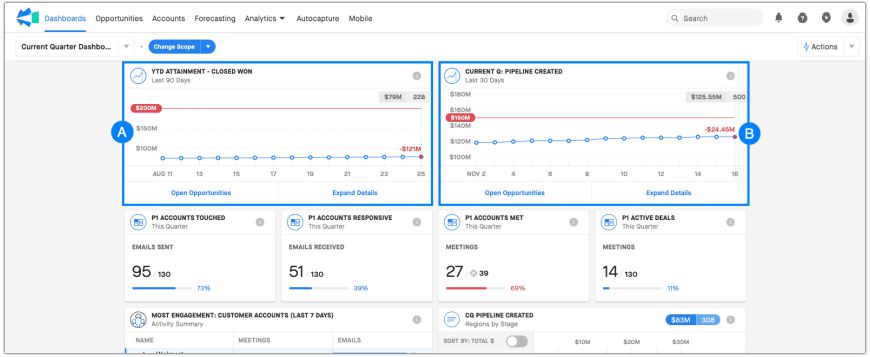
Historical View Widgets track progress towards a goal. The first widget (A) in this dashboard is tracking Year To Date attainment toward an annual goal daily. The second widget (B) tracks the pipeline your team has created this quarter.
Account Engagement KPI widgets help you track certain activities and set goals to track attainment. In this dashboard, we are tracking:
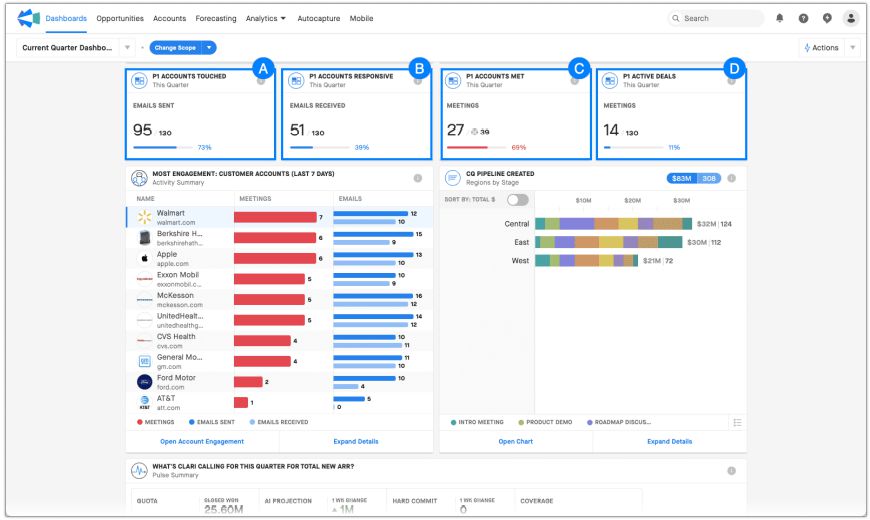
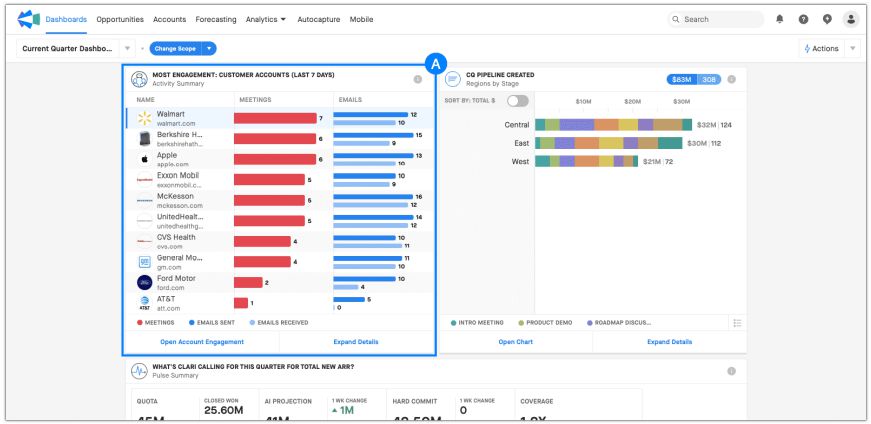
Team Activity Chart Widgets let you pin a chart view of the accounts you are engaged with, sorted by recent engagement. In this Dashboard, we’re looking at an example of Activity by Accounts (A), so we can keep tabs on engagement with our key customer prospect accounts. Pin a Chart from Team Activity sorted by rep to create a leaderboard for sales rep activity.
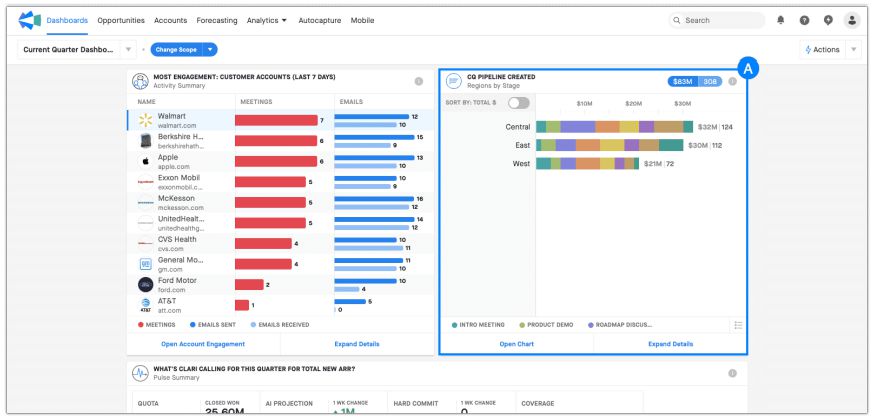
Pin the charts you create in Opportunities to Dashboards. We are looking at the pipeline we have created this quarter, segmenting by region and breaking it down by Stage (A).
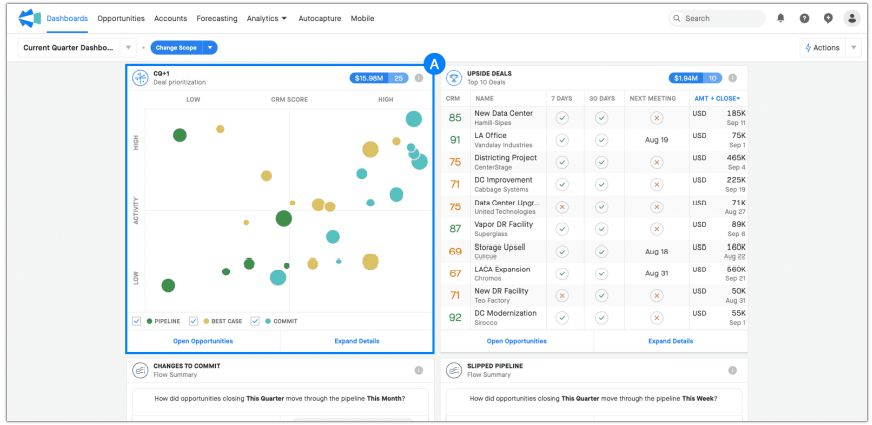
Deal Prioritization Widget plots activity on the Y axis and CRM Score on the X axis. Each circle represents a deal; the bigger the circle, the bigger the deal (A). In the upper right, where you have high activity and a high CRM Score, and your areas of risk are the deals in the bottom left – where you have low activity and low CRM Score.
The deals are also color-coded by Forecast Category, so if you have a deal with high activity but a low CRM Score in Best Case, it might not be the best deal for my rep to spend their time on. Instead, we could choose a more significant deal with a better CRM Score that is more likely to help us hit our number.
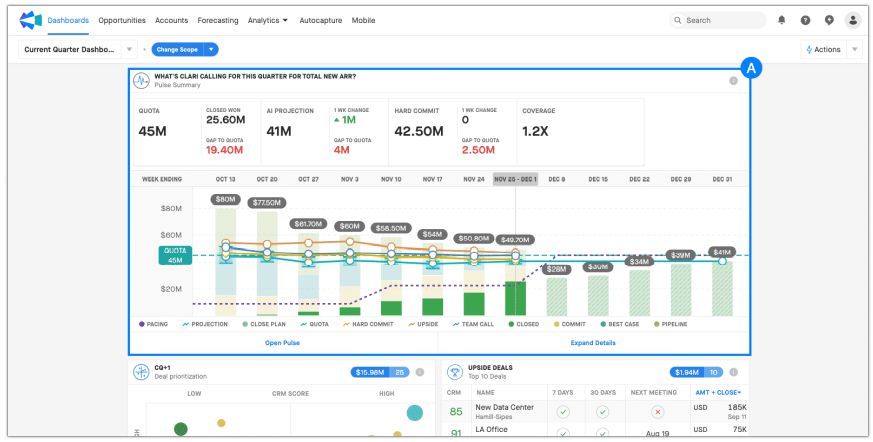
Pulse Widgets allow you to pin your pulse configuration to your dashboard. You can only pin 1 Pulse widget per dashboard. Ensure you define which lines to show or hide, depending on what your use case calls for, before pining your Pulse widget.
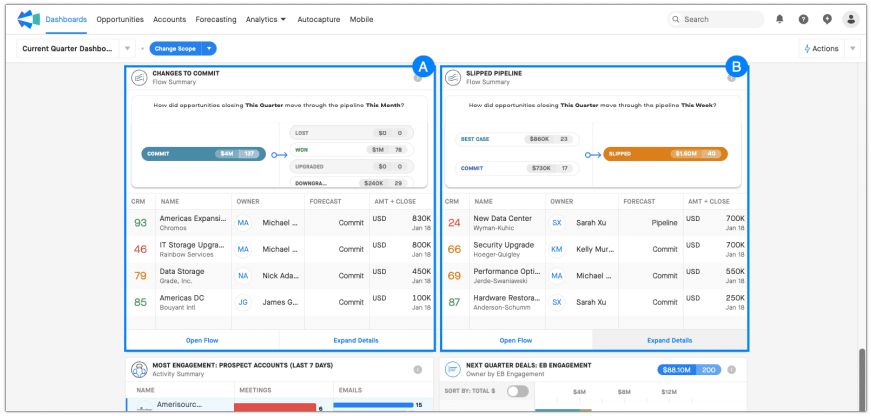
Flow Widgets can help you view a single direction on the Flow module. Monitor where your Commit deals moved over the last month (A), track any deals that slipped this week to see where they came from (B), and check this regularly to understand recent deal movement at a glance.
Each Analytics module in Clari helps you answer the most critical questions about your business state. In this lesson, we review the Flow module.
The Flow module helps you track which deals are gaining or losing ground over a specific time period and answers questions like:
Adjust the flow chart using the sentence at the top of the module (A) to specify what time frames you want to review. By default, Flow shows deals that started in the “Commit” forecast category (B) as of 7 days ago and moved during the last 7 days.
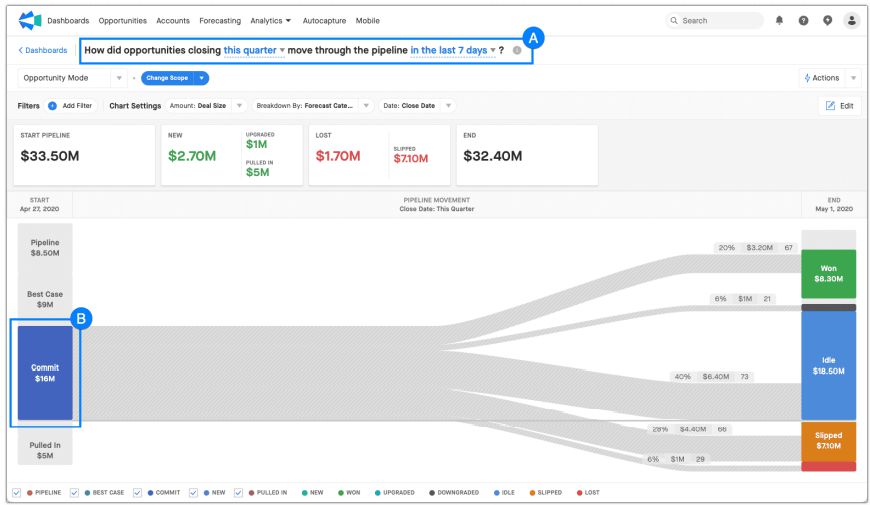
Let’s take a look at the example above in more detail. Within commit, you will see specific information if you hover over each pipe section.
(1) $3.2M (or 67) of the Closed amount came from Commit and was closed as Won.
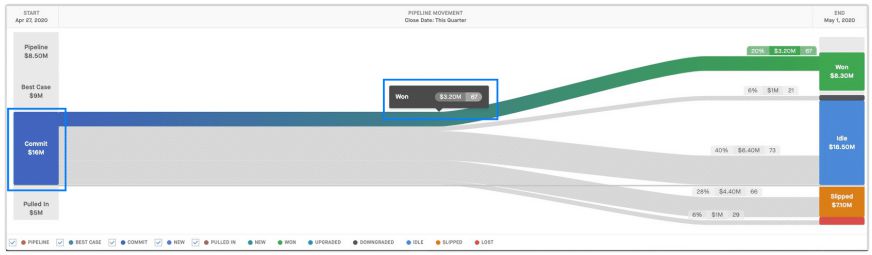
(2) $1M (or 21) was downgraded, which means they moved from Commit to Best Case or Pipeline.
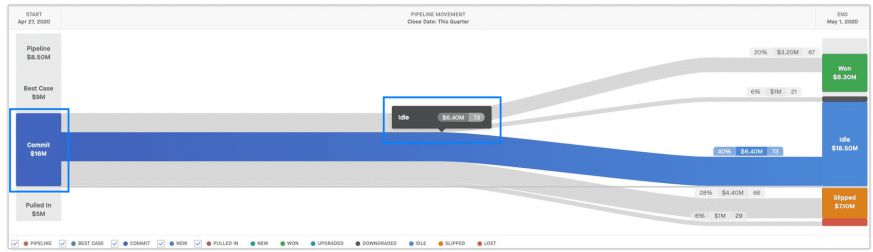
(3) $6.4M (or 73) of them remained idle, which means they stayed in Commit.
(4) $4.4M (or 66) slipped into a future quarter.
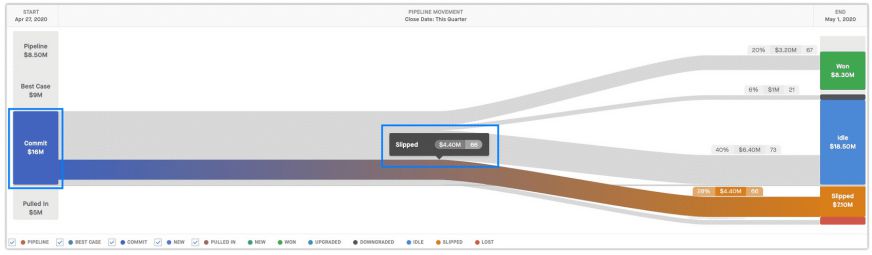
(5) $1M (or 29) of them were lost.
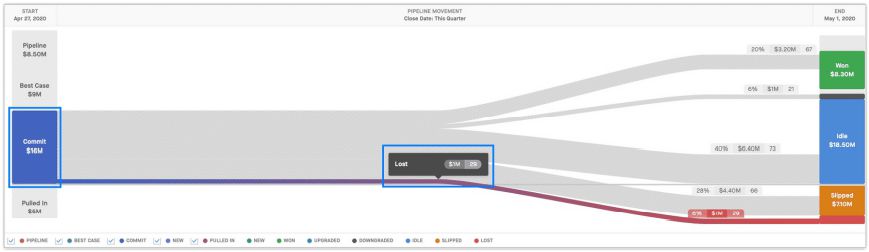
Within the Flow module, click on any flow pipes to see the deals contributing to the total amount of that pipe. Flow lets you understand how your opportunities move through key time frames in your revenue operating cadence. With Flow, it’s easy to identify opportunities that aren’t moving in the right direction and course-correct to pull them back into the quarter as closed-won.
Opportunities from Flow
Let’s look at how to view the deals associated with a Flow pipe.
Now, look at a few configuration changes you can make within the Flow module.
Let’s see where the deals we Won this week came from.
Reviewing Commit within Flow will help you:
Examine all the deals that were in Commit and stayed in Commit instead of closing in the last week.
The Pulse module is designed to help you understand how your quarter, month, or year is playing out. Pulse can tell you how you’re performing against Clari’s projections. It can answer questions like:
Pulse combines your CRM information from the Opportunities module for your call, your team’s call from the forecasting module, and the projection from the Trend module, all in a single view.
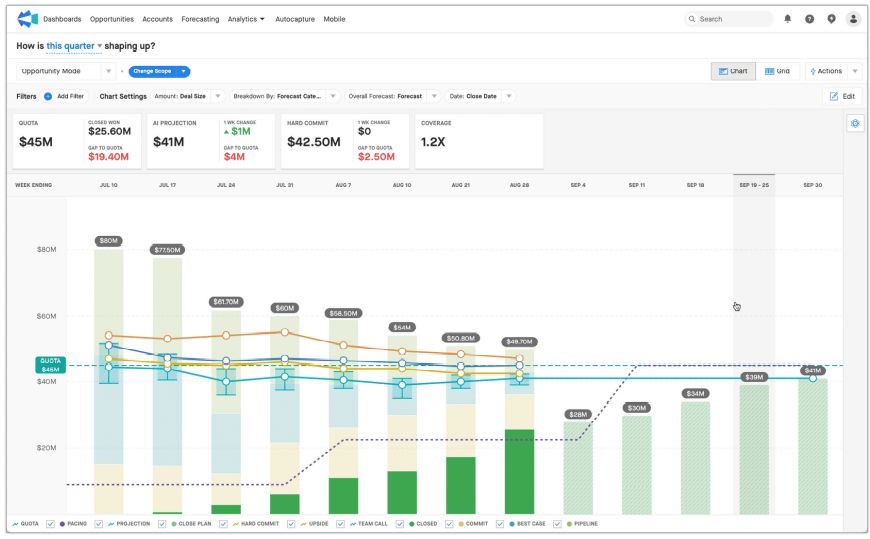
The default scope of Pulse is the current quarter view. For the current quarter, Pulse will show you:
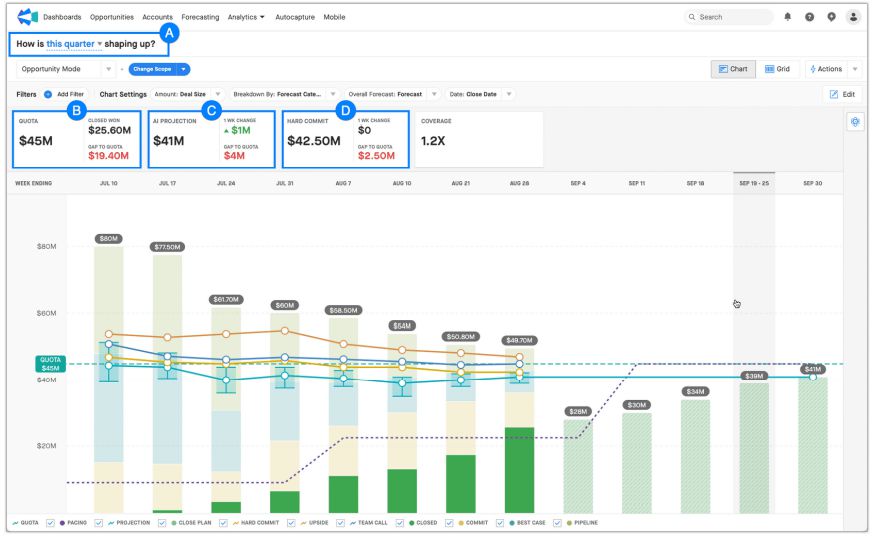
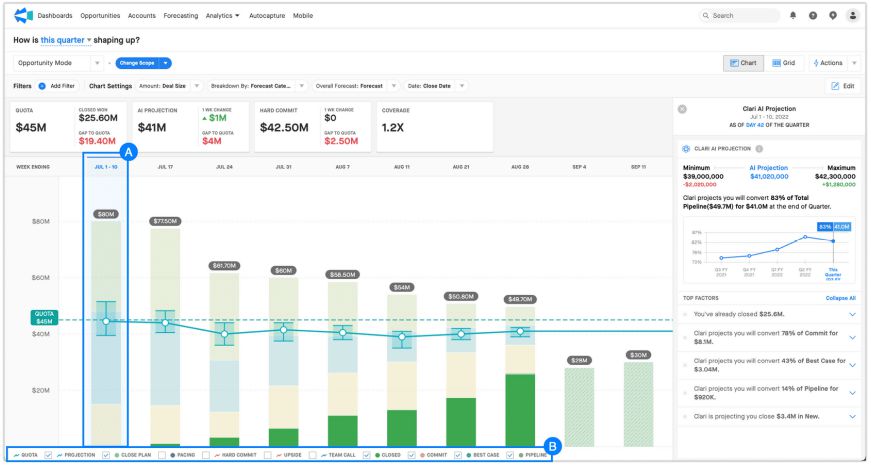
The bars in Pulse represent our pipeline week over week, segmented by the forecast. For week 1 we are viewing July 1st-10th (A) with projection, close plan, closed, commit, best case, and pipeline selected. You can select which bars appear in Pulse across the bottom of the Pulse chart (B).
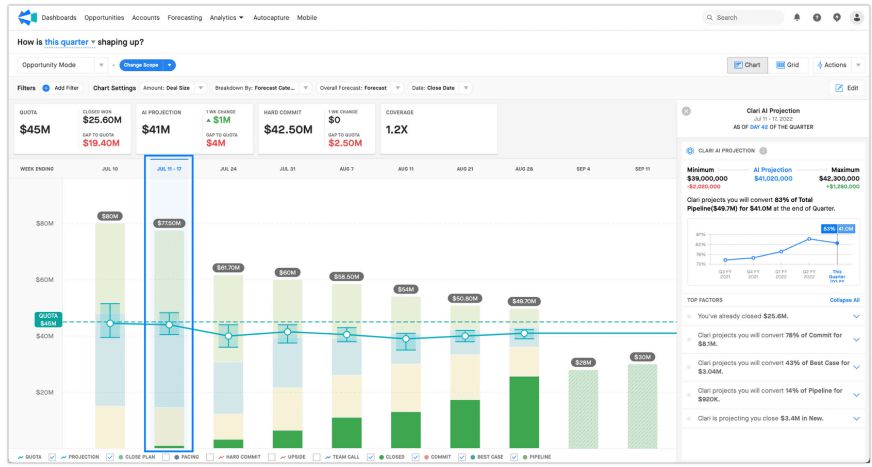
In Week 2, you have a slightly different makeup of pipeline, and you can see that Clari’s Projection lowered slightly compared to week 1. Regarding total amounts, some of the questions you’ll want to ask yourself are:
Let’s layer in the Hard Commit Forecast call (A). This is going to show the forecast call week over week. So you started in Week 1, calling higher than Clari’s projection (B).
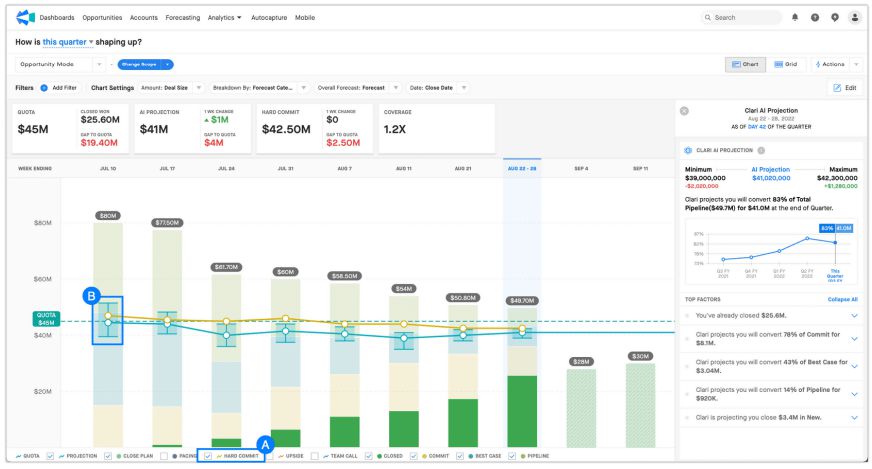
Then, you adjusted week over week, where this week you are now calling $42.5M, slightly more confident than Clari’s AI Projection of $41M.
Add in your Team’s Call (A) to see if your team is consistently forecasting more conservatively or optimistically than you.
The team adjusted, but they are more optimistic than you are and more optimistic than Clari’s projection. Examine the differences here; that’s where you’ll find the story. For example, if there’s a significant discrepancy between your call and your team’s call, why is that?
Add your pacing line (A) to understand how you and your team are reaching your linearity goals. By default, the pacing line is guiding you to close:
When checking your team’s pacing, look at the key weeks in the quarter.
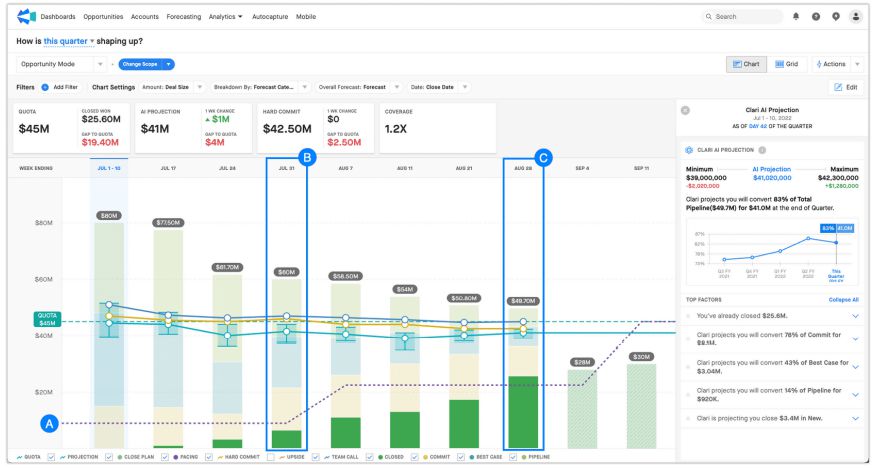
Use Pulse to understand how the current quarter is shaping up and how the previous quarter played out. The last quarter view of Pulse doesn’t just help you understand overall performance; it also helps you understand forecasting accuracy and pacing throughout the quarter.
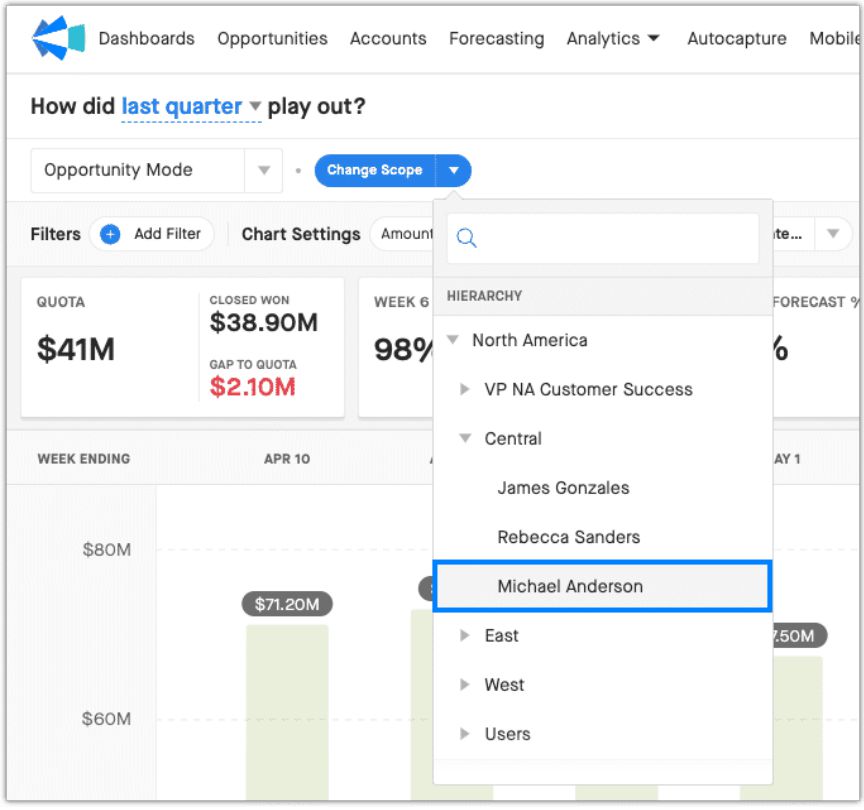
Use the hierarchy (Change Scope) to review Pulse down to the rep level. Let’s review Michael Anderson’s last quarter.
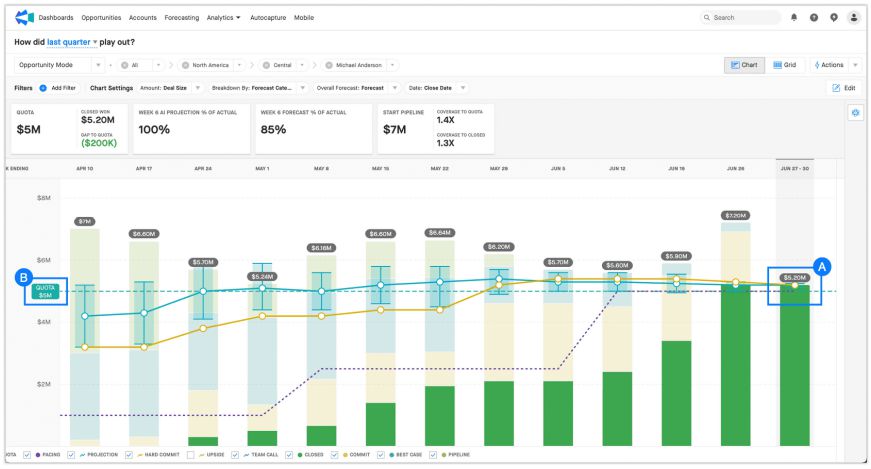
Overall, Michael did well last quarter. His green Closed Won bar ended up at $5.2M (A) and exceeded his $5M quota (B).
It’s common for many organizations to experience a bit of a struggle to build up
enough pipeline (and the right pipeline) to hit their numbers. Pulse can help you ensure that you’re building enough coverage for the next quarter and every quarter.
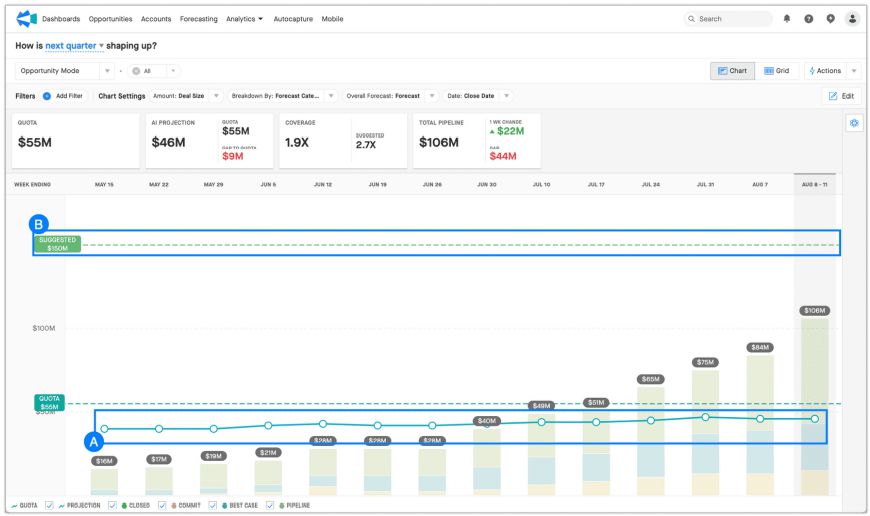
The Next Quarter view of Pulse shows you the pipeline you’ve built for the next quarter over the current quarter. Clari will project how much you will convert based on the pipeline you have built (A) and suggest how much pipeline you should aim to build to hit your quota next quarter (B). Input your quota for next quarter to get these suggestions in Clari.
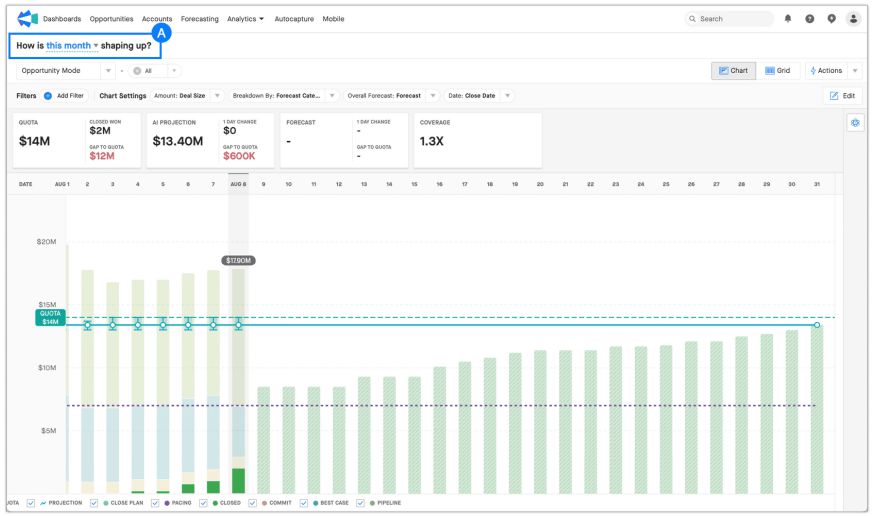
Take a look at Monthly Pulse to understand the same information (pipeline mix, forecast accuracy, pacing, and projection) day-over-day over a month instead of week-over-week over a quarter. This can be super helpful for your business segments with shorter sales cycles.
Change the monthly view of Pulse by adjusting the time frame at the top of module (A).
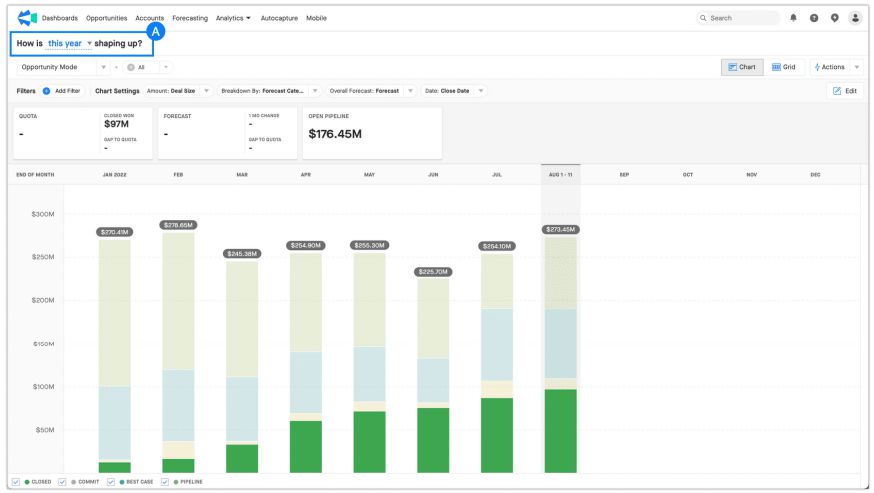
Yearly Pulse will also show you how your pipeline is changing and tracking towards your forecast, provided you have selected a Forecasting Tab with an annual forecast and a quota defined. You will see your pipeline month-over-month for the year. This is based on your organization’s fiscal year, just like your quarterly Pulse is based on your quarters.
Change the yearly view of Pulse by adjusting the time frame at the top of module (A).
Trend gives you insight into Clari’s call for your quarter. Understand your performance by reviewing your past quarter conversion rates across forecast categories or stages. At a high level, Trend allows you to answer questions such as:
Trend will compare today to the same day in previous quarters and tell you how Clari expects things to play out. So, if it’s day 60 in your current quarter, you’re comparing that day to day 60 of your last 4 quarters.
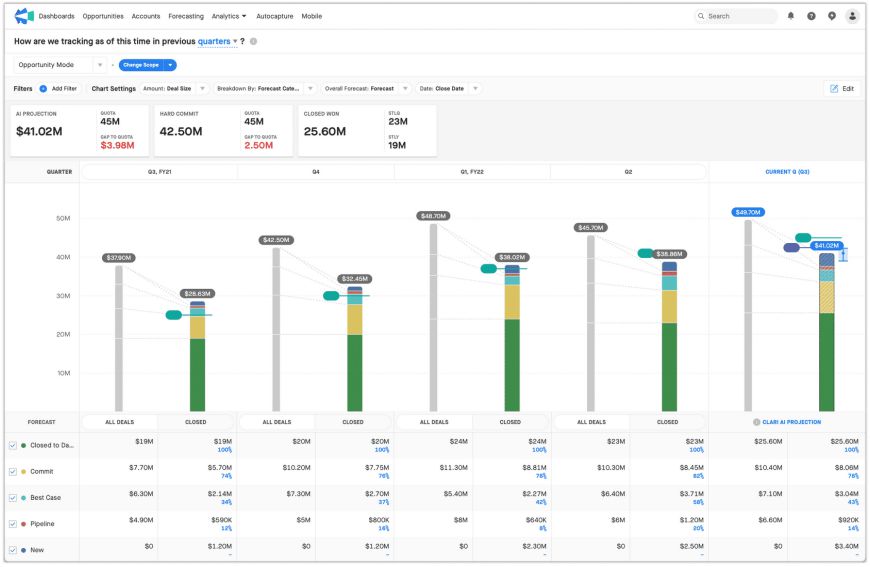
Based on the above example, you don’t have enough inventory to hit your Quota based on your typical conversion rates:
You will need to execute better than you have historically and potentially see if you can increase some deal sizes.
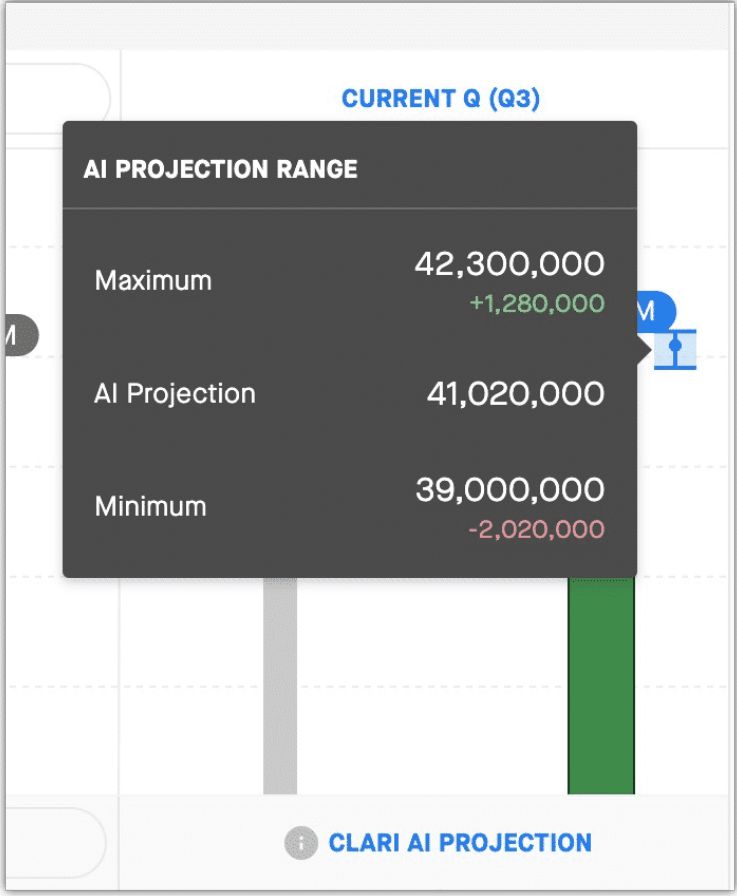
Trend helps you understand your team’s historical performance and what Clari takes into account when calculating your AI Projection.
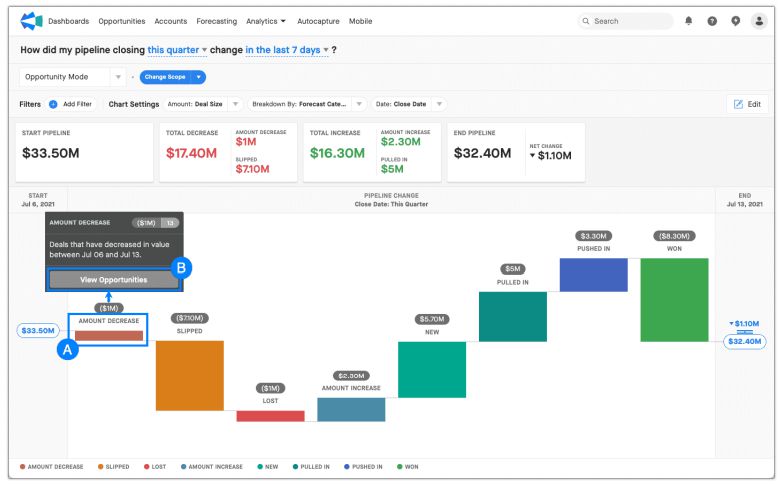
Waterfall breaks down how your pipeline has increased and decreased over time. It gives you the tools and visibility you need to react to changes in your pipeline at a glance. At a high level, Waterfall allows you to answer questions like:
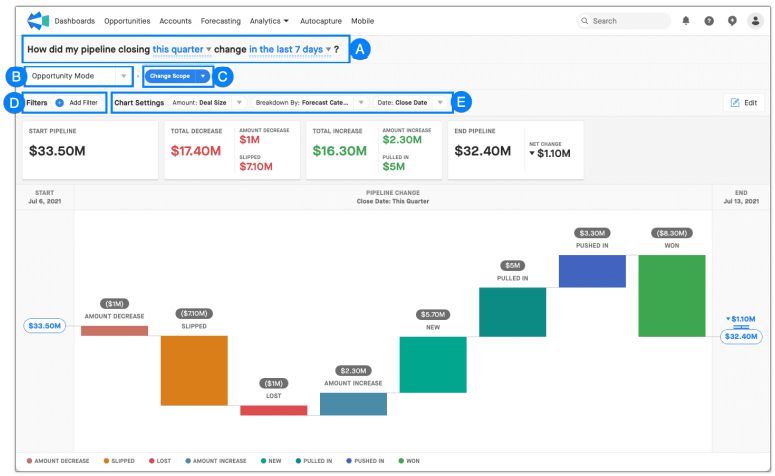
Hover over each bar (A) to get a quick explanation of the deals in each bar. You can even inspect the included deals (B). Look at your “Amount Increase” and “Amount Decrease” bars (C). You can see how the aggregate amount you’re rolling up has changed using these bars.
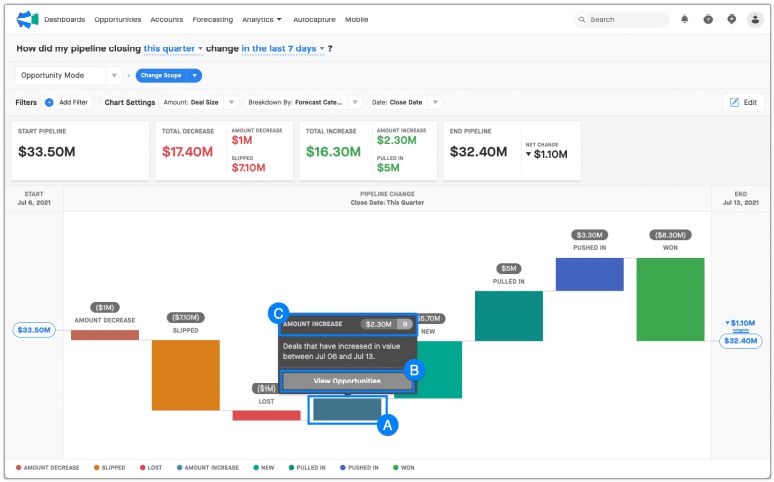
Let’s say you are in a 1:1 and you want to review the list of specific deals contributing to recent pipeline changes. You can click on any of the pipes (A) and View Opportunities (B) to get a list of the deals that contributed to that change in pipeline.
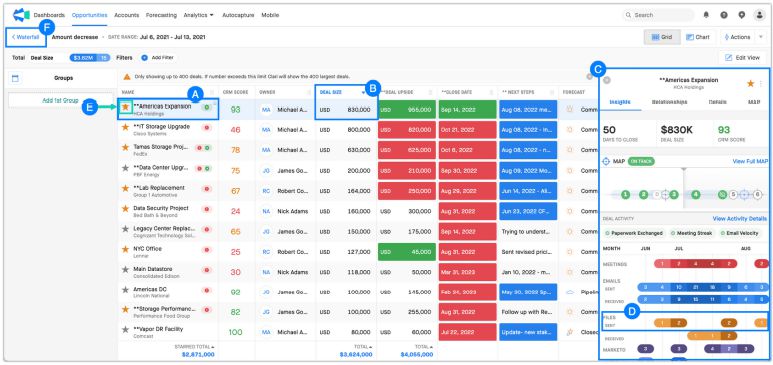
You will notice that your top deal is our Americas Expansion deal (A).