













Content Templates
Seismic Getting Started Template
Customize this training and surface it directly within Seismic to maximize the productivity of your sales reps.
The Seismic URL is your tenant ID or company name followed by seismic.com

If your company uses Single Sign On (SSO), use your usual company credentials
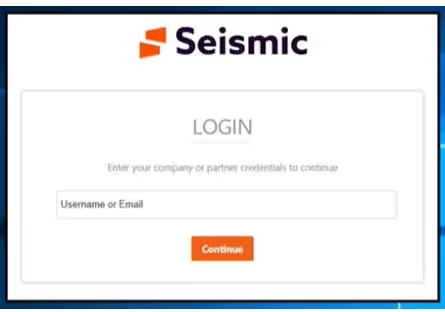
If you don't have Single Sign On (SSO), you will be prompted to log in using your Seismic Username and Password
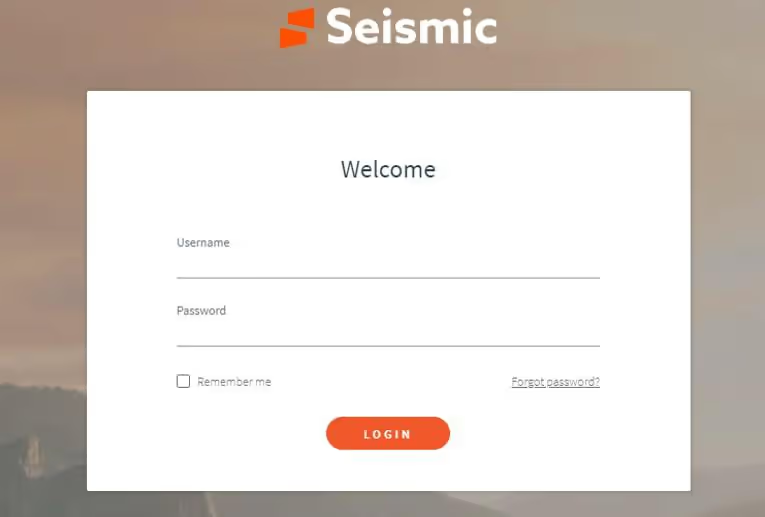
Your Password must have at least:
🔍 To learn more, search for "Update Personal Settings" in the Wiki
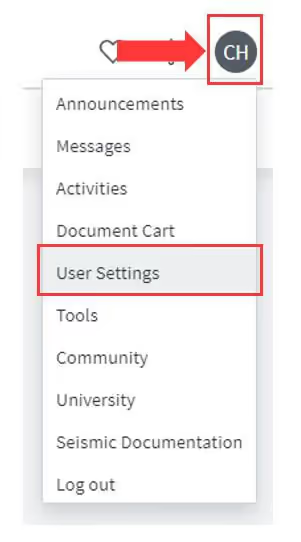
1) Click your User Avatar
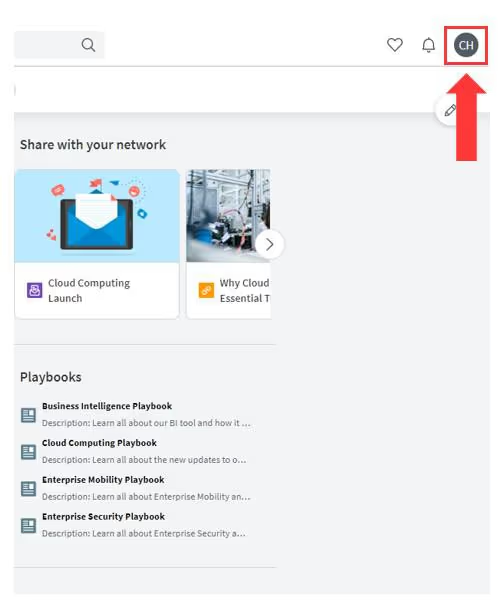
2) Click User Settings
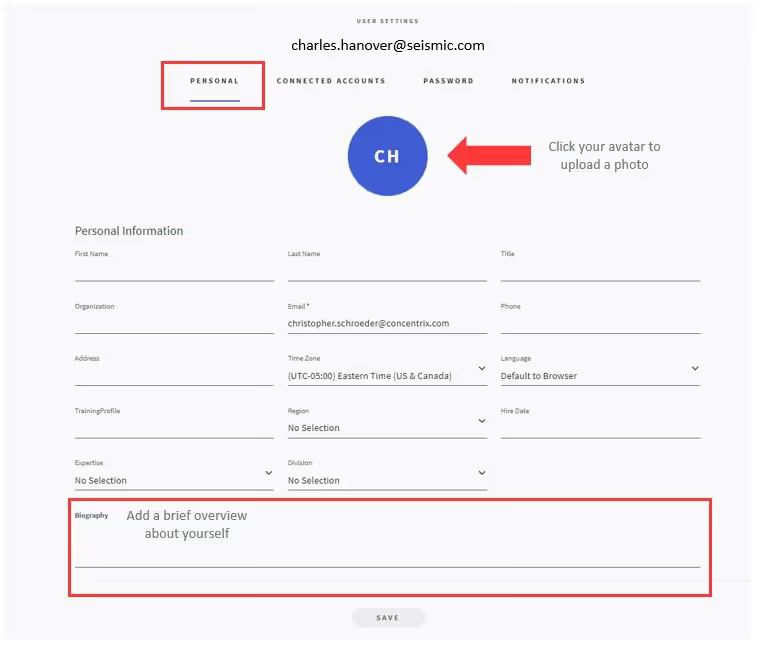
3) Click the Personal Tab to modify or add to your personal information such as:
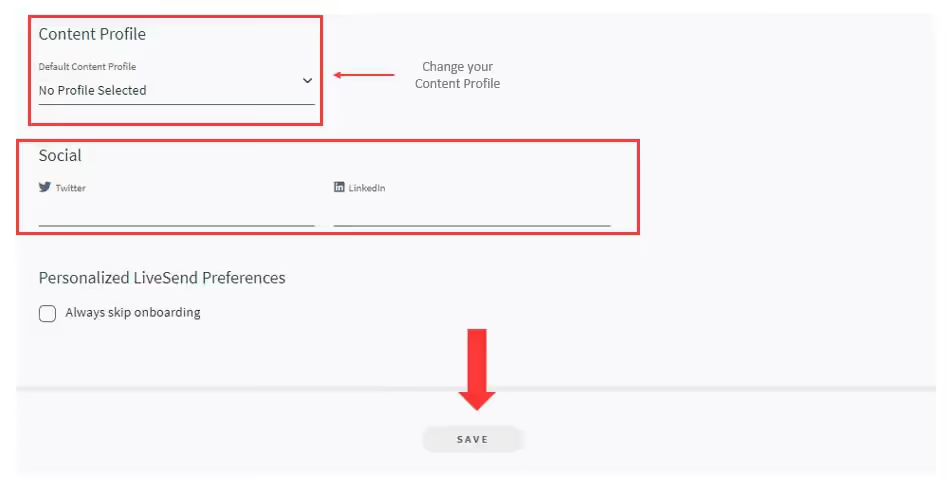
When finished, click Save
1) Starting from the User Settings page, click the Connected Accounts tab to allow content from your CRM
2) Hover over the right side of "Not Connected" and click the "link" icon to connect an account
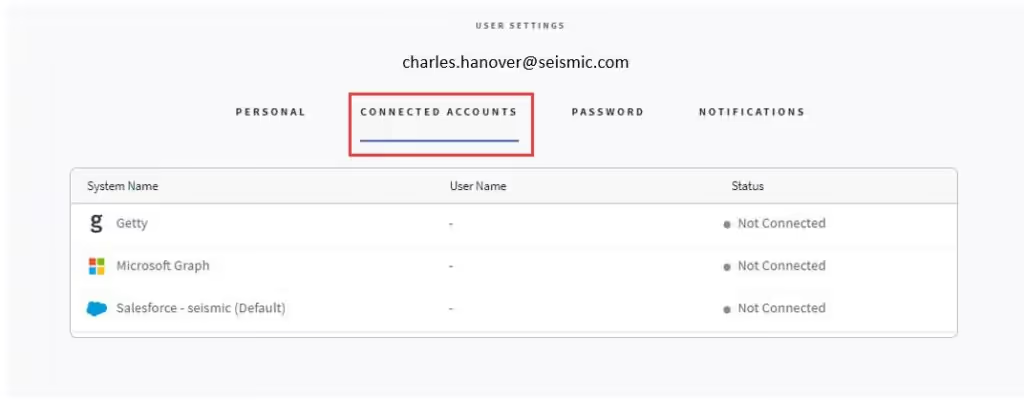
☆ Note: Contact your administrator if you don't have the correct permissions to connect an account
1) Click the Password tab to reset your password
✅ Best Practice: Do not reset your password if your company uses Single Sign On
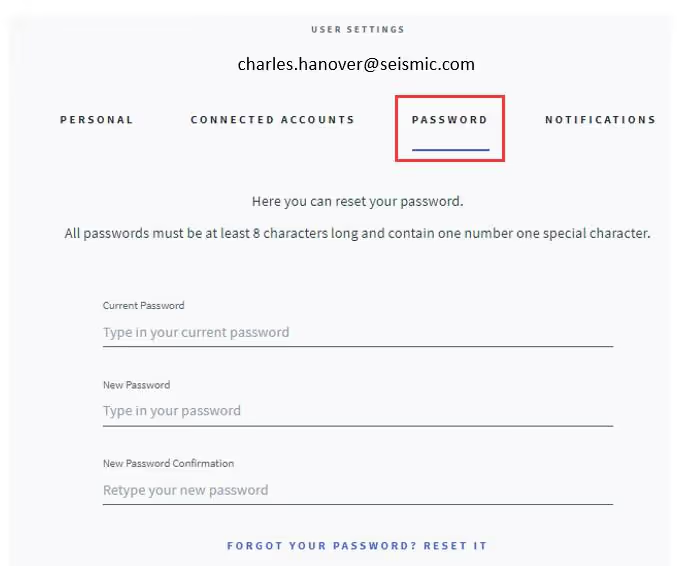
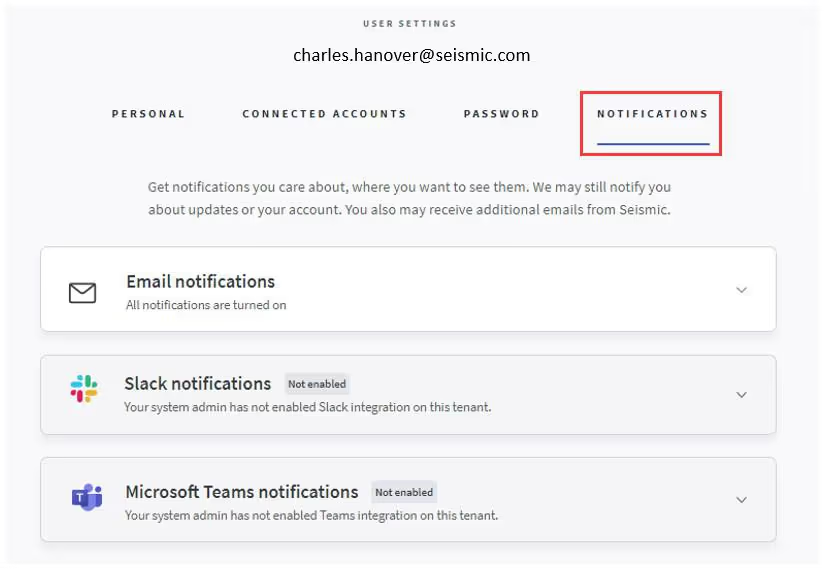
1) Click the Notifications tab to set notifications to come through:
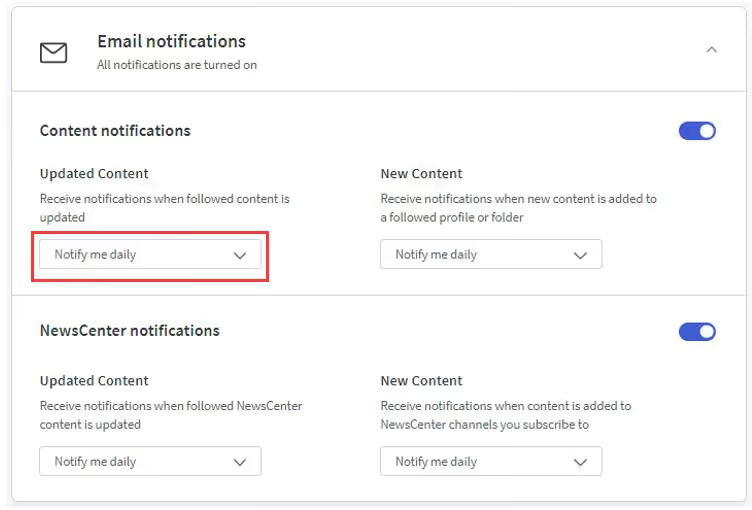
2) Click the arrow to configure how often you receive notifications
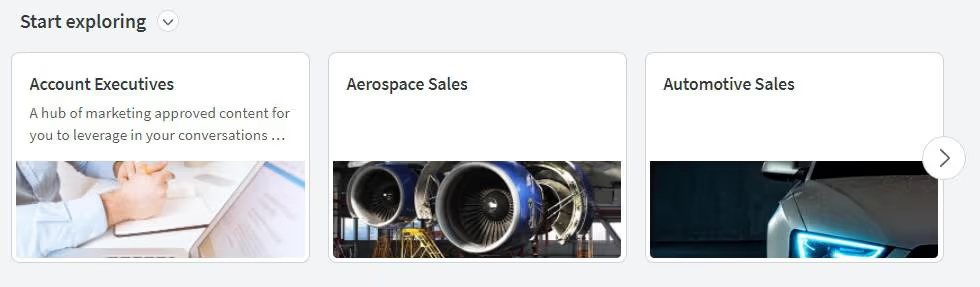
The Home Page utilizes information blades or "sections" to allow you to quickly navigate to your key assets and information which includes:
Discover new and most viewed content and key assets based on your role and interests
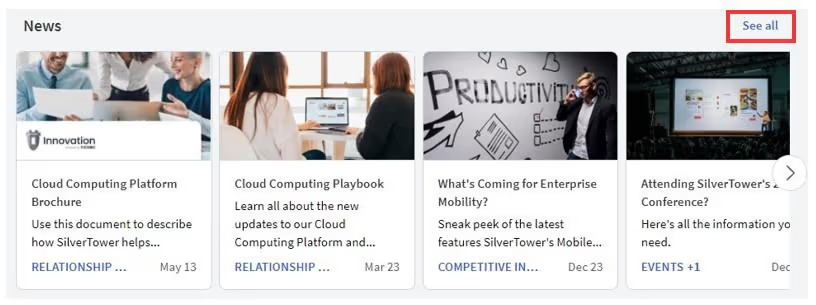
Stay on top of new information that you've chosen to follow such as competitive intel, key industry updates, and product release info
Click "See All" to see all of the content available in NewsCenter
See recent activity and recommendations on next steps for your customers based on Seismic's Predictive Content engine
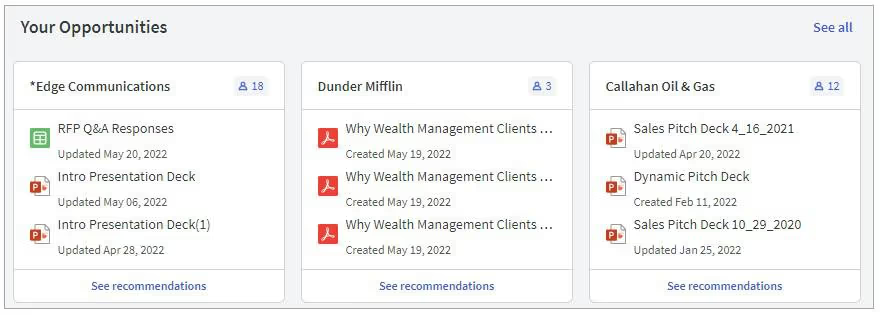
☆ Note: Only possible if Seismic is integrated with CRM
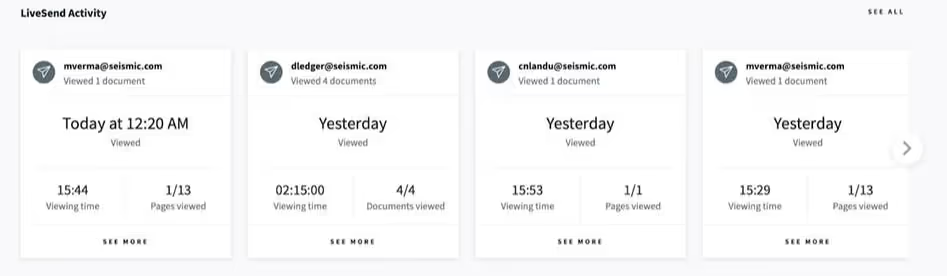
Understand how your customers engage with the content you've shared via LiveSend to tailor future buyer engagements
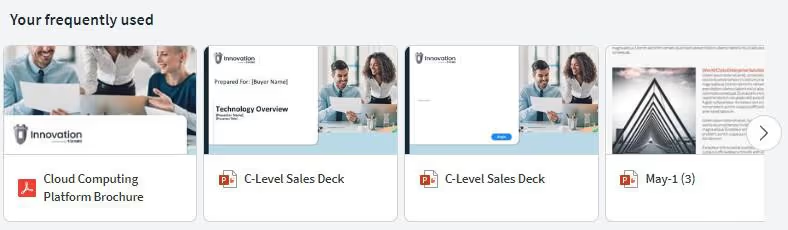
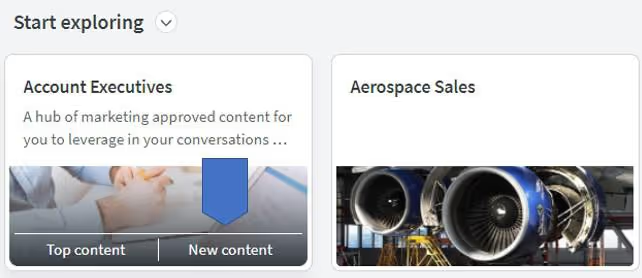
Quickly access the content that you use the most
Top Content: See what Seismic content has high LiveSend Engagement and popular internal usage
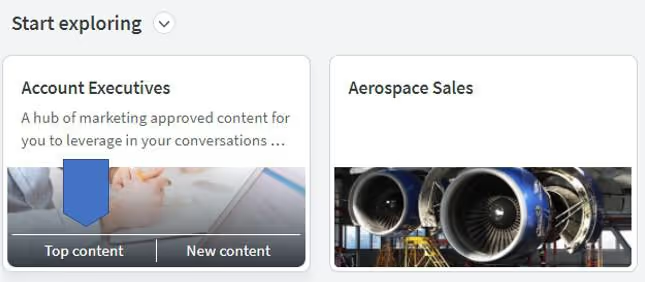
🔍 To learn more about Seismic's content engagement metrics, search for "LiveSend" in the Wiki
New Content: See recently published content
Quickly find the content and assets you need by choosing to:
1) Browse content using the filters underneath the Search Bar

2) Drill down into folders in DocCenter or WorkSpace
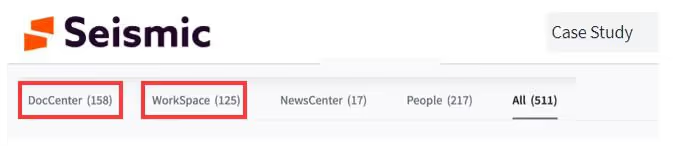
3) Find Promoted content that has been boosted (ex. new product release info)

4) Search for people as assets based on their knowledge on a topic, functional expertise, or geographical area
🔍 To learn more, search for "Search Results" in the Wiki
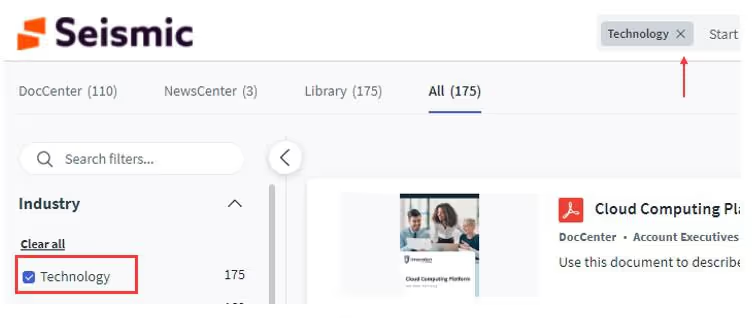
From the search results page, narrow down your search results by clicking on filters
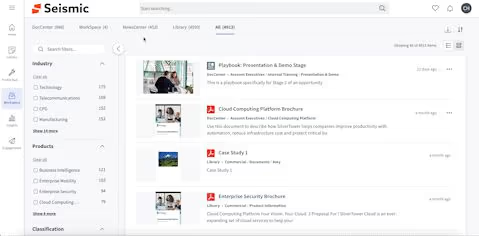
To remove filters, click the "X" in the box remove it
Sort results by most relevant, latest update, or publish dates by clicking the "arrows icon" in the top right corner of the Search Results page

NewsCenter organizes stories or content into channels to provide the newest, most relevant information you've chosen to follow such as:
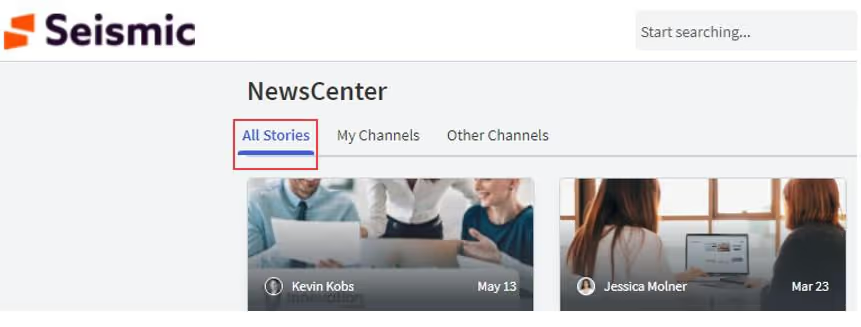
Click the "All Stories" tab to see all of the most recently published content available in NewsCenter
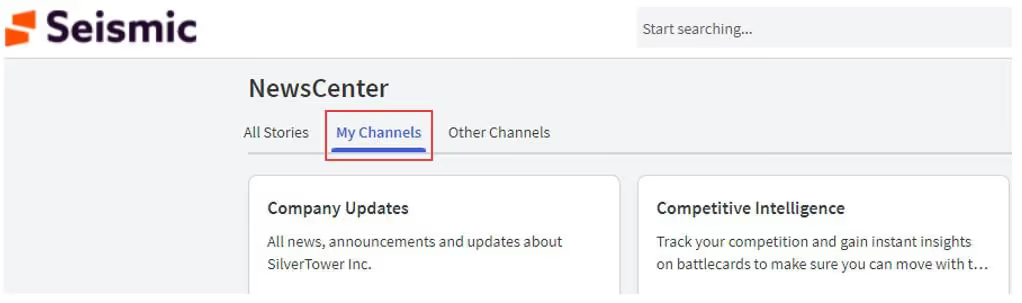
Click the "My Channels" tab to find the content you've subscribed to
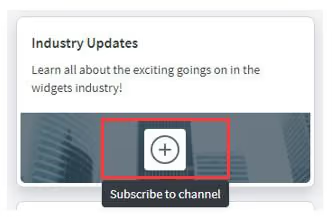
Click the "Other Channels" tab to subscribe to other channels

To subscribe, hover over the image for channel that you want to subscribe and Click "Add"

To learn more, visit https://catalyst.concentrix.com/digital selling